Overview
Templates are a powerful way of standardizing Production and Material Orders.
Templates can be created and used to:
- Standardize your default orders
- Establish standards for your most commonly manufactured prefabs
- Establish standards for your most commonly ordered material
Templates can be leveraged anywhere an order initiated:
- Moving items from Prefab into a Production Order (Planning ➡ Coordination)
- Creating Orders in Coordination
- Creating Orders in Detailing
- Creating Orders in Manufacturing
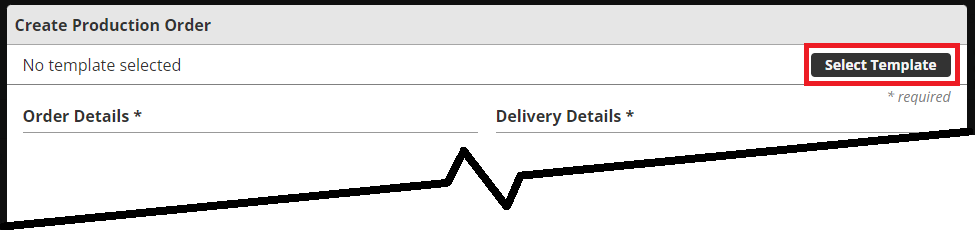
There are many elements of an order that can be standardized as part of a template, and as many templates as is desired can be created for both Production and Material Orders, including:
- Default Runs
- Standard dates (offsets)
- Standard Checklist items
- Establish Owners
- Establish Locations
- etc.
Creating Templates
Templates can be created by Administrators by selecting:
- App & Project Setup
- Manufacton Settings
- Templates
- The type of Template to be created (Production Orders, Material Orders or Forms)
- See the Forms and Form Builder Knowledge Article for information on Forms
- The plus (+) in the upper right to create any of three template types, all of which function the same but have slightly different fields available to them depending on the type selected:
- "Basic Production Order Template"
- "Kit Template"
- "Assembly Template"
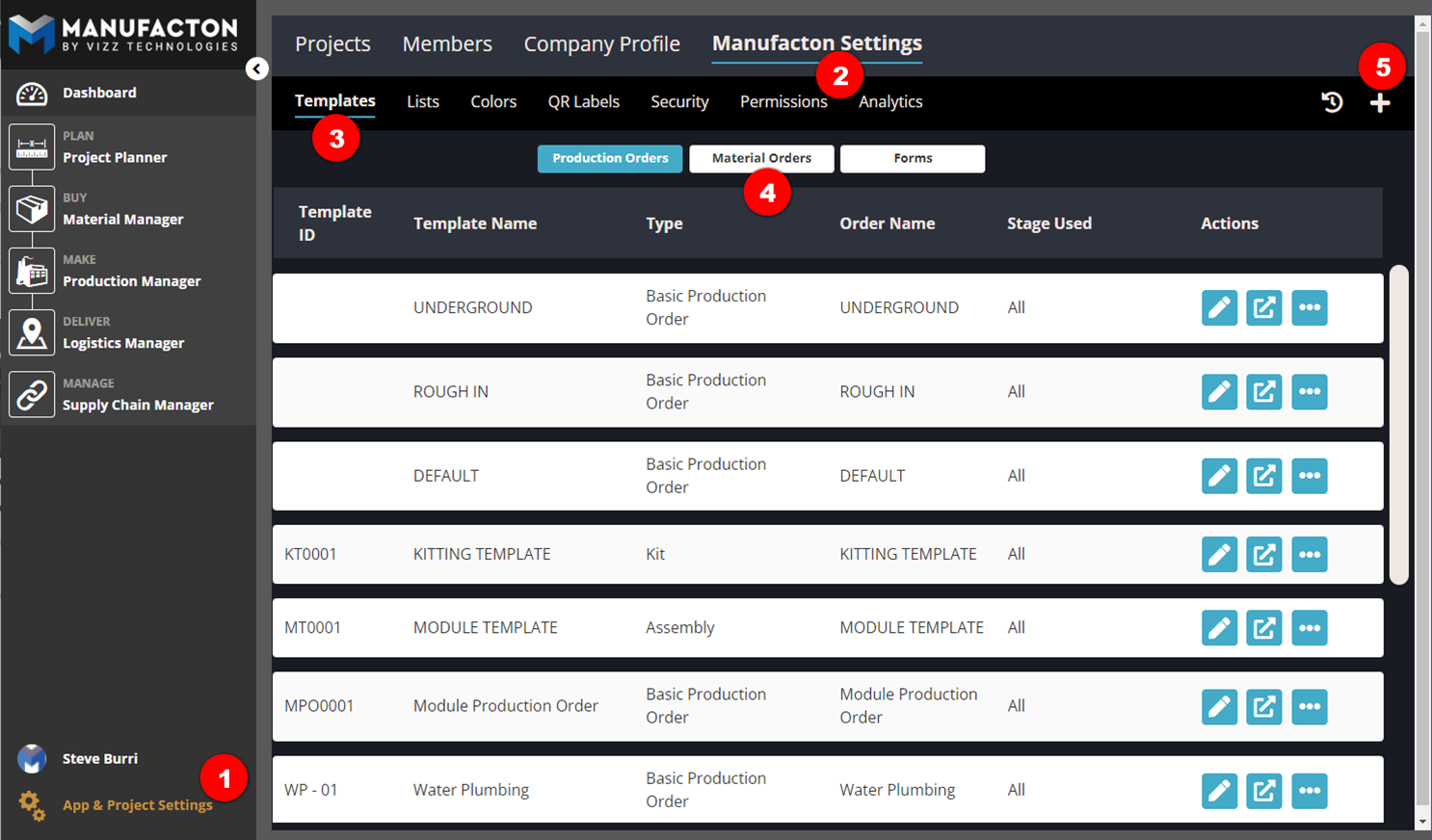
Everything available to the Administrator in this view can be set as a template default for the template being created.
Leaving items blank will leave them blank when the Order is created, so it is best practice to only set those items which should be controlled as part of the template.
Template Attributes
Each template will require:
- Name
- ID
- Where in the process it can be applied to an order
- All Stages
- In Coordination
- In Detailing
- In Manufacturing

Dates
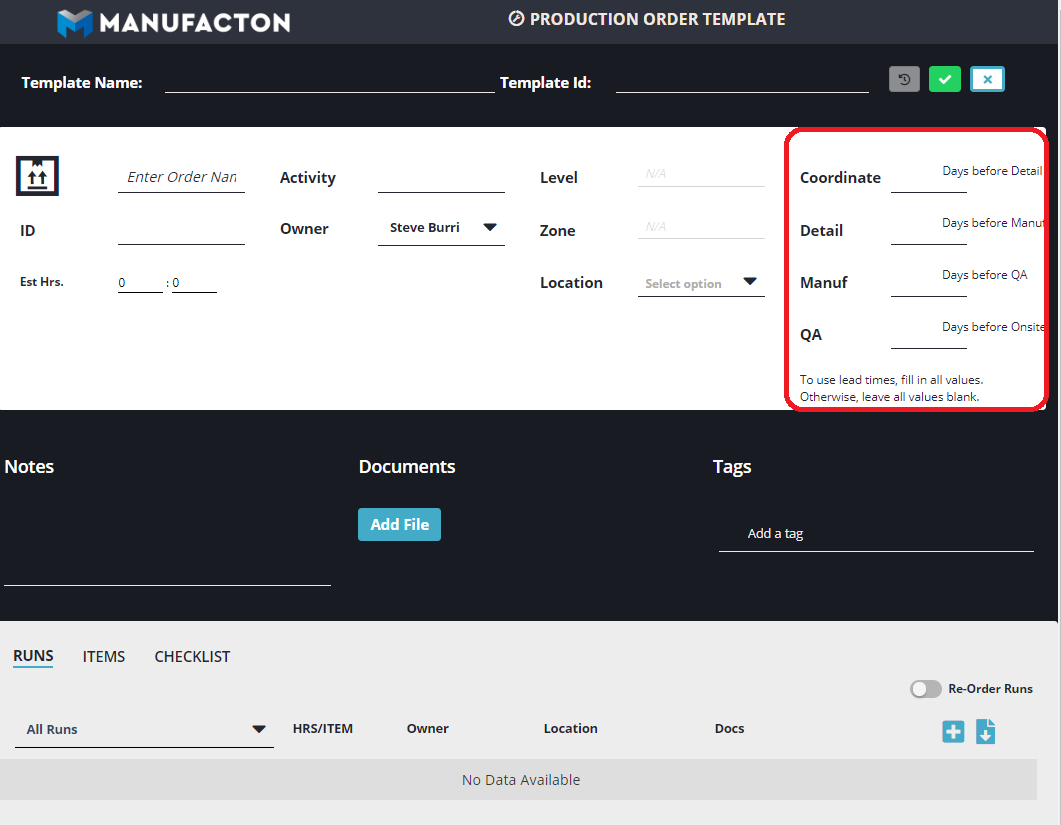
Unique to templates is the fact that "dates" are actually date offsets. As the order is created from a template, the Onsite date will be required. All other dates will be calculated from the Onsite and set as the designated "days" before the previous stage.
Production Orders
If QA is not a stage your firm leverages, it is okay to enter zero (0) as the QA value.
Material Orders
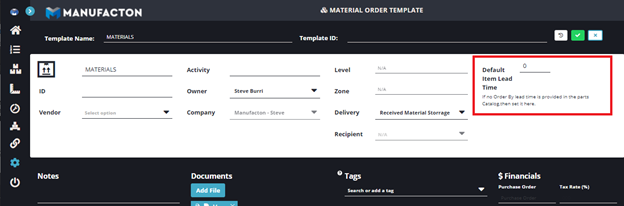
For Material Orders, the Order By dare will be set by the earliest lead time of items added from the parts catalog. If there are no lead times set for any of the parts, the template can set a standard lead time by which the parts in the material order need to be ordered.
Locations
Company Locations can be pre-defined for templates.
It is recommended that Classic Company Locations be used in templates as Nested Company Locations are not yet fully supported as locations for Production Orders.
Documents
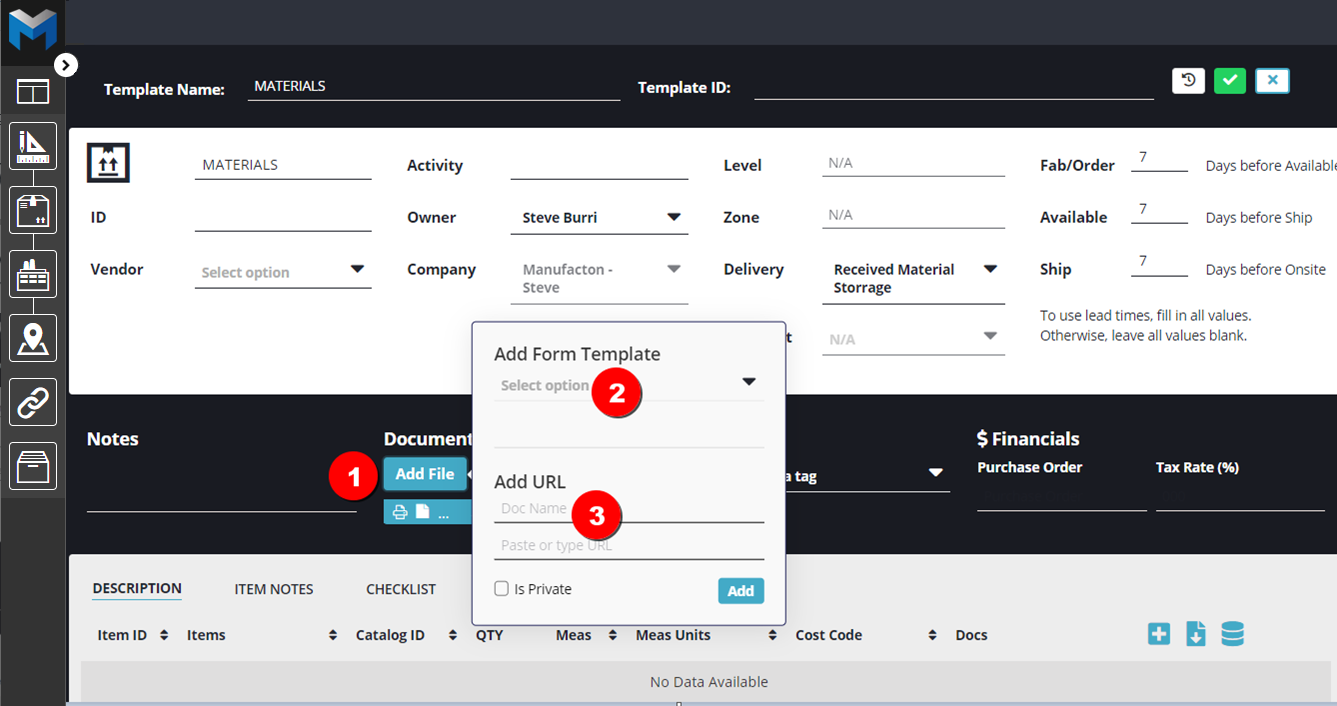
Links to standard documents can be attached to templates (documents cannot be uploaded into Order Templates). Those documents will appear in every order in which the template is used:
- Add File
- In the Order
- Attached to a default Item
- Attached to a run
- Attached to a checklist
- Apply a form to the template
and/or - Create a link to a cloud-stored document
Runs (Work Steps)
One of the most common use-cases for templates is to be able to establish standard run (Work Step) information for specific and common types of production orders.
Standards like:
- Run names
- Planned Hrs/Run/Item
Notes:
o When the template is applied to an order, Manufacton will multiply the
  quantity of items in the order by the "Planned Hrs/Run/Item" value to provied
  a "Planned Hours (Entire Run)"
o Runs in the template become Work Steps when applied to Production Orders
- Owner (for owners, note that it is possible to establish a single owner or set the owner to "(Order Creator)"
- Locations
- Even standard production documents can be linked from a document storage location (they cannot be uploaded) to a template.
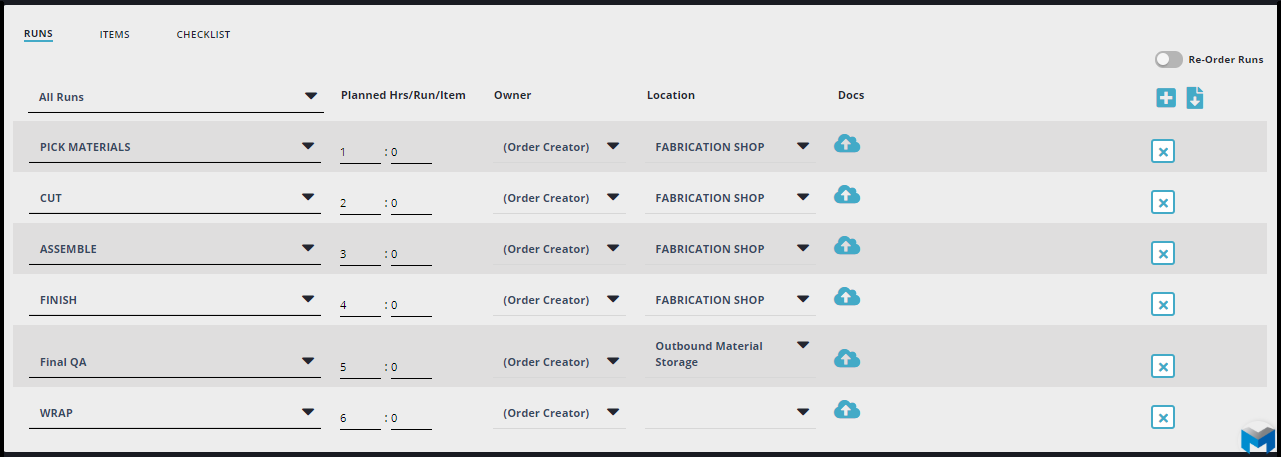
Note:  If Default Manuacturing Runs have been defined for your account, only
       those runs can be added to the template

       See Setting Up Productivity Tracking for more details on this.
Items
If multiple items are a product of the order, those items can be added to the template to ensure they are accounted for and properly named and otherwise labeled when the order is processed.
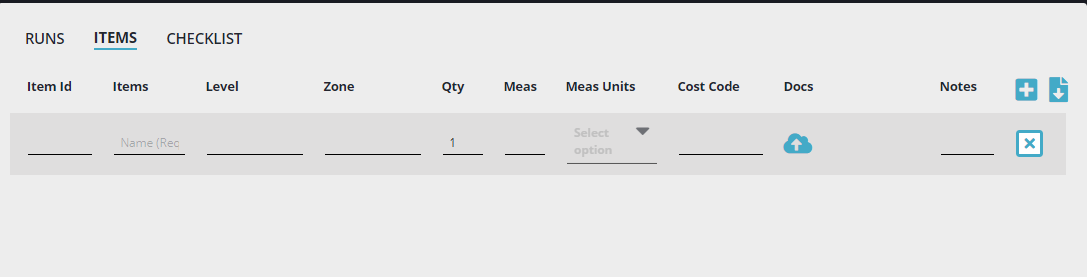
NOTE: "Default" templates cannot contain an items. (See "Establishing a Default"
below)
Checklists (Tasks)
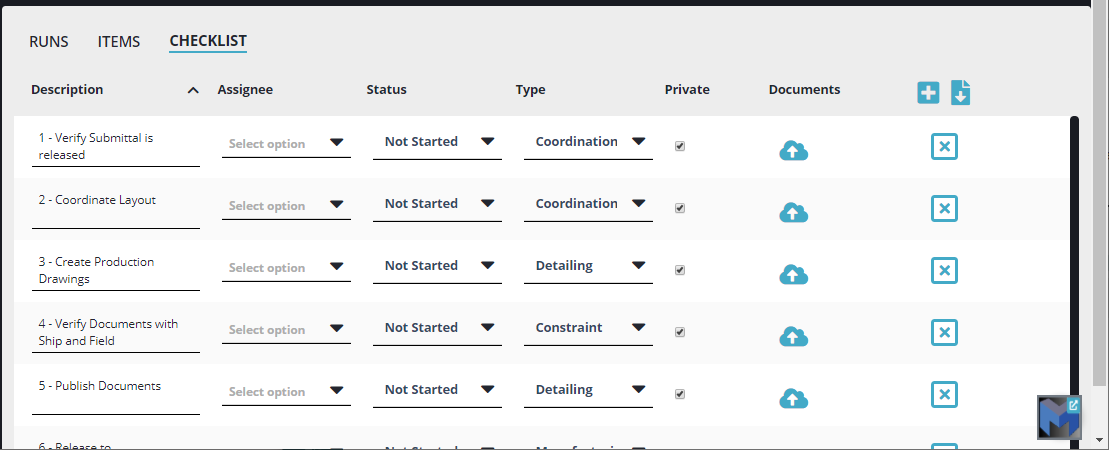
Another common use-case of templates is the establishment of standard checklists for general and specific orders. Checklist items in the template will become Tasks in Production and Material Orders.
Establishing a Default
Once a template is created, if it should be used in a majority of the cases, it can be established as the "Default". Only one default for each type of template can be created (1 Production Template, 1 Material Template).
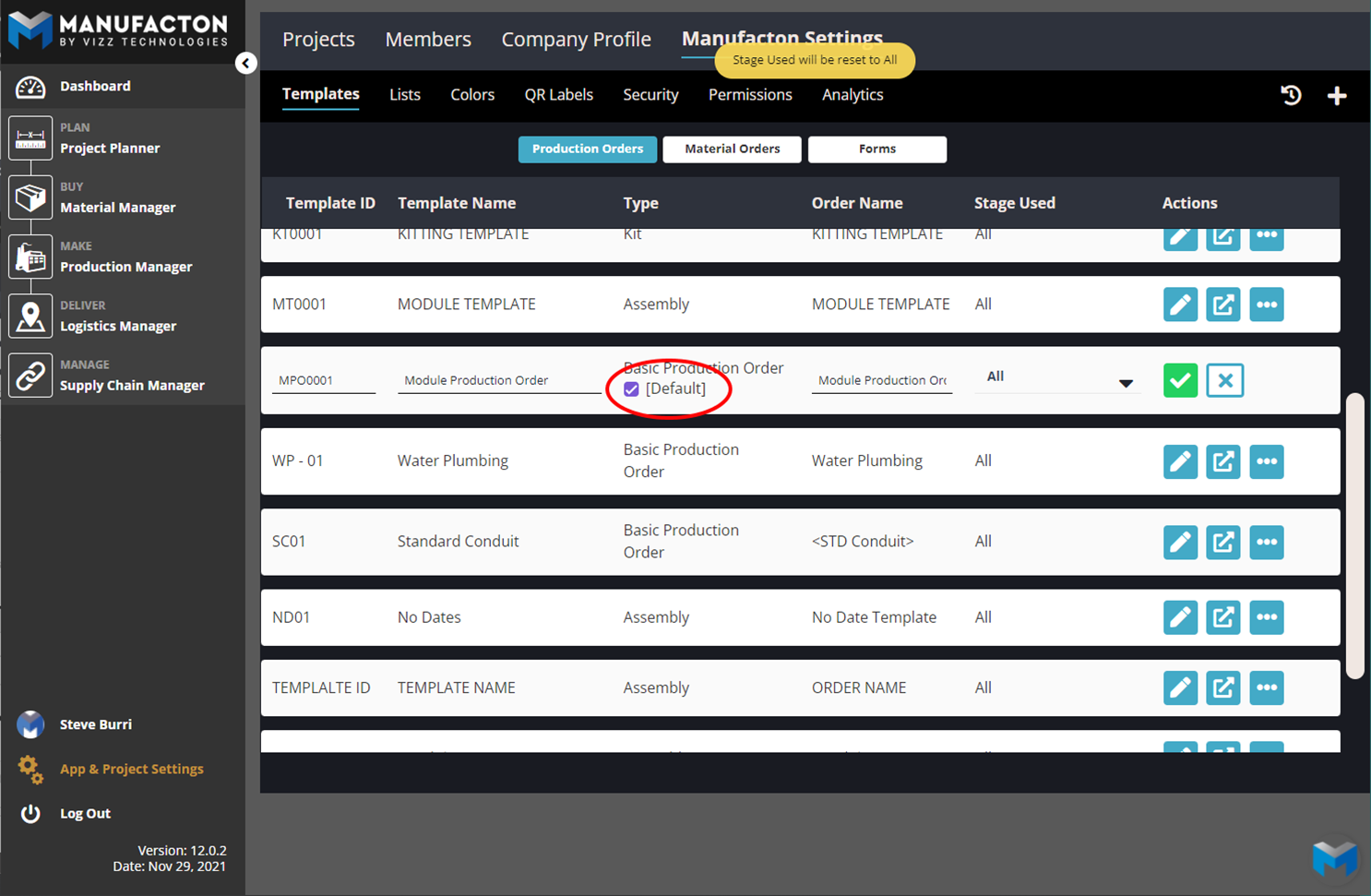
NOTE: "Default" templates cannot contain an items (See "Items" above)
Using Templates
Once a template has been created, it can be used in all active projects by selecting the "FROM TEMPLATE..." option when creating any Production or Material order.
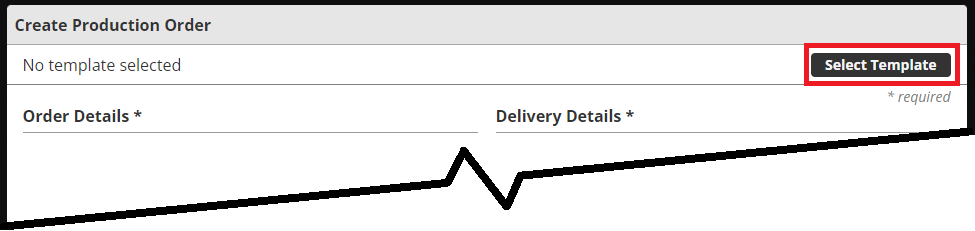
Note:  Depending on what type of order a template was built and in which stage
it was designed to be applied, different templates may be available for
different order types and stages.
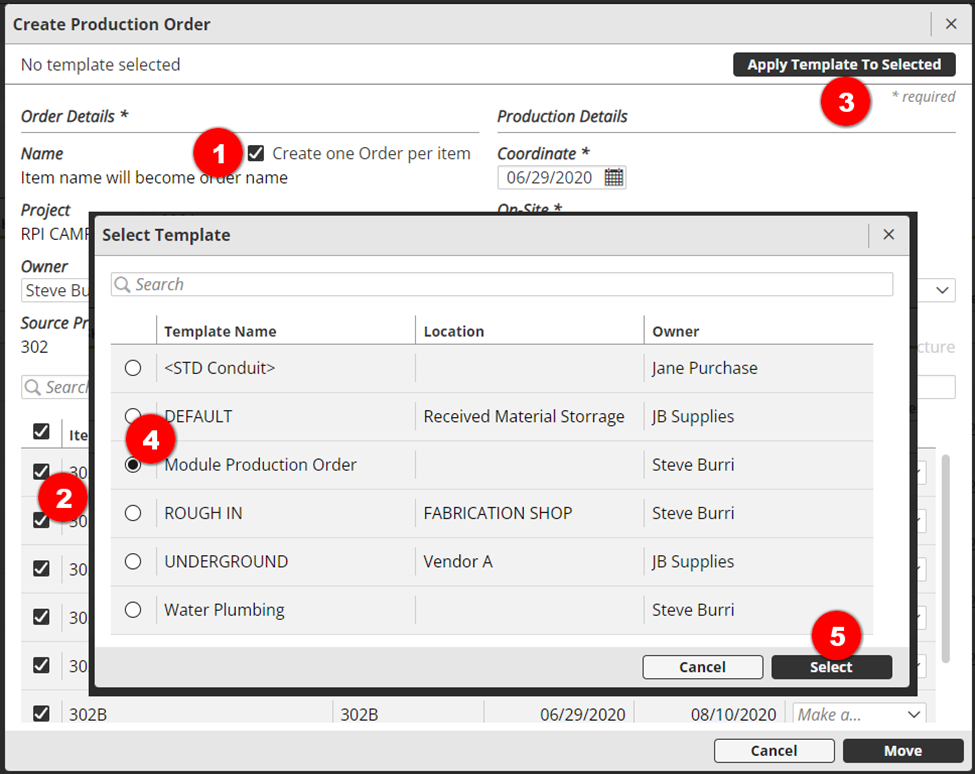
For Kits and Prefab Packages in the Planning stage, it is possible to “Apply Template to Selected…” Orders/Assemblies at one time. If multiple Orders/Assemblies are to be created at one time by selecting the “Create on order per Item” when moving Orders from Planning to Coordination, the “FROM TEMPLATE” option in the upper right will change to “APPLY TEMPLATE TO SELECTED”. When moving a Planning card or Kit card forward to the Coordination stage:
- Select the Create one order per item option
- Select the Items to which a template should be applied
- Select APPLY TEMPLATE TO SELECTED…
- Choose the template to be applied to the orders as they are moved forward
- Select OK
For a comprehensive overview on Administering Manufacton, including Order Templates, please watch this video:
Comments
0 comments
Please sign in to leave a comment.