Overview
Before you can start tracking how many man-hours different shop runs are taking to complete, users must first set-up productivity tracking at a company and project level. Use the following steps to get a better handle on estimating and tracking productivity for your shop.
Setup
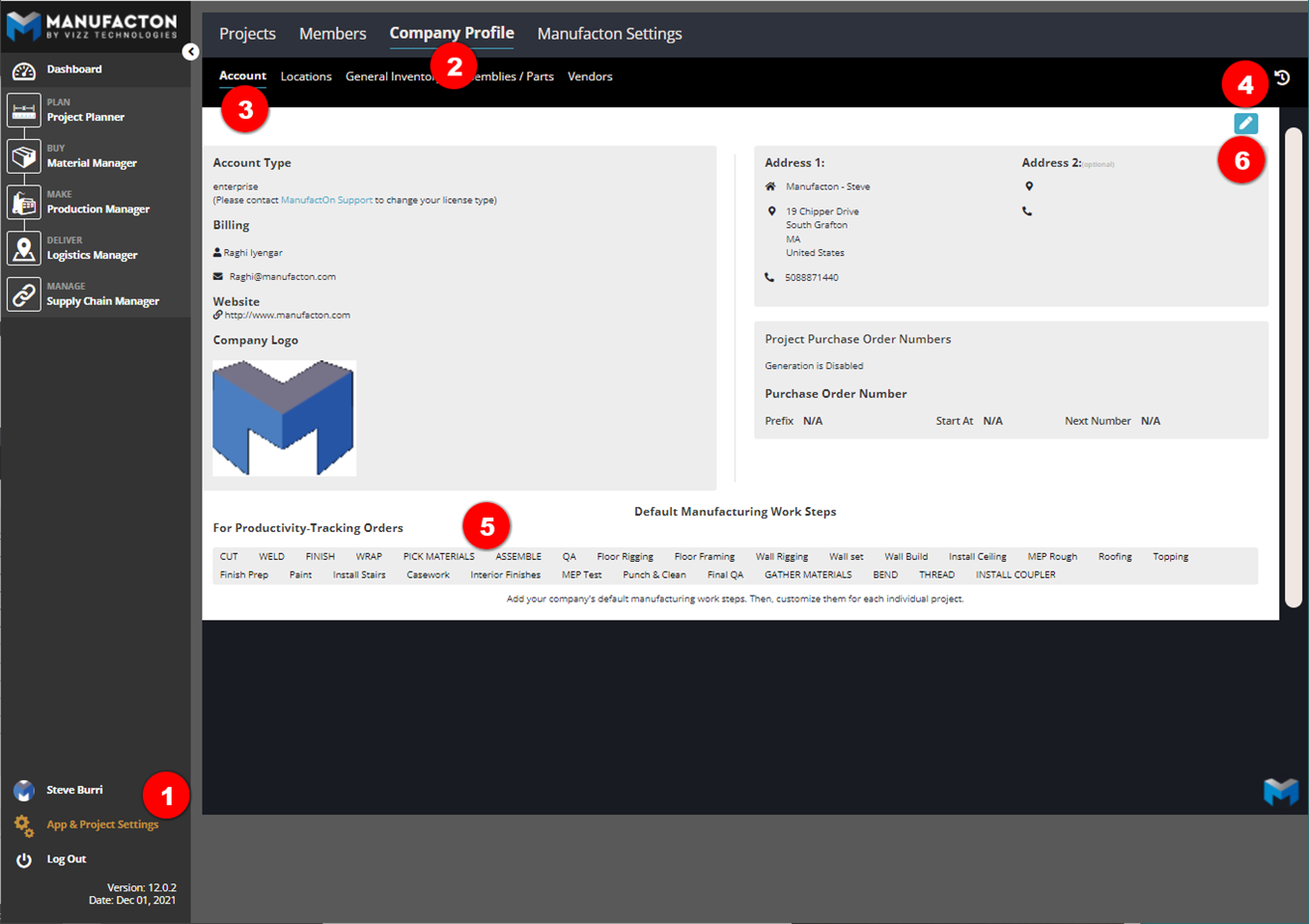
- Select "App & Project Setup"
- Select the "Company Profile" tab
- Then make sure the "Company Info" tab is selected
- Select the pencil icon on the right-hand side
- Near the bottom under "For Productivity-Tracking Orders", start typing the names of each run or shop step you wish to include. Simply tap <Enter> or <Tab> to complete the Run name.
- Once you have included all the runs you wish to at a company level, scroll back up and click the green checkmark at the top right of the screen to save
Usage
Once a Production Order has been moved into Detailing, these runs can be applied, planned hours can be entered (manually, via a template or via import) and the Actual hours can be captured during the Manufacturing stage - See the Capturing + Tracking Productivity in the Shop KB Article for more information.
That's all there is to it! This is the start to understanding productivity in the shop.
Comments
0 comments
Please sign in to leave a comment.