Overview
Manufacton provides a very robust shipping platform that allows for the creation, tracking, management and receipt of shipment for a wide variety of use-cases.
Fundamentally, the Shipping Orders module tells you the who, what, where and when of all shipments for all projects in Manufacton.
A "shipment" is the mechanism in Manufacton that moves items from one location to another, whether it is one item or 500 across the shop or across the country.
Shipping Orders provide the following basic information:
- The Name of the shipment
- What Project the shipment belongs to
- The source Location of the shipment
- The Destination Location of the shipment
- The expected outbound Shipping date
- The expected Delivery date
- The Item(s) included in the shipment
- The intended Recipient
- The Owner of the shipment
- Specific Notes regarding the shipment
- The current Status of the shipment
Creating Orders
Shipping Orders can be created from multiple locations within Manufacton:
- In Production Manager for completed orders in Manufacturing and Quality Assurance by selecting Bulk Action => Create Shipping Order or Create Aggregate Shipping Order.
Note:  It is possible to combine multiple complete production orders and kits
       from a single project into one Shipping order at one time by selecting
       Create Aggregate Shipping Order, selecting a source Project and Location
       and selecting several completed orders from that project and location.
- Provide the Name of the shipment
- Set the Destination Project (either the same as the Source Project or “Common Stock” to move the items into General Inventory
- Set the Owner for the shipment
- Set the Ship and Deliver Dates
- Set the Destination Location
- Set the Recipient (who may be different from the Owner
- If the option to Create Aggregate Shipping Order was selected it is possible to split each item from the selected orders into their own Delivery to make it easier to receive them individually.
- Notify additional team members (optional)
- Select Create to create the shipping order
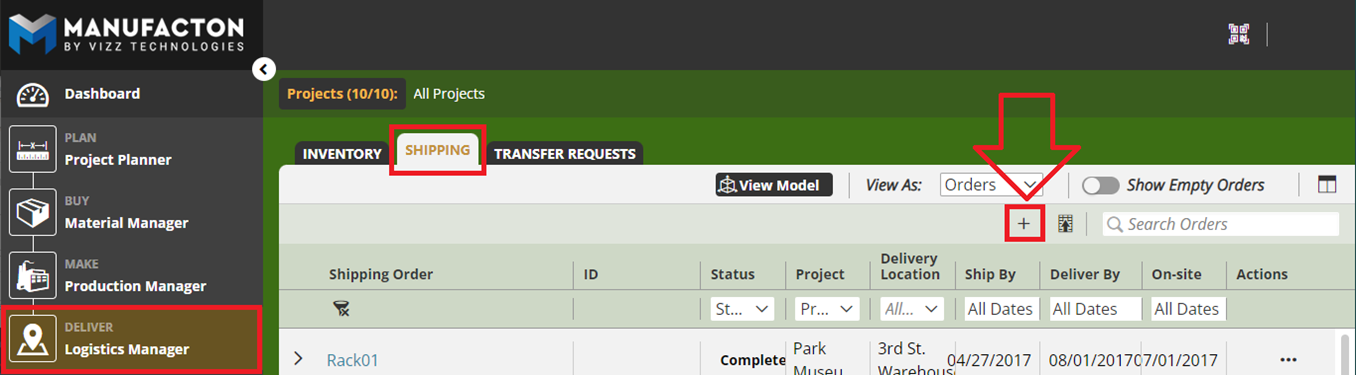
- In Logistics Manager on the Shipping Tab by selecting the "Add new" (+) icon
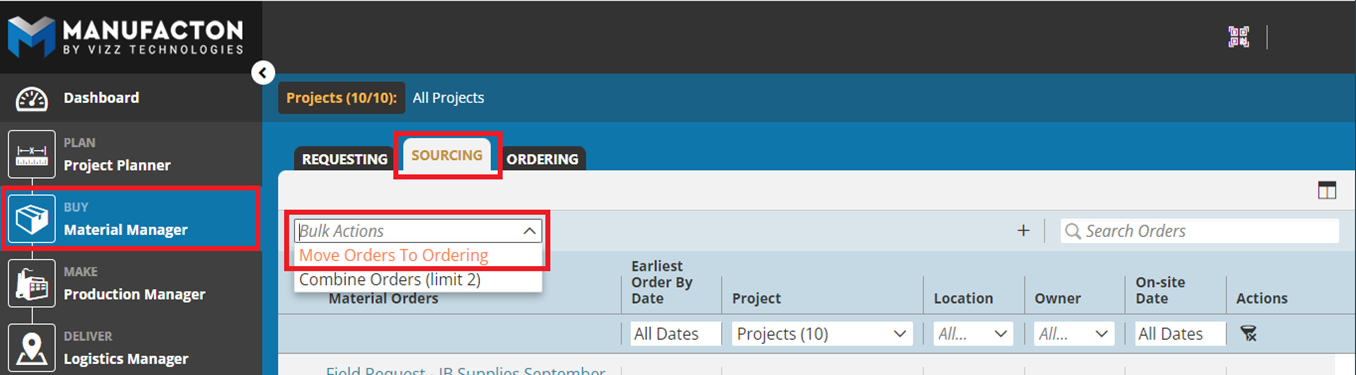
- In Material Manager on the Sourcing tab by selecting "Move Order To Ordering" from the Bulk Action tool. The act of creating a Sourcing Order also creates an associated Shipping Order.
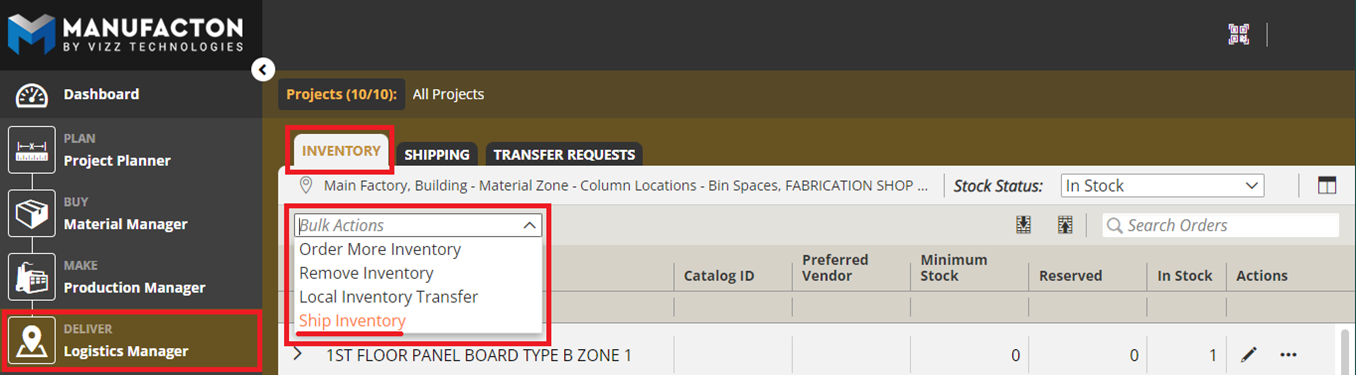
- In Logistics Manager on the Inventory sub-tab by selecting "Ship Inventory" from Bulk Action tool.
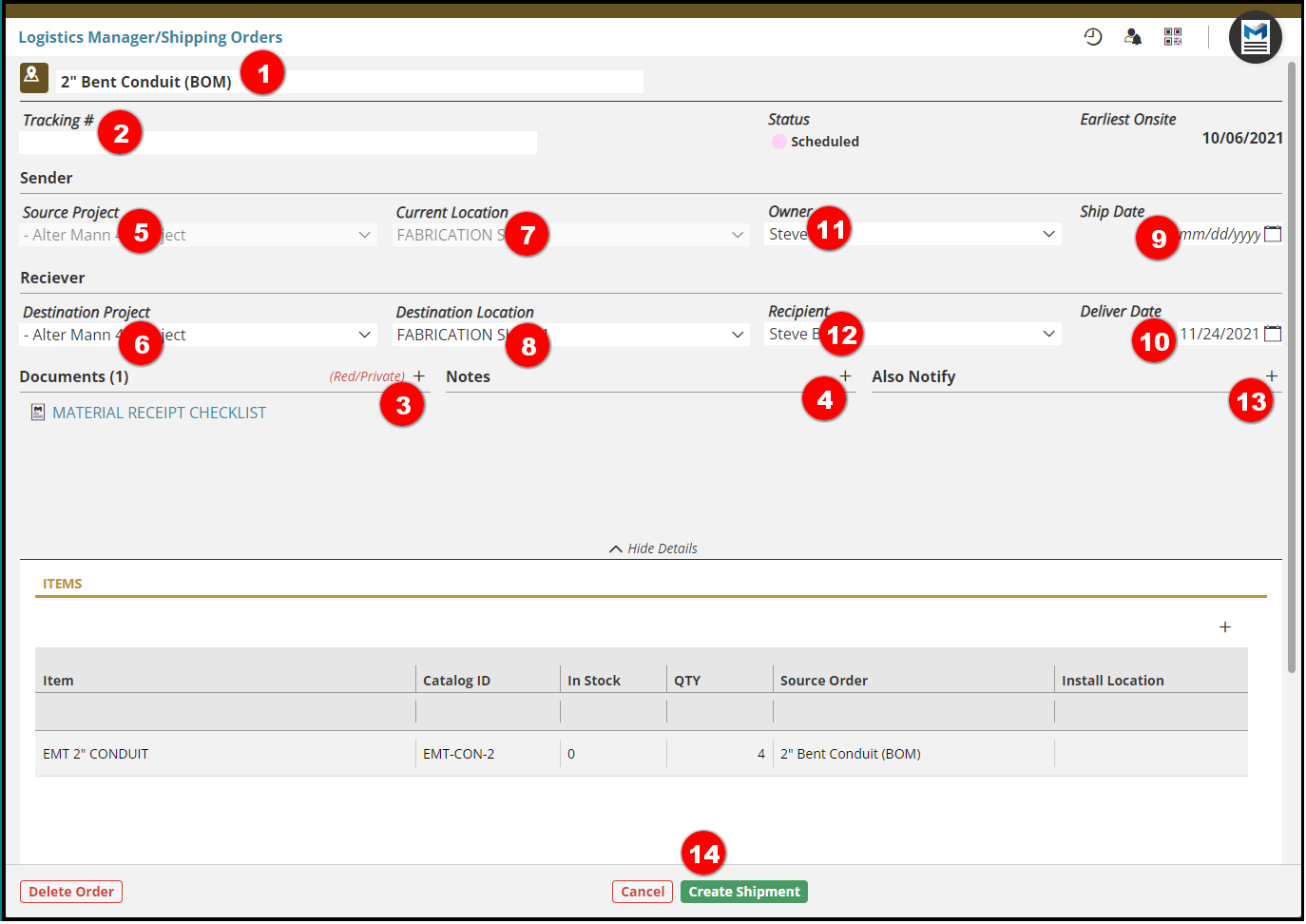
Once a Shipping Order is initiated, the items or orders can be selected and the Shipping form can be filled-out.
- Fill or update out all pertinent information, including
- The Name of the Shipping Order
- A Tracking # (optional)
- Any desired Documents
- Any desired notes
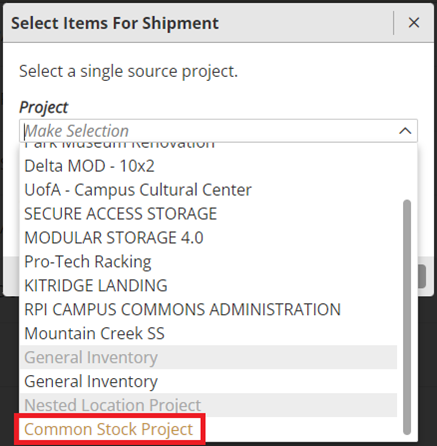
- The Source Project (the project from which the item is coming)
- This will default to the project in which the item(s) currently resides
- If you are moving inventory from a Nested Company Location the Source Project would be set to the "Common Stock Project"
- The Destination Project
- This will default to the project in which the item(s) currently resides
- The Current Location of the items to be shipped.
- If the items to be shipped are in a Nested Company Location, only the Top-Level Location can be selected. Items must be moved via a Transfer Request to the Top-Level Location before they can be shipped.
- The Destination Location of the Items
- If the Items are to be shipped to a Nested Company Location only the Top-Level Location can be selected. Items must be moved via a Transfer Request from the Top-Level Location to another Nested Company Location.
- The option to create a transfer request will be initiated when shipments are received into the Top-Level Location - see the KB Article on Receiving Shipping Orders for more information on this topic.
- Planned Ship Date
- Planned Delivery date
- Shipment "Owner"
- Recipient
- Others to Also Notify that this Shipping Order has been made
- Select Create Shipment.
- After the shipment is made, it is possible to Send Shipping List (i.e. "Shipping Manifest")
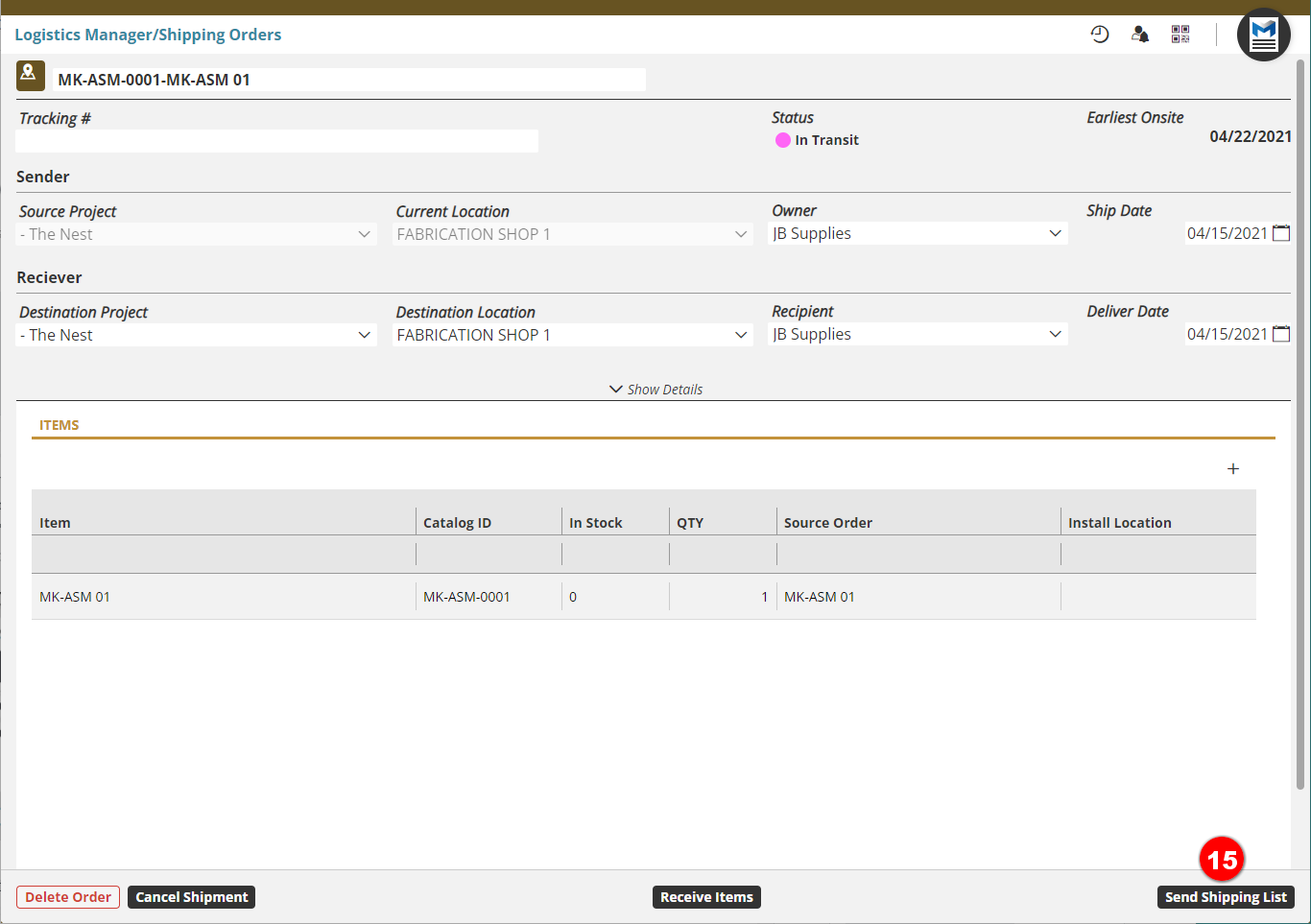
  Note:  As new shipping orders are created, a "Shipping List", with a
         Bill of Lading and QR code for the shipment will be attached.
         If a form template is selected to be included.  Those forms will
         appear under "Documents" (see step 3 in the image above).

         Please reference the KB Article on Forms & Form Builder
Comments
0 comments
Please sign in to leave a comment.