Overview
Material Categories are the "glue" between Vendors and Catalog Parts and enable Manufacton to provide guidance to your procurement team as to which Materials should be ordered from which Vendors.
To fully utilize categories, vendors and catalog parts, they should be considered, implement and added to your system in the following order:
First - Material Categories
Second - Vendors
Third - Catalog Parts
Creating Material Categories
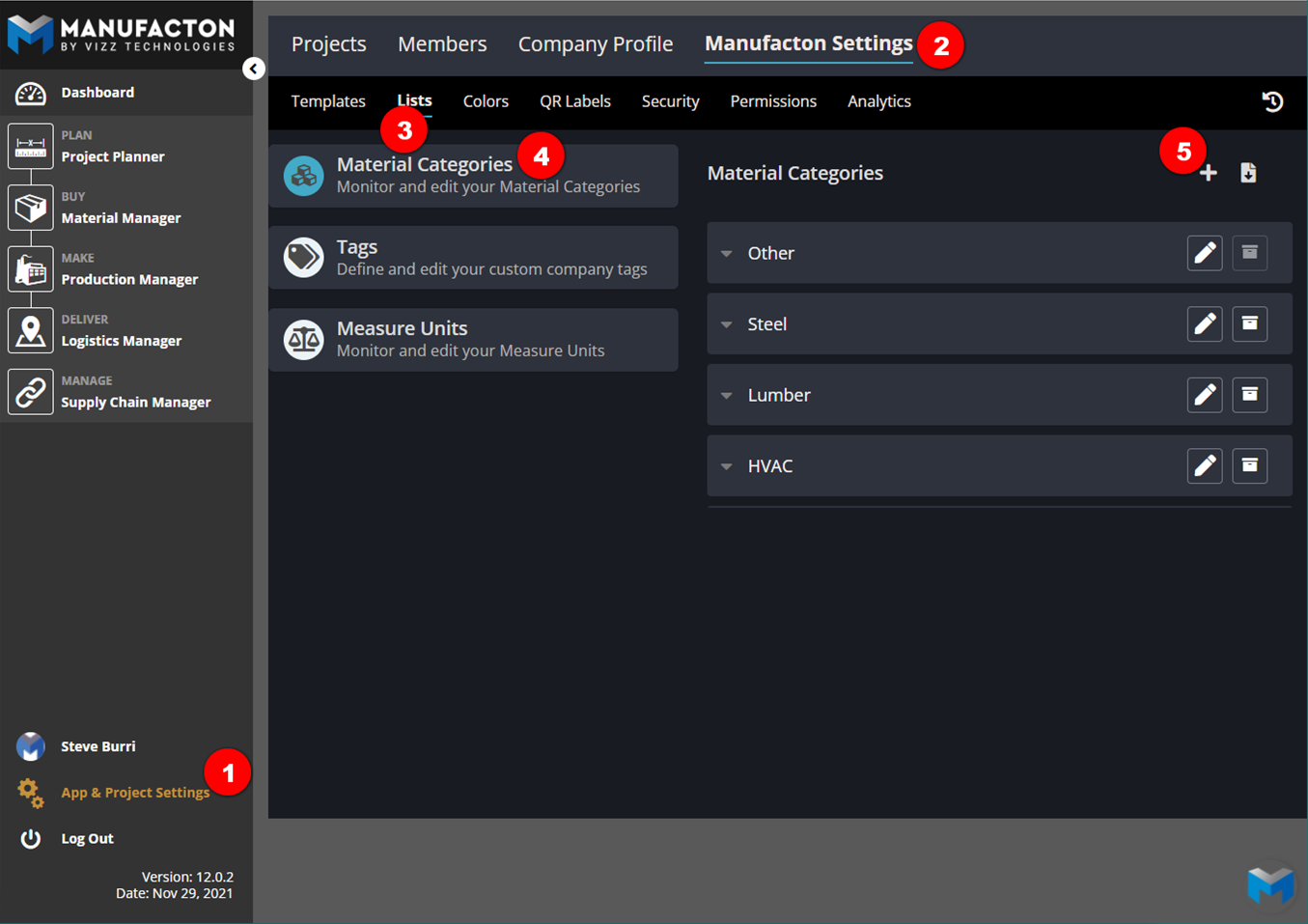
Categories can be created and edited by Administrators in:
- App & Project Setup
- Manufacton Settings
- Lists
- Material Categories
- Select the plus button ("+") (Import is also an option - see the Import Templates Knowledgebase article for more information on importing Material Categories)
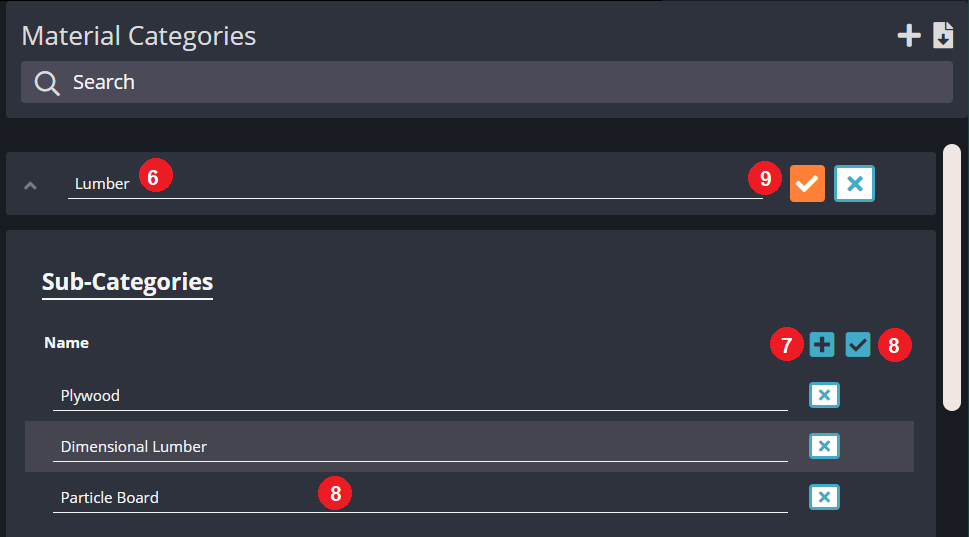
- Enter a name for the Category
- For each sub-category, select the plus button ("+") in the sub-category area
- Enter a name for each sub-category
- Select the save checkbox in the sub-category area
- Select the save checkbox for the category
Applying Categories
Once Categories are established the are applied to both Part Catalog items and Vendors to enable Material Orders to make a recommendation to your procurement team as to which vendors can fulfill those Material orders.
With Material Categories established, those Categories can be applied to the various parts in the Part Catalog.
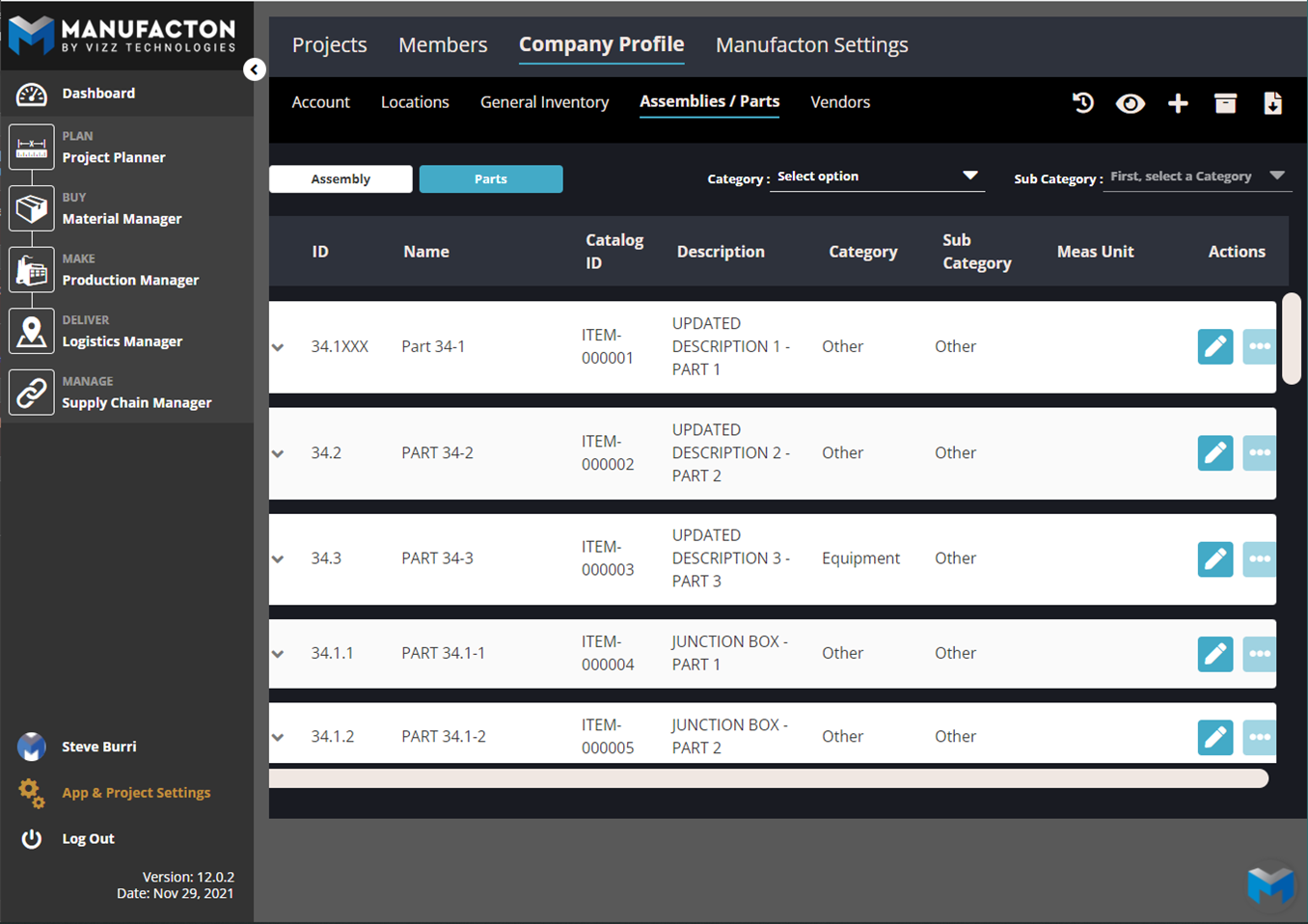
Note: Please reference the Assembly / parts Catalog Knowledgebase article for
      assigning Material Categories to Parts
These same Material Categories can be applied to Vendors
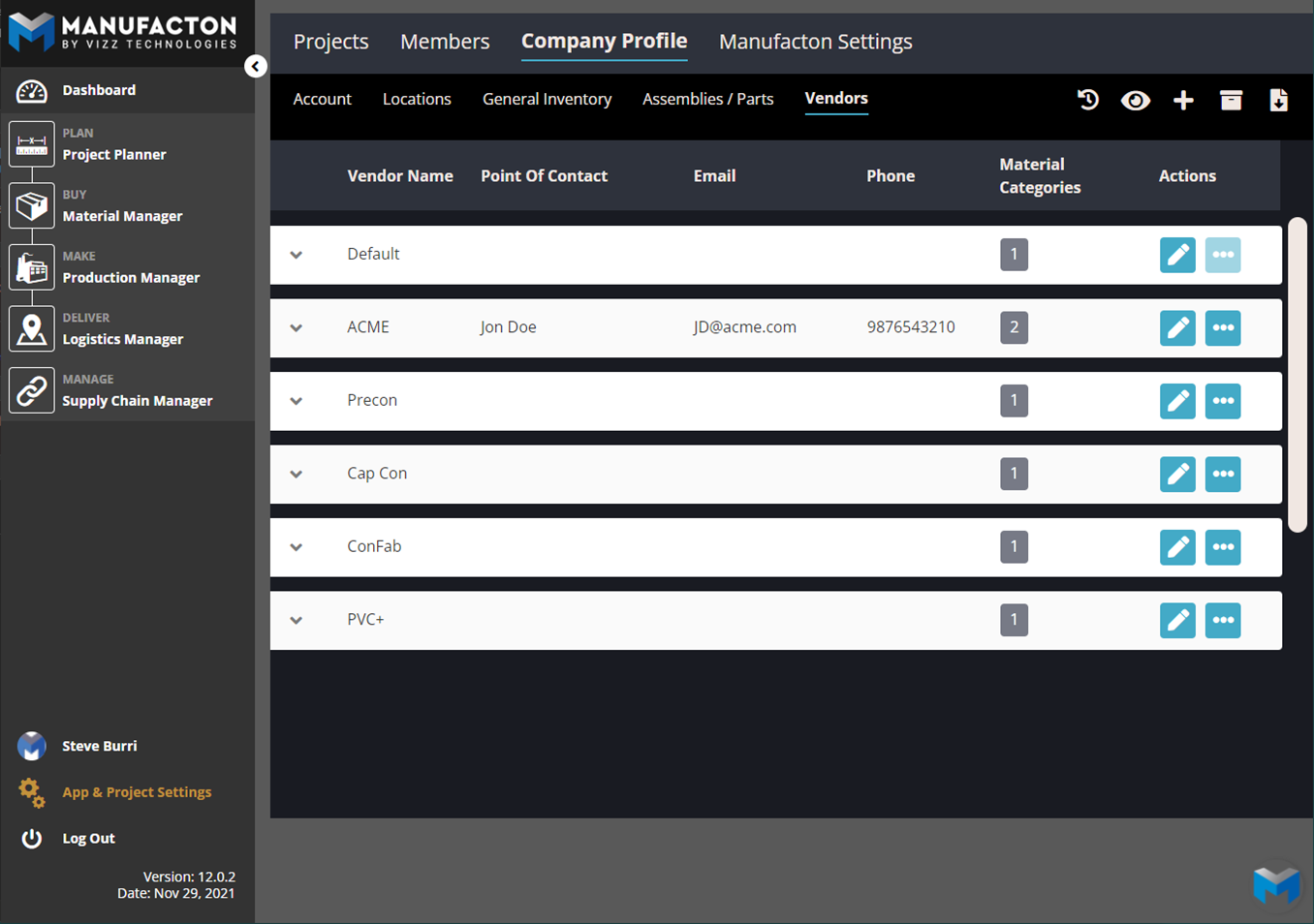
Note: Please reference the Vendors Knowledgebase article for assigning Material
      Categories to Vendors.
Deleting Categories
If a category needs to be removed from the system:
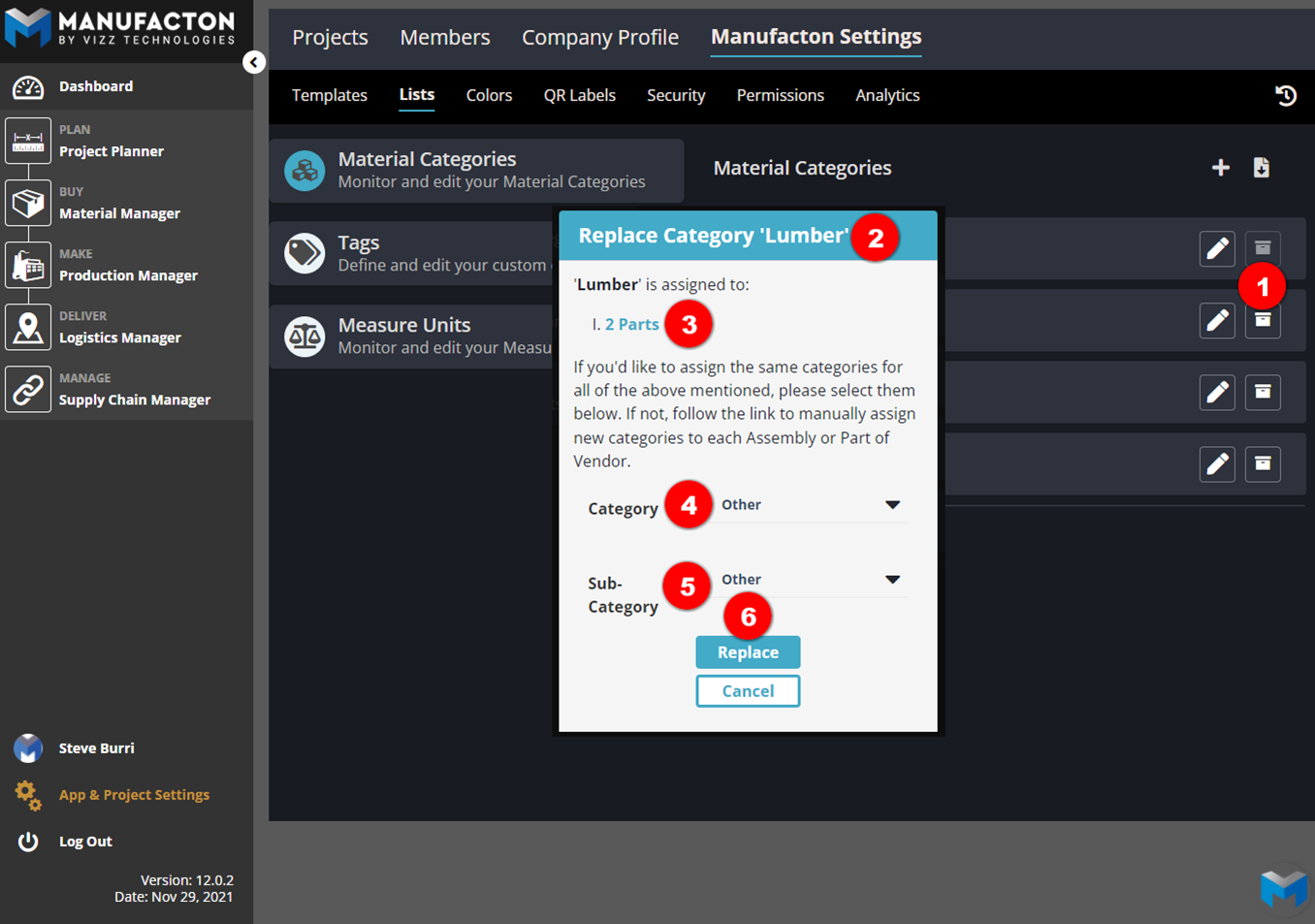
- Select the "trashcan" next to the Category name
- If there are any Assemblies, Parts or Vendors assigned to the category, an option to "Replace Category" will be provided.
- The option to select on any of the Parts, Assemblies or Vendors is also available to identify what those specific items are and to which category they should be reassigned.
- Select an appropriate Category
- Select an appropriate Sub-Category (if applicable)
- Select Replace
Comments
0 comments
Please sign in to leave a comment.