Summary
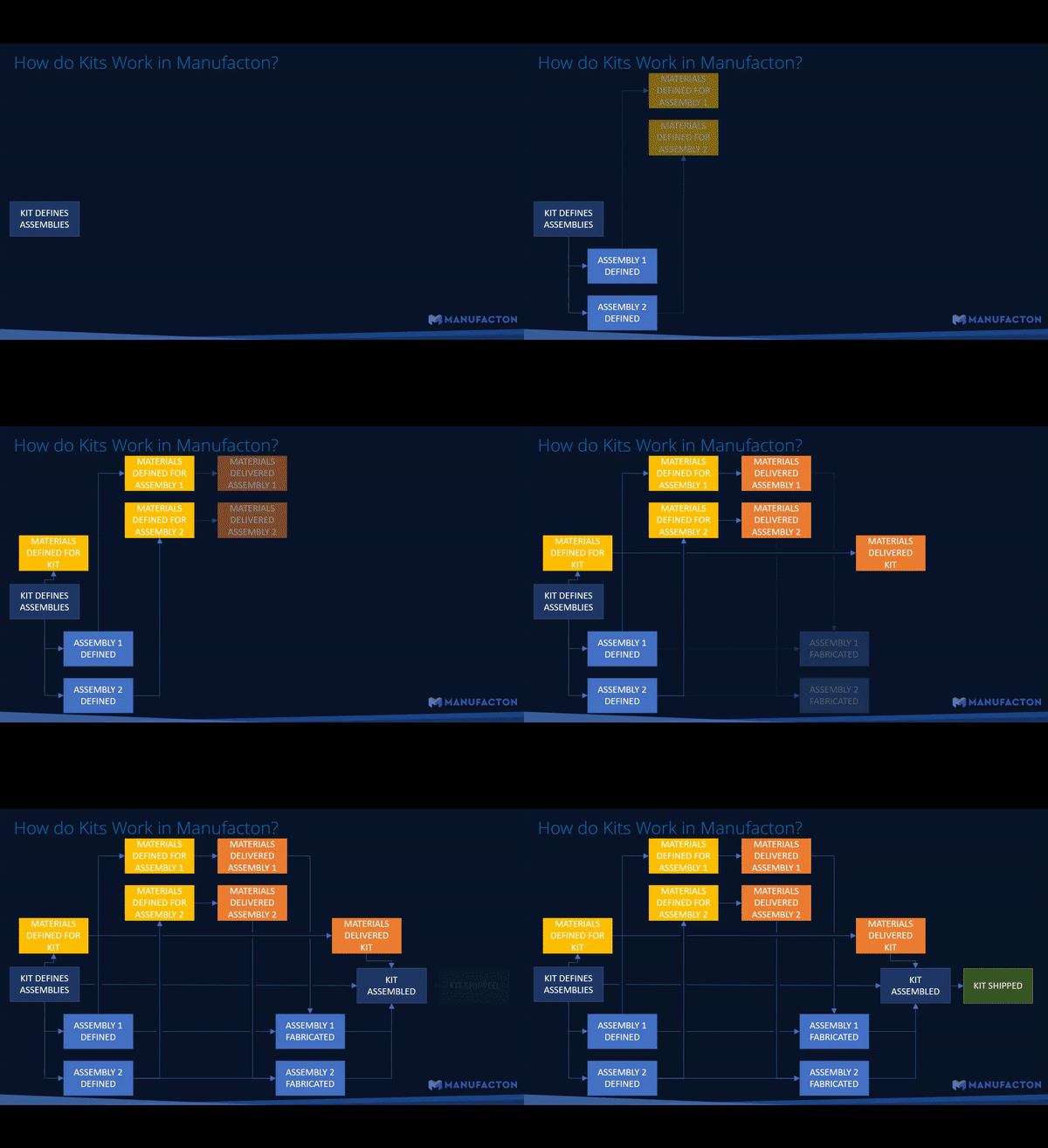
In Manufacton, a "Kit" is a grouping of prefabricated assemblies and/or raw materials that need to be shipped at the same time.
In Manufacton, when a Kit is defined:
- Every item in the Planning Package can become individual assembly Production Orders.
- If the Assemblies have parts associated with them in the Assemblies / Parts Catalog a Material Request card with those associated parts (BOM) will be created and linked to the production order.
- If the Kit also has raw parts that will not be part of prefabrication, a Material Request (BOM) can be created and linked to the Kit as well.
- Once those materials are received and the production orders are moved through the Production Management process (Detailing > Manufacturing > QA) they are re-associated to the Kit as Materials.
- Once all of the prefab and raw materials have been assembled into the Kit, it can be shipped off to the site.
This article covers the following:
- Kit Creation - Creating a Kit
- Assemblies - Adding items (assemblies) to the kit
- Creating Production Orders - Moving the Kit and assemblies into Production Orders
- Viewing Kits - Accessing and working with a kit and associated assemblies
- Creating Material Orders - Automatically associating Material Request orders (BOMs) to the kit and assemblies
- Kitting & Shipping- Merging assemblies and Materials back into the Kit and sending the Kit to site.
- Video
Process
Kit Creation
Kits are created as follows:
- In Project Planner
- Planning
- Manually by selecting Add Item
3a. or through an Excel Import - Selecting Create Kit
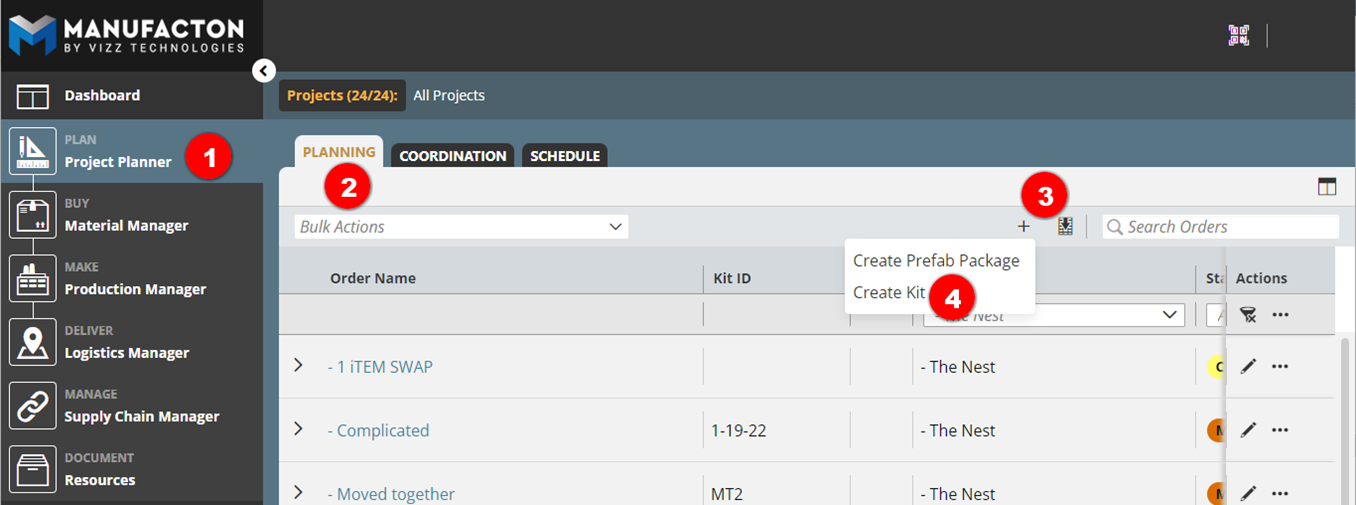
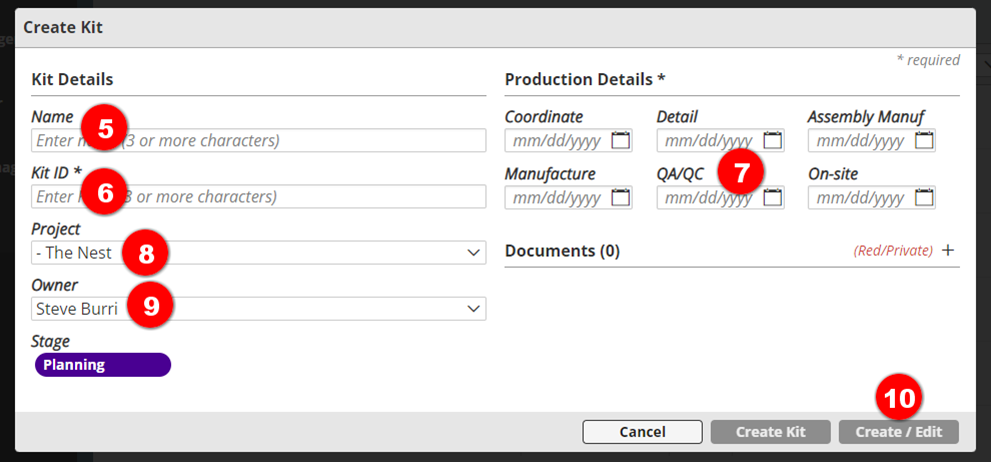
Once in the card, the following items are required: - Kit Name
- Kit ID
- Dates
- An additional Assembly Manuf date is required to identify by when the associated assemblies have to be manufactured for the kit.
- Identify the Project towhichtheKit is associated
- Identify the Owner
- Select Create / Edit
Once in the Kit Card - Add Item (manually) or
- Import from Catalog Inventory
- By default, a "Default Kit Item" will be added to the order and will be the "container" production order back into which the assemblies and raw materials will be associated at the end of the process.
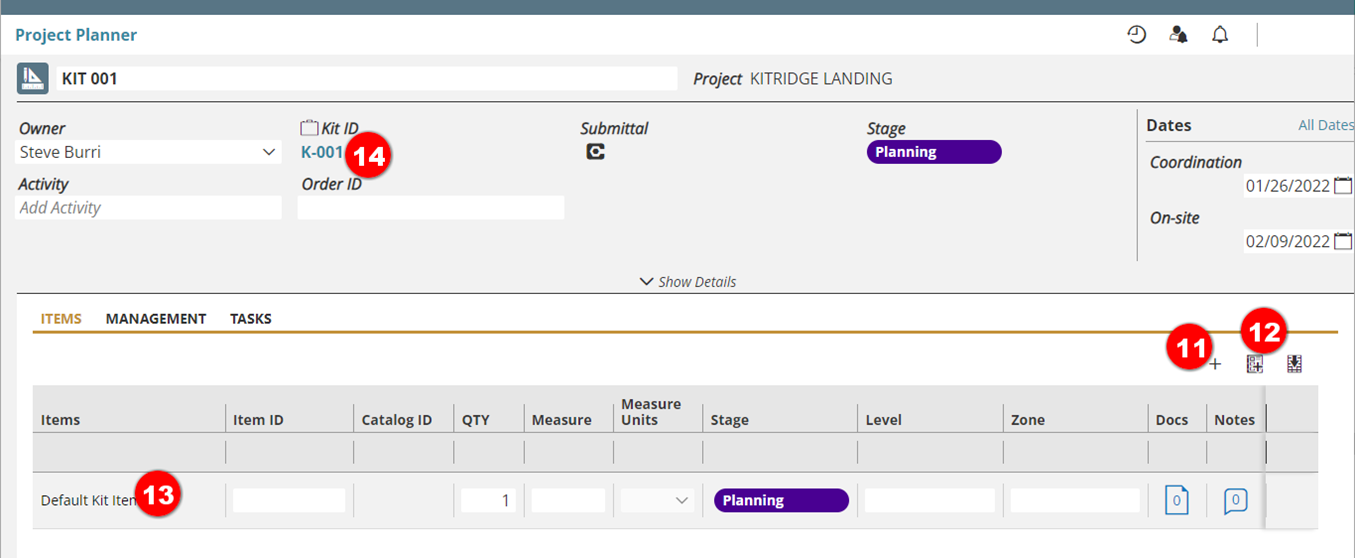
- At any time, the Planning card can be opened and all of the Kit Contents can be displayed.
Once the basics of the Kit card are established, Assemblies can be added to it.
Importing Kits
Kits have been optimized for import from scheduling Softwares such as P6 and Microsoft Project. By choosing to import kits two key advantages can be achieved:
- Multiple kits with their critical dates can be imported at once
- As schedules change, re-import of the same spreadsheet with updated dates automatically updates the existing kits and associated assemblies with the new dates
- Assemblies for those kits can also be imported either on a kit by kit basis or for many kits at once through a 2nd kit assembly import process
Please see the Import Templates knowledgebase article for details on how the templates, for both the kit and kit assembly imports, need to be formatted.
Assemblies
Assemblies are added as Items to the kit, either manually or from the Assemblies / Parts catalog (see step-9 above).
When added from the catalog, assemblies that have parts associated with them can have a Material Requesting card created automatically with those associated parts (BOM) created and linked to the production order when they are moved forward as production orders.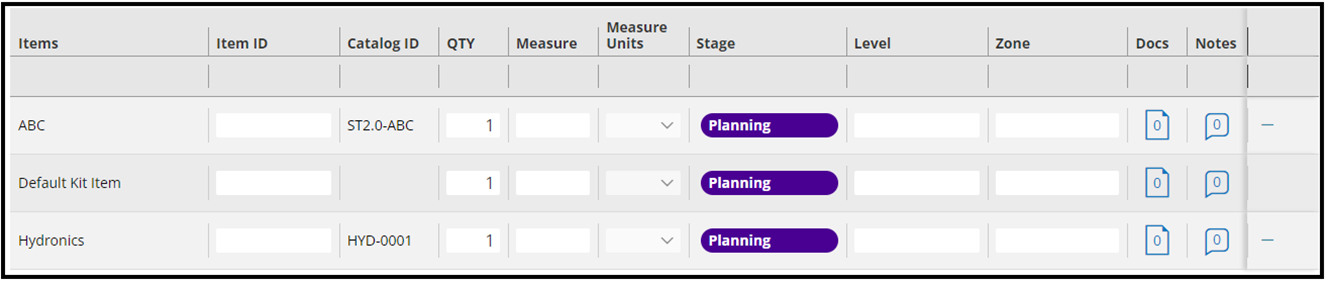
For more information on the Assemblies / Parts Catalog, please review this article - Assemblies & Parts Catalog
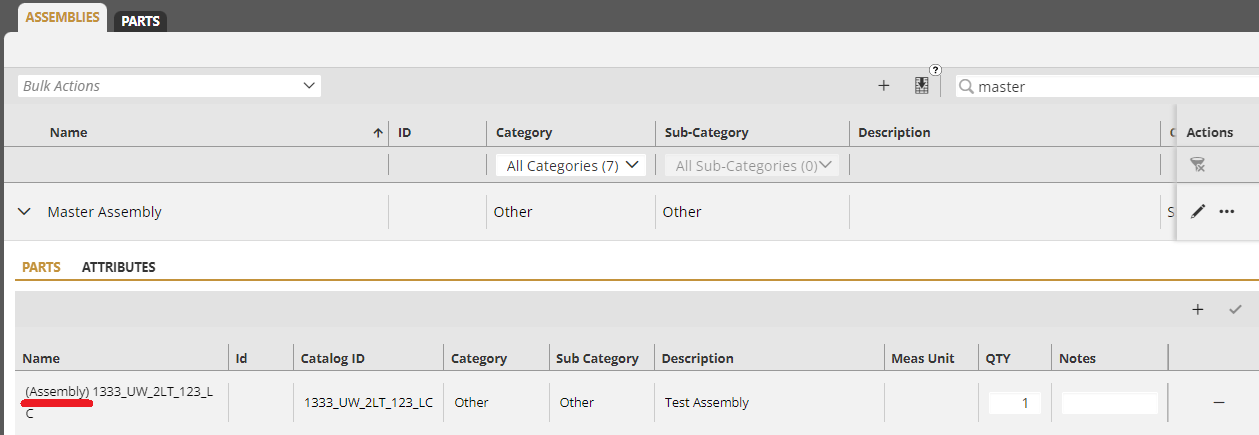
Note:  Assemblies with sub-assemblies can be added to kits.  Those assemblies
       will be prepended with "(Assembly)" as they are added to the Kit.
Creating Production Orders
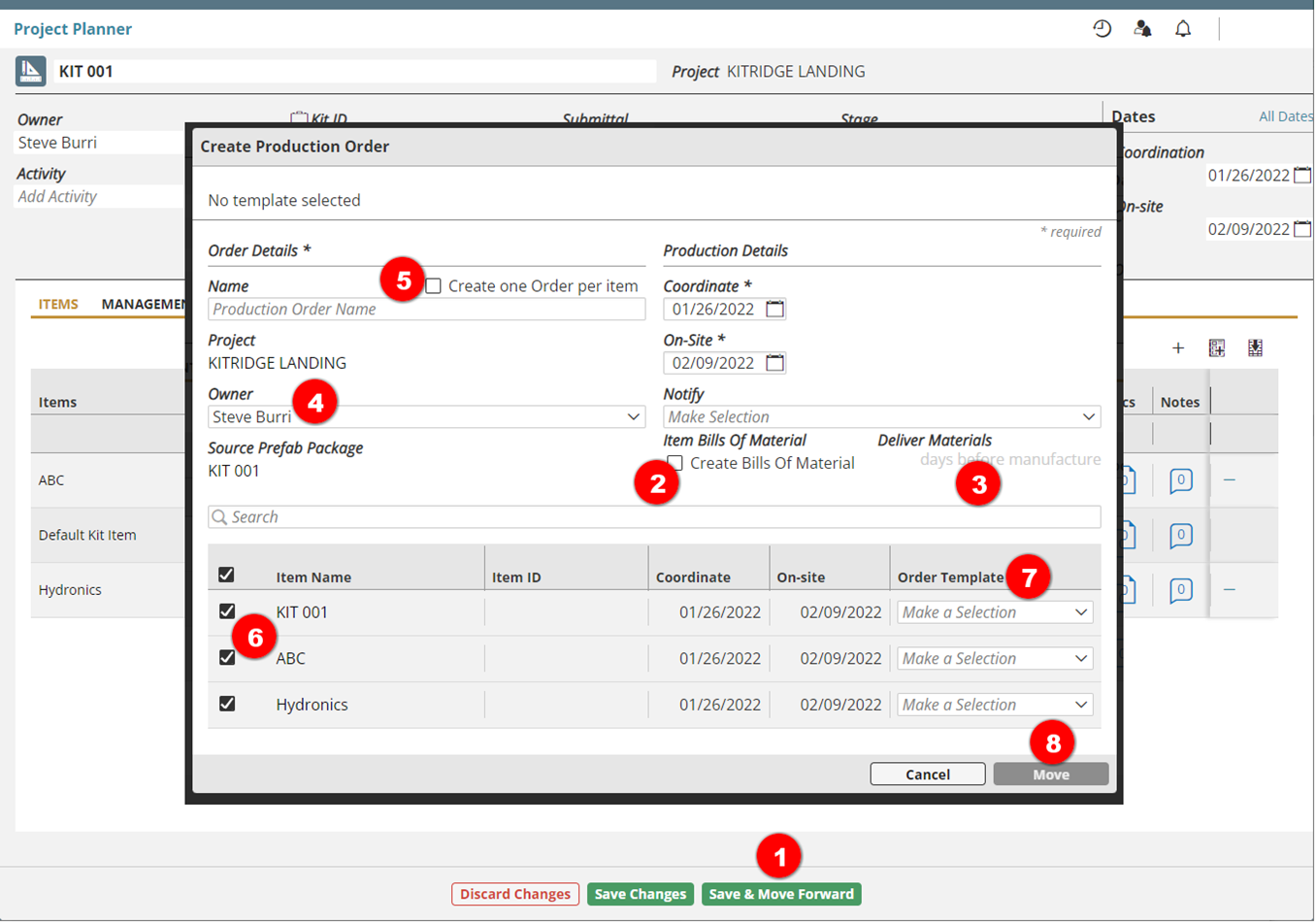
When all the necessary assemblies are added to the kit, the kit can be moved forward into Coordination by:
- Selecting Save & Move Forward
- Checking the "Create Bills of Material" option to have Material Request cards created where appropriate
- Defining the Deliver Materials date offset for those Material orders to ensure the material arrive on or before the assemblies need to be fabricated
- Selecting a new Owner for the assemblies and Kit
- Identify if each item in the kit should be its own order or if items should be grouped into a single order
- Select the items to be included in the order (if they are to be grouped)
- If a template is to be applied set the Order Template for each item
- A dialog to all for the appropriate template to be selected will appear
- Selecting Move
In Project Planner under Coordination, a separate order will be created for the assemblies as well as one for the kit.
Viewing Kits
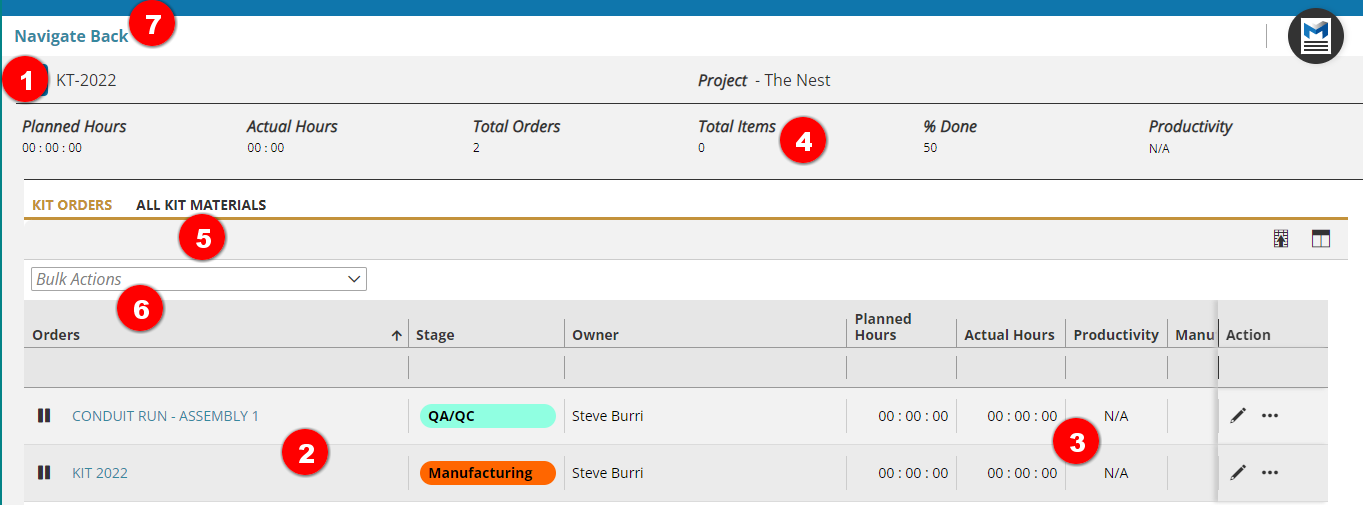
Once a kit and its assemblies have been moved beyond planning and into their own Production Orders, the Kit Order and the Assembly Order(s) can be viewed together, regardless of what stage they may be in.
Selecting the Kit Name in any of the associated production orders opens a new tab with a special view of the kit and associated assemblies.
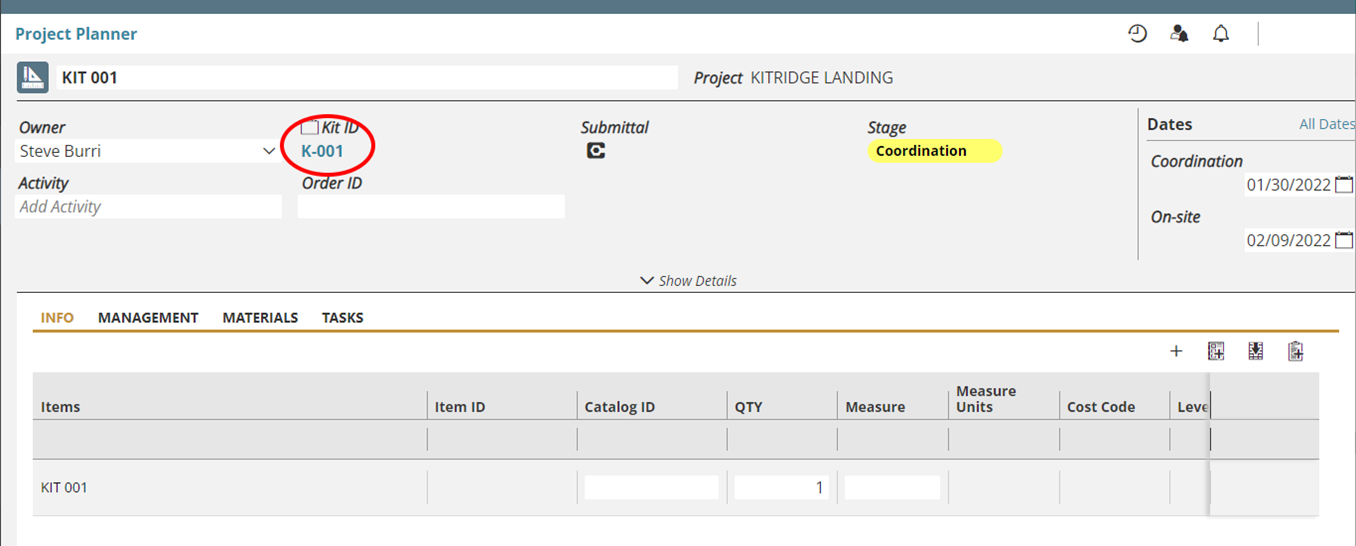
This view includes:
- The ID of the Kit
- The Kit Production Order as well as all of the associated Production Order(s) (regardless of what stage they may be in)
- Productivity Information for those orders
- Productivity information for the entire Kit and Kit Assemblies including
- An All Kit Materials sub-tab including a list of all the materials required for the kit and assemblies
- All of the same functions available in the Supply Chain Manager view remain available in this special view with Bulk Actions.
- Once this special view is no longer needed, it can be closed with the Navigate Back button.
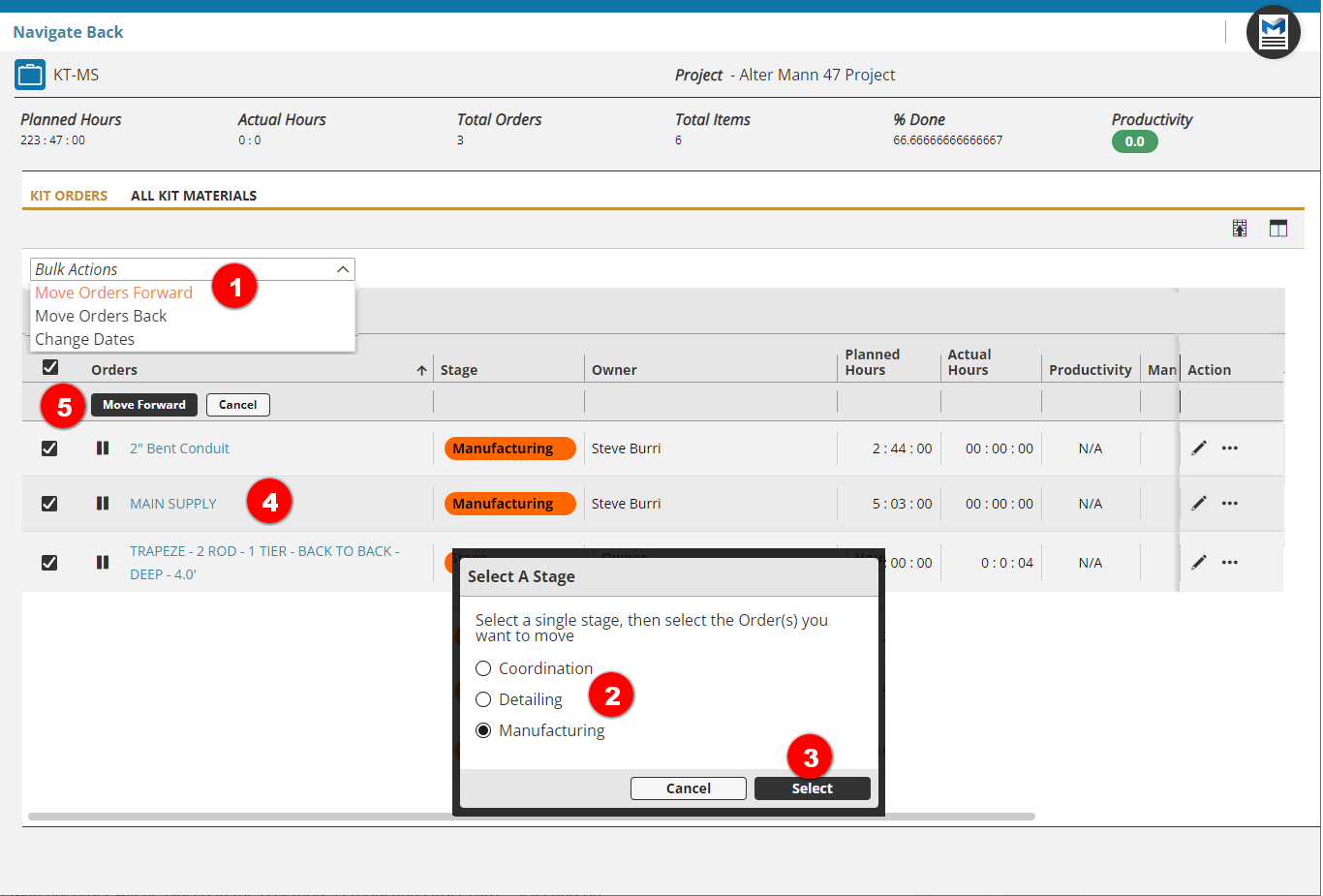
In addition, the ability to multi-move orders associated with the kit is provided:
- Select the Bulk Action and choose to move orders forward or back (or change dates)
- Select from which stage to move the orders (different move options are provided depending on from which stage an order is being moved)
- Select the Select button
- The Production Order(s) in the selected stage will remain
- Enabling those orders to be selected for the move.
Creating Material Orders
For assemblies created from the Assemblies / Parts Catalog which have parts associated with them, a Material Order Requesting card will be created with those parts as items and ...
- A link to that Material order will be placed in the Assembly's Production Order card - Selecting on that link will bring you to the associated Material Requesting card.
- That same list of Materials that make up that assembly, will be shown in the Materials sub-tab
- If your process workflow supports it, you can Submit the Material Request into the Sourcing stage of the Material Manager process.
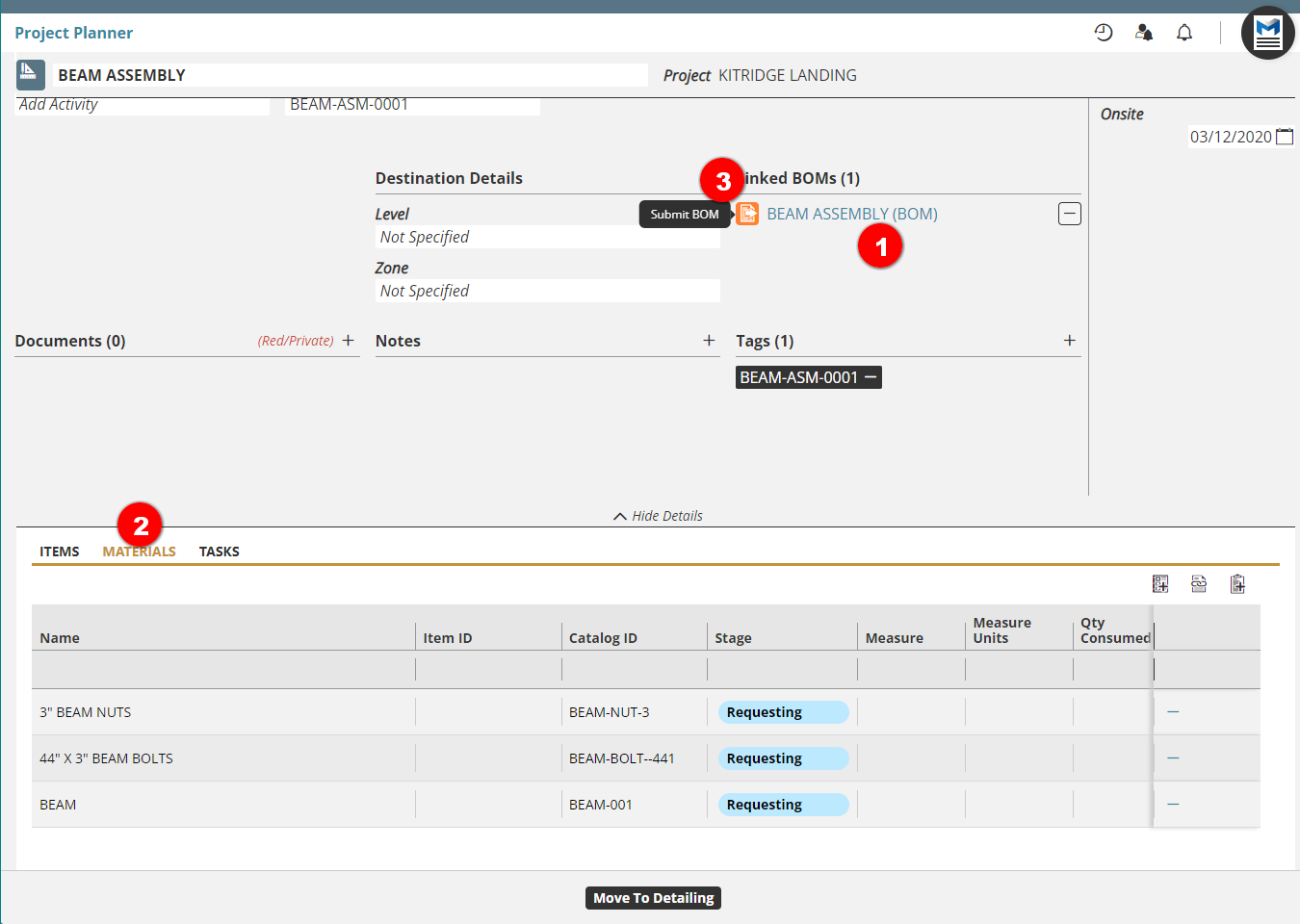
Those Material Orders will be processed as normal, and those material orders will automatically be linked and allocated back to the Assembly Production order as they are received and the Assembly Production order moves into Manufacturing.
Kitting & Shipping
When the assemblies have moved through Coordination, Detailing, Manufacturing (and optionally QA), the next step is to:
- Select Bulk Action
- Move to Kit Location
- Select the assemblies to move to the kit's location
- Select Move to Kit Location - This action makes this assembly a Material of the kit - With all the associated Assemblies complete and moved to the Kit Location, the Kit Production
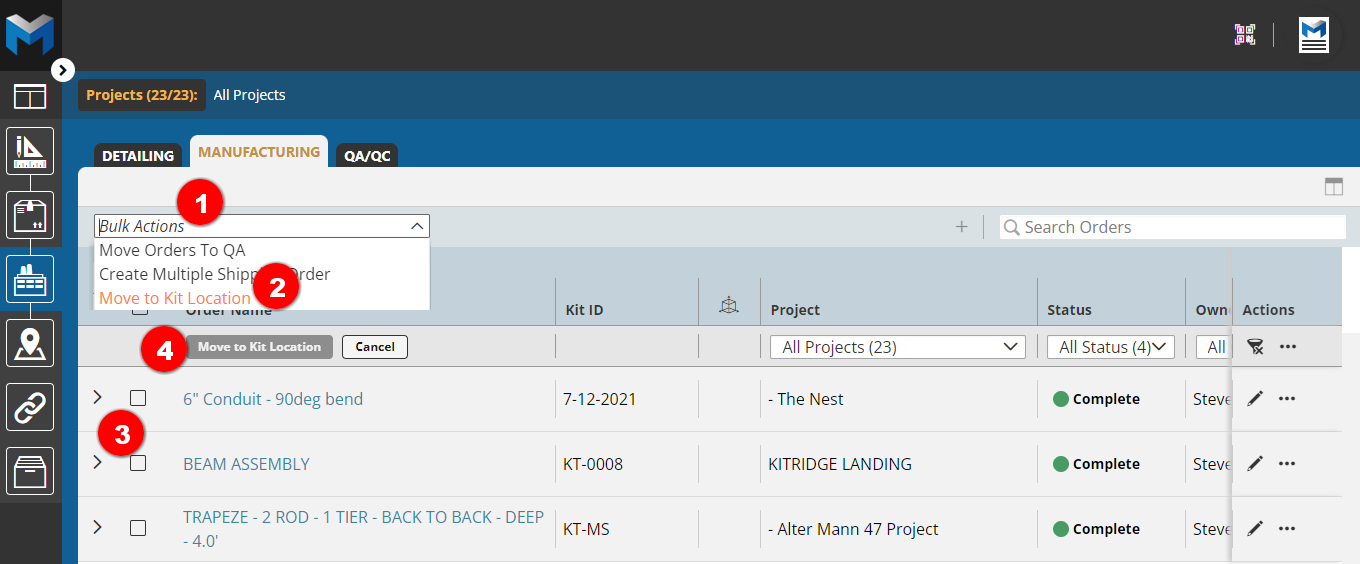
- The Kit Order can now be moved into Manufacturing. Under the Materials sub-tab, the associated assemblies are shown Reserved (along with any other raw materials associated with the kit). The Kit can now have all the assemblies pulled together and "Kitted" for delivery to site by completing the necessary production Runs in the kit (in this case, simply pulling the materials together into one shipment is all that is needed).
- The Kit can then be selected to Create Shipment
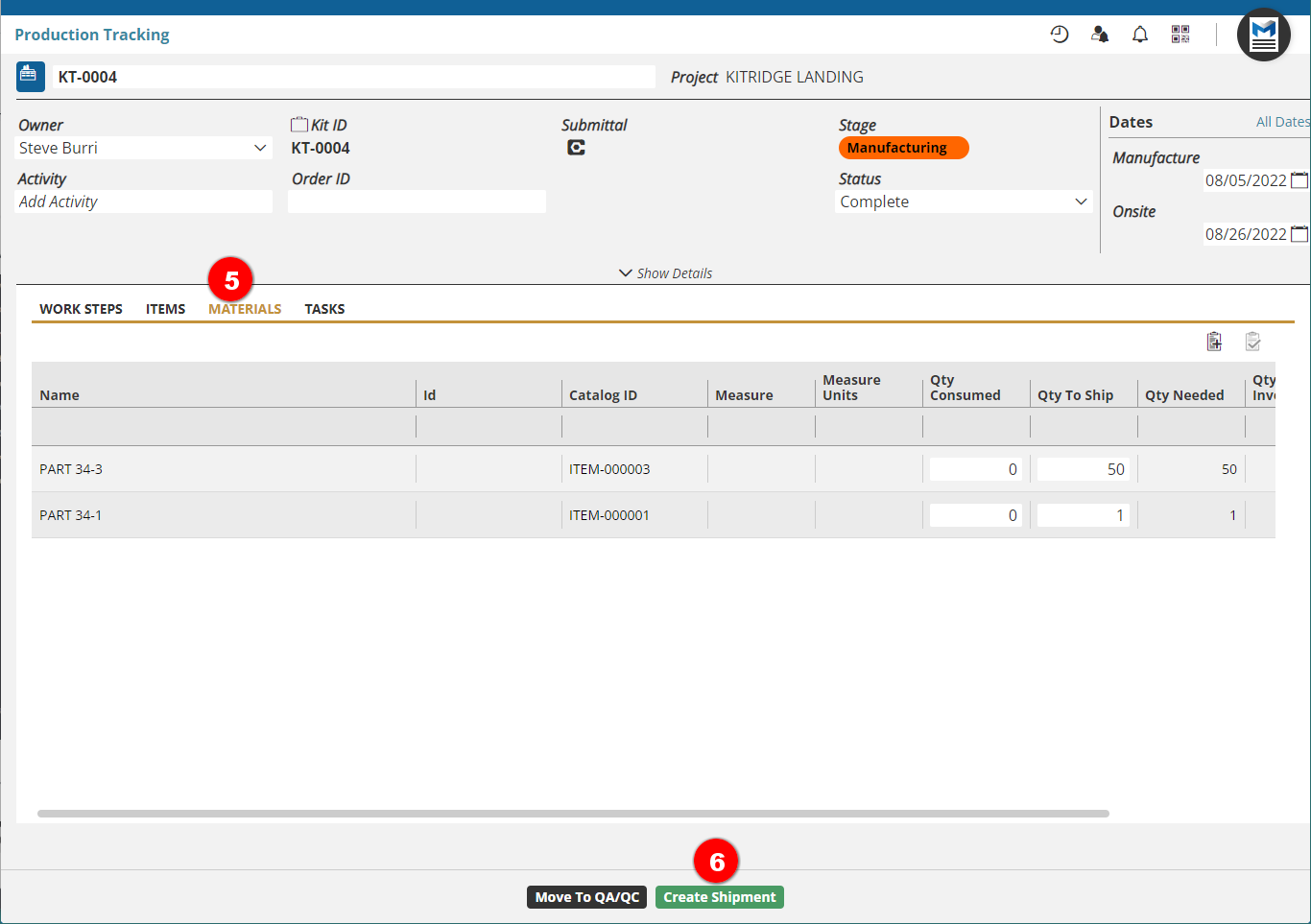
Where the entire planned kit is back together and off to the site as a single shipment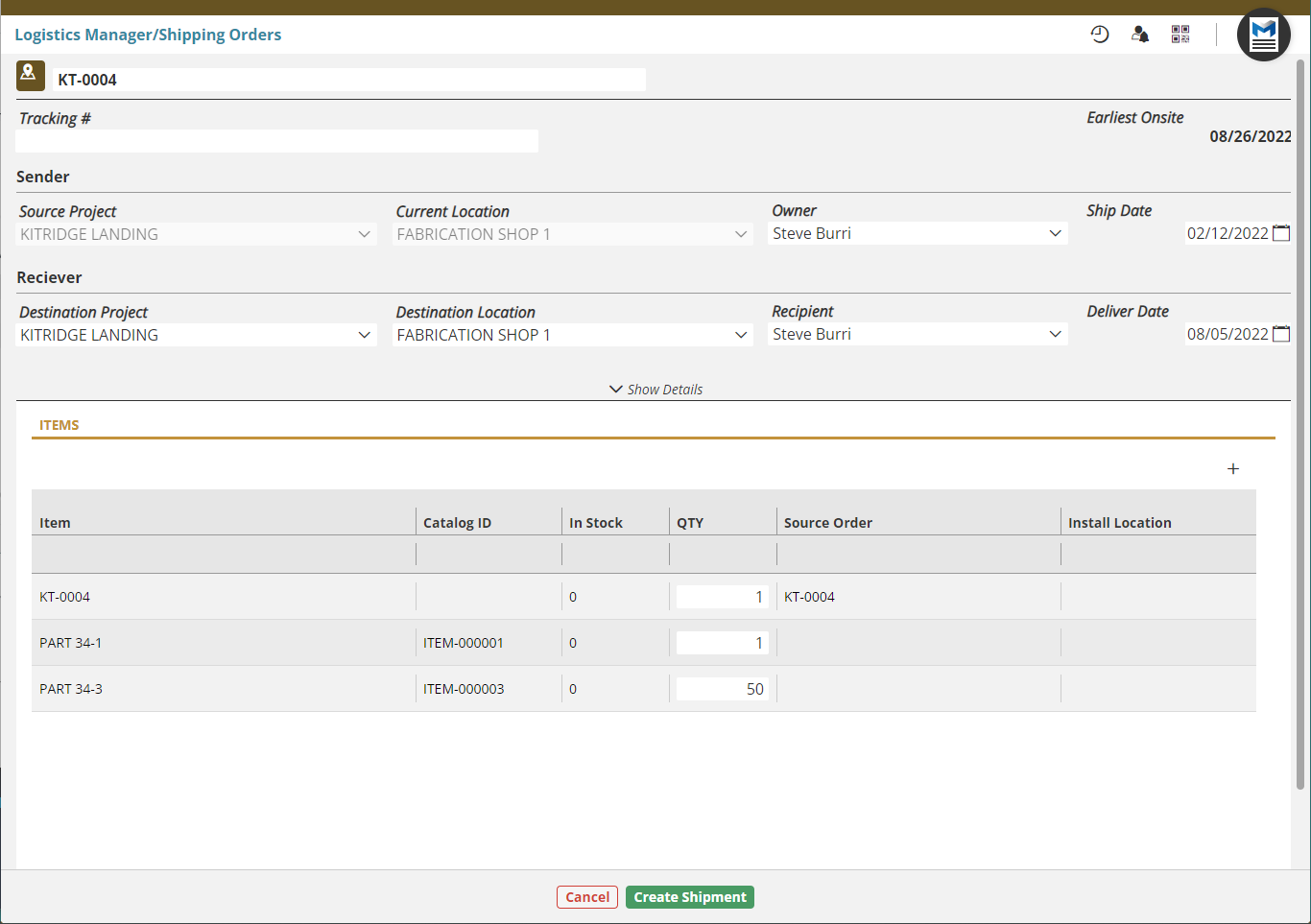
Video
Comments
0 comments
Please sign in to leave a comment.