Overview
For field requests or other orders that skip the traditional planning and coordination stages, users can input orders directly to the BIM or shop teams. These orders can either be:
Creating Orders Manually
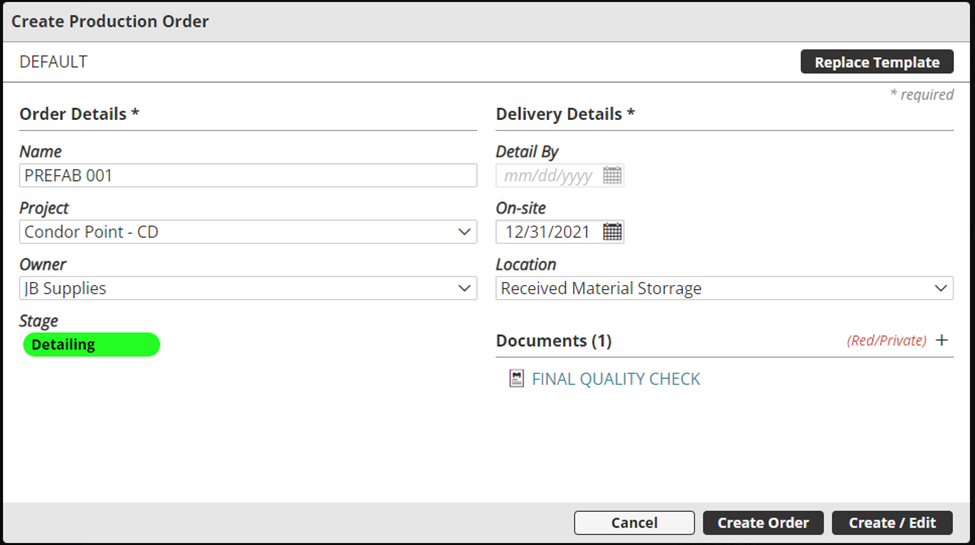
To create a Production Order manually and one at a time:
- Select Production Manager
- Select either the Detailing or Manufacturing stage
- Click the plus button
- Enter all necessary order information, such as the
- Optional Template
- Order Name
- Project
- Owner (if not defined by the Template)
- Location (if not defined by the Template)
- Key Dates
- Documents
Importing Multiple Production Orders & Items
For workflows that fundamentally start with the Design/VDC/BIM team, it is possible to import multiple orders into Manufacton’s Detailing State. In addition, it is possible to import multiple items into those Orders as part of a second import process.
To import Production Orders:
- Select the Production Manager module
- Select the Detailingstage
- Select the Import button
- To Import Orders, select Import Production Orders
- Select the Project into which the Orders are to be imported
- Select the desired Excel file
Many fields are optional, the required Fields are:
- Template ID
- This must be the exact “Template ID” of the Production Order Template as defined in Manufacton Settings – See the KB Article on Order Templates for more information on this topic.
- Order Name
- Location
- This must be the exact name of the Location as defined in the Company Profile – See the KB Article on Company Location for more information on this topic.
- The Detail By date
- The Onsite By date is also required
- Onsite date
- The Onsite date for the production order is required
- A Unique Order ID
- This value is CRITICAL to enabling the import of items into these Production Orders in a subsequent import function (see below for details)
- This value has to be unique for all production orders in the system across all projects
- The Unique Order ID must be:
- Between 3 and 16 characters in length
- Use only alphanumeric characters and hyphens (“-“)
More information on the import function, as well as an import template, is available in the KB Article on Import Templates.
To Import Production Order Items, the first 3 steps (as shown above) are followed, and then the option to Import Production Order Items is selected.
- Select the Project into which the Orders are to be imported
- Select the desired Excel file
Many fields are optional, the required Fields are:
- The Unique Order ID
- This value is CRITICAL to enable the import of the items into the correct target Production Orders
- Item Name
- Quantity
- Catalog ID is an optional field
6a. If the item is an “assembly” the Assembly Catalog ID for that Assembly can be identified here.
6b. If that assembly has parts associated with it, a BOM (Material Order) can be kicked off and optionally submitted to the Sourcing stage.
More information on the import function, as well as an import template, is available in the KB Article on Import Templates.
Comments
0 comments
Please sign in to leave a comment.