Overview
Revit and Autocad users make model object associations with Manufacton production and material items and can see real-time status of those items in ManufactOn, as well as directly through the BIM software. However, there are many key stakeholders in a project who may not have the necessary BIM software installed on their computer to take advantage of this intuitive and powerful view.
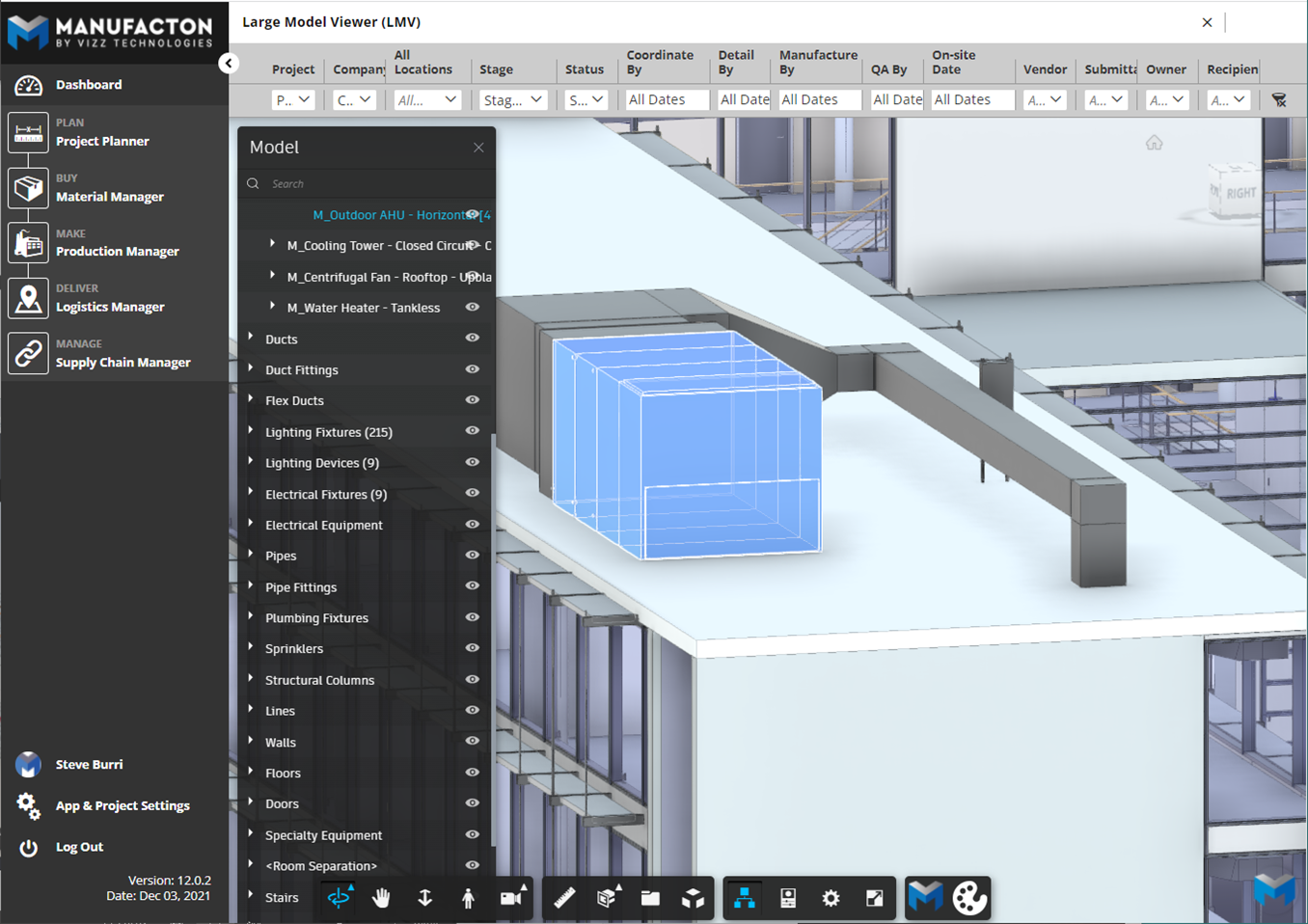
For those cases, users can access the BIM model through an online BIM viewer. Follow these steps when setting up the BIM viewer for the first time.
Requirements
Your BIM360 site must first be set-up to work with Manufacton. Please reference the following KB article for instructions on how - Setting Up Your BIM360 Site to Work with Manufacton
Each user who would like to view the Manufacton status within the Large Model Viewer will also need access to Autodesk's BIM 360 Docs.
The model should be as complete as possible prior to uploading it to BIM 360 docs. Any new model objects added to the model after it is uploaded will not be able to display status unless the model is uploaded into Bim 360 Docs again.
Setup
Once a ManufactOn account is configured for BIM viewing, users may link a model to a ManufactOn project.
- Click on "App and Project Setup"
- Select the project to add a BIM model for viewing
- Select "Company Project Settings"
- Edit the section "ManufactOn BIM 360 Viewer" by clicking the pencil icon next to the section header
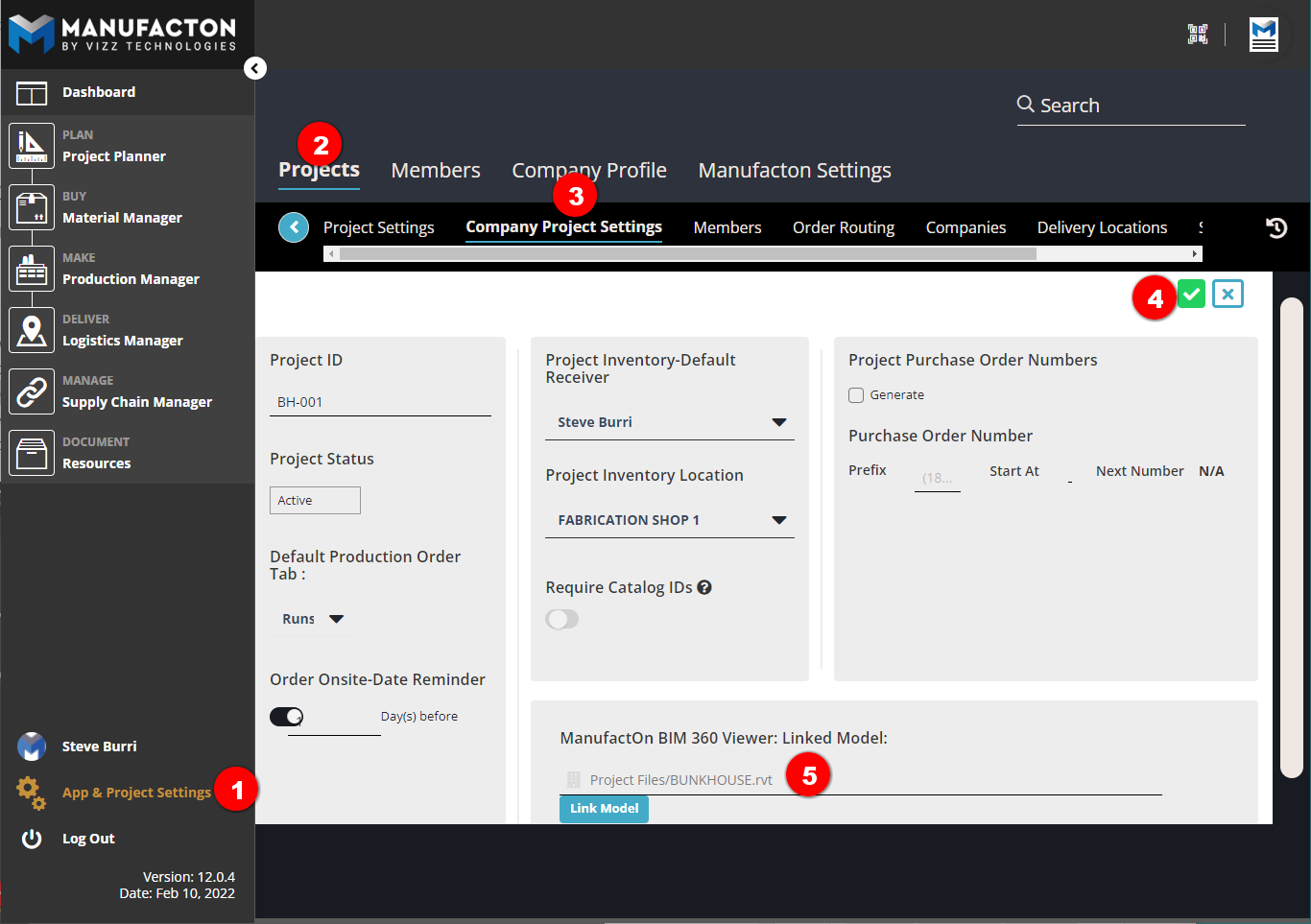
- Select "Link Model"
- Select the appropriate "Hub", "Project" and "Folder" in which the model file is located in BIM 360 Docs
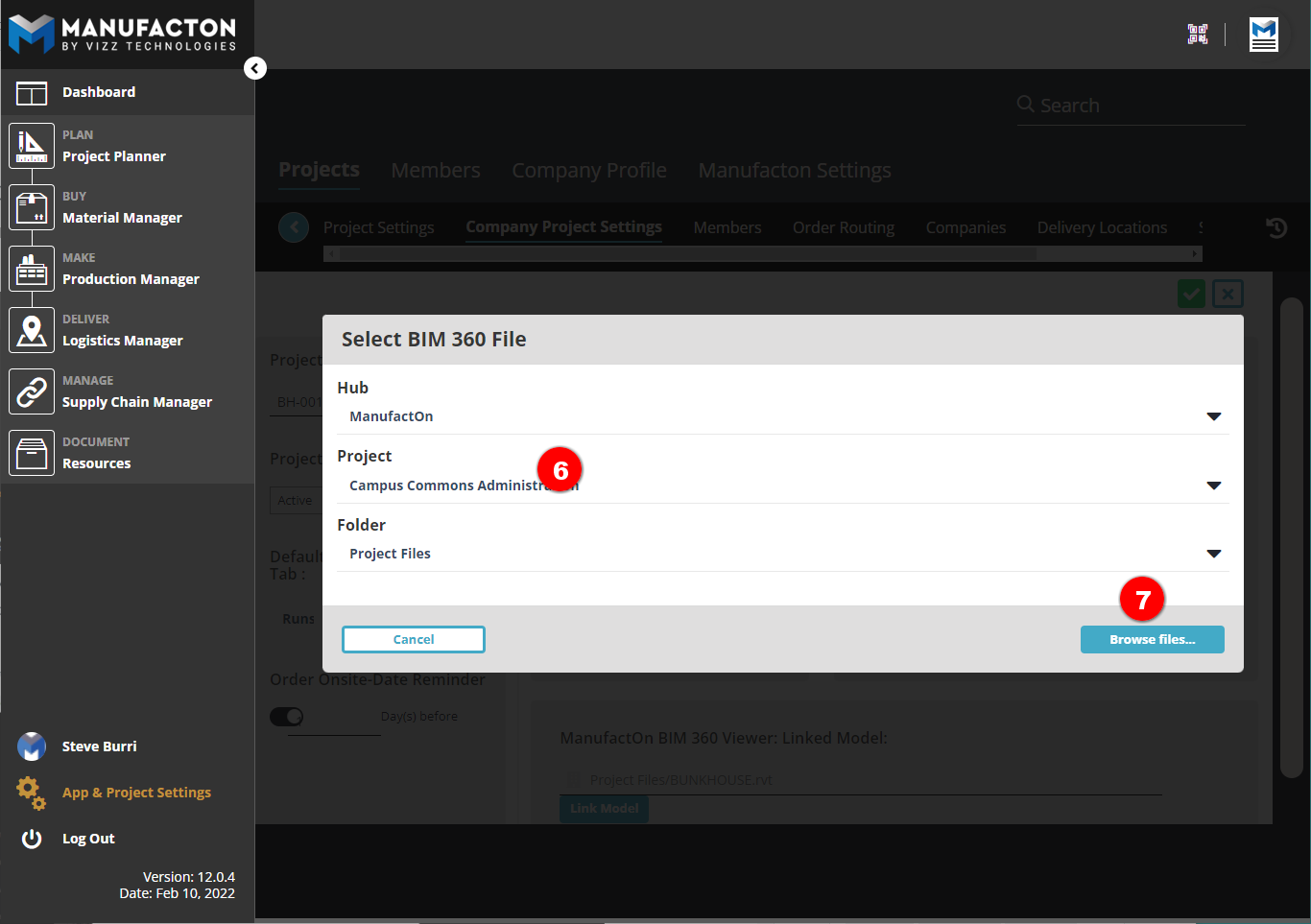
- Select "Browse Files"
- Select the model to be associated with the project
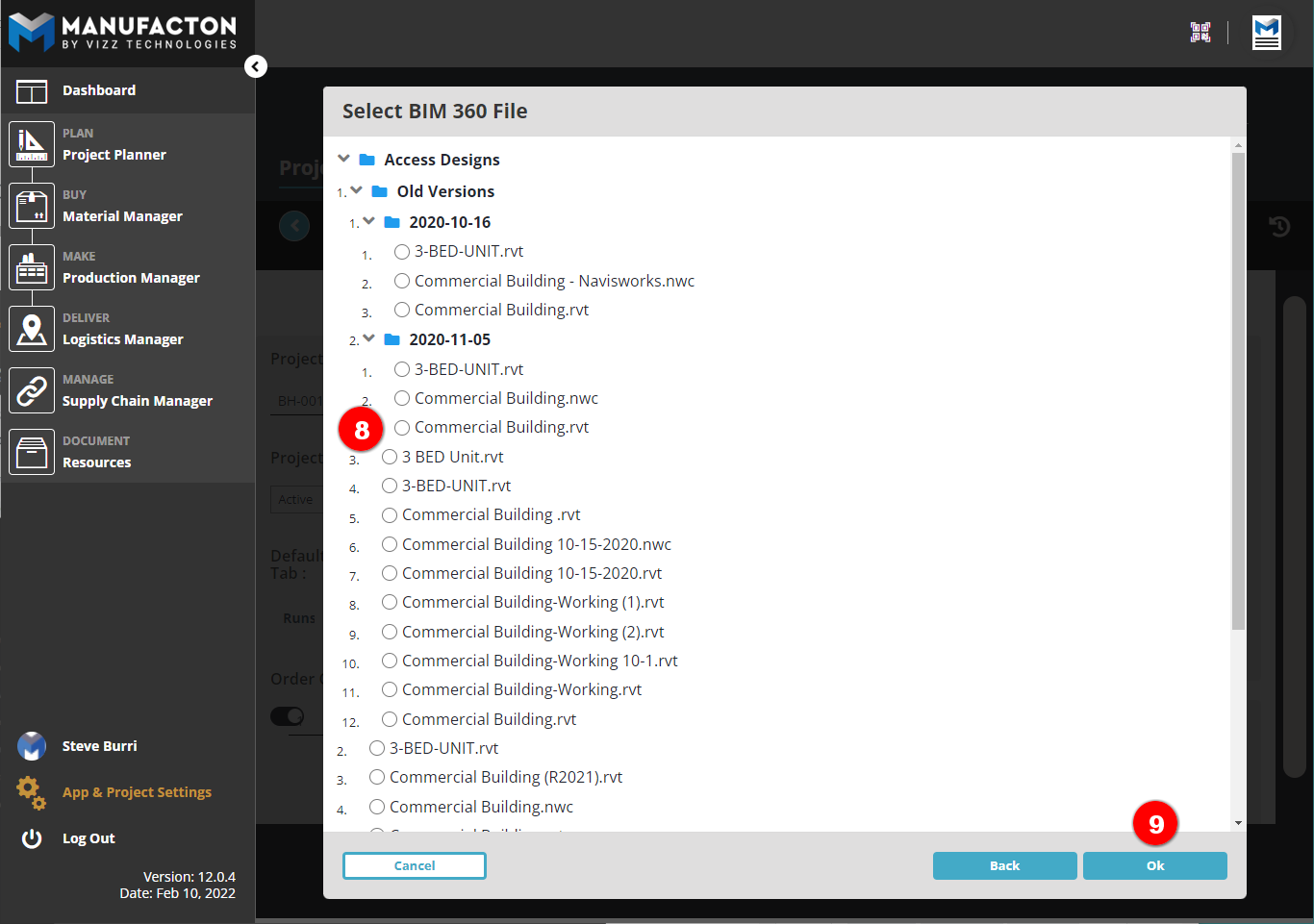
- Select "OK" and then select the green checkmark to save
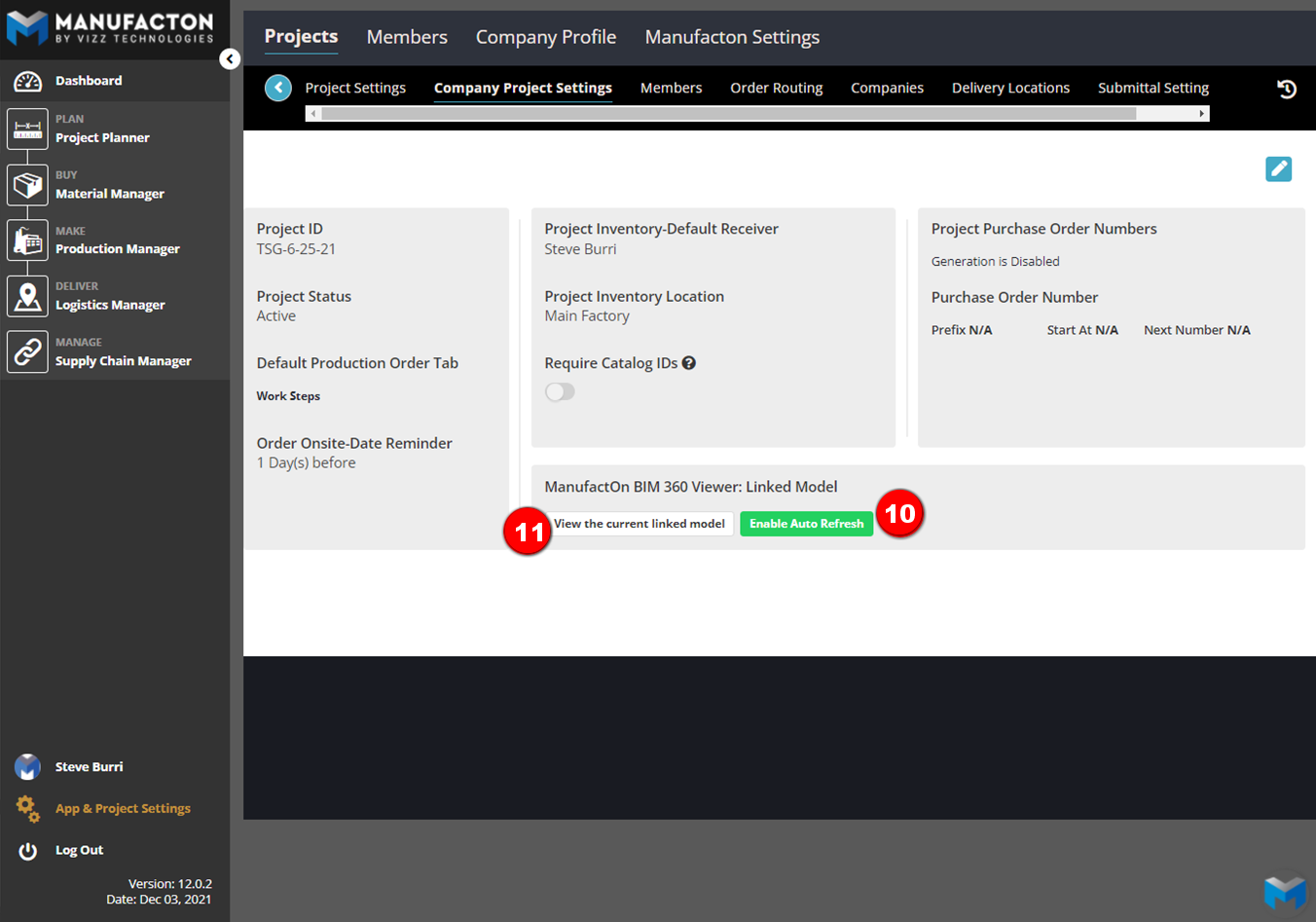
- Note that two new options have appeared. Ensure "Enable Auto Refresh" is enabled to ensure Manufacton continually updates the model with the current status of ManufactOn orders.
- Click the "View the Current Linked Model" to view the model in a browser window.
For more information on configuring a ManufactOn account for BIM viewing, click here.
Comments
0 comments
Please sign in to leave a comment.