Overview
Administrators have the ability to::
Adding Users to Manufacton
Before adding users to a specific project, users must be added to Manufacton through the "Members" list under App and Project Setup. Project users can then be added.
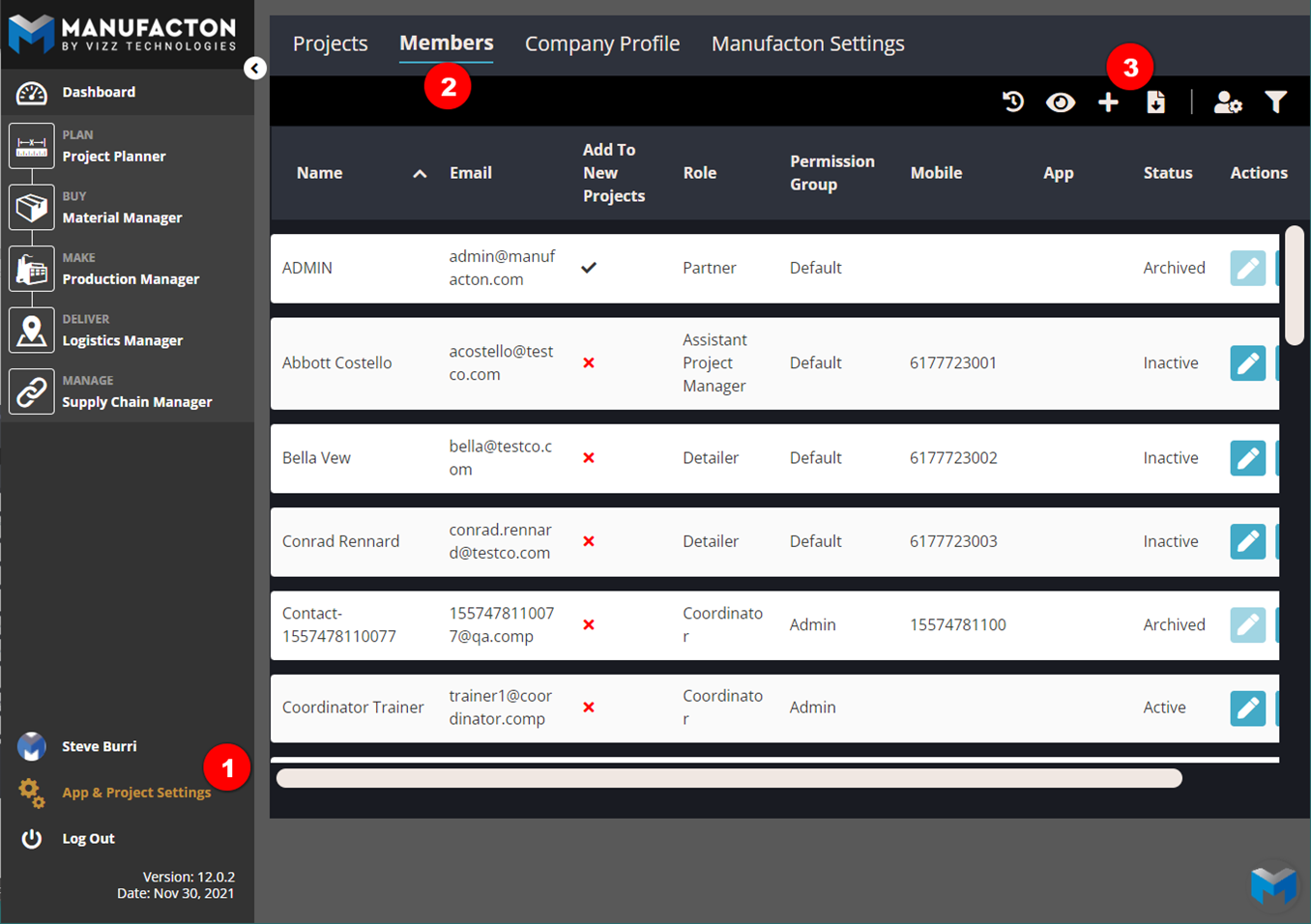
To add users to your company:
- Select "App and Project Setup" from the main menu,
- Select the "Members" tab
- Click the blue plus button at the top right of the page.
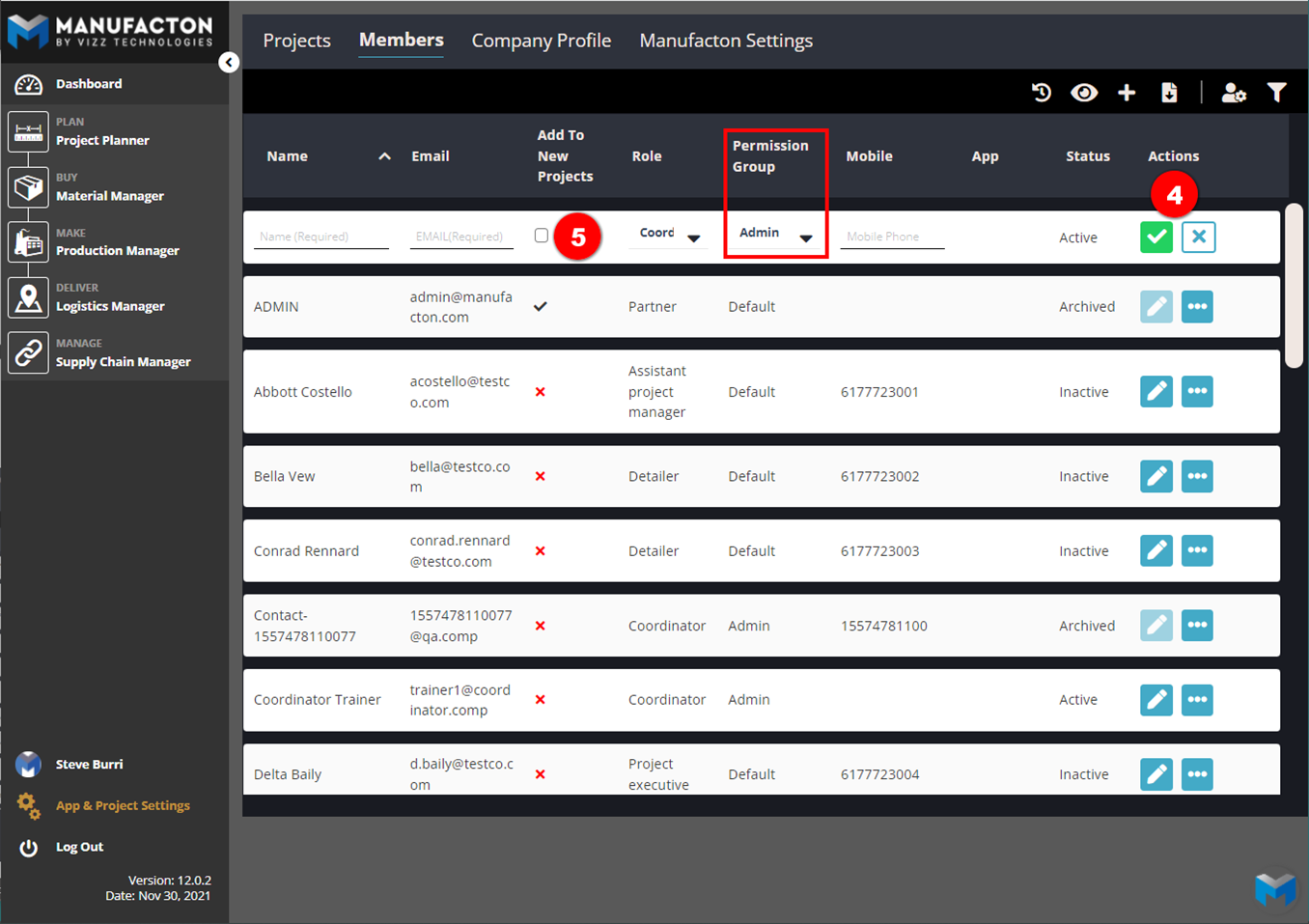
- Fill out the required information. It is critical to select the desired Permission Group from the Permission Group drop-down (see the KB Article on Permissions for more details on how to configure and apply permissions). Save by clicking the green check mark at the right end of the row.
- For users who need to be on every project, select the "Add To New Projects" checkbox. This typically includes shop, qa, shipping, inventory, etc. team members who will be involved across all projects but should also include Manufacton administrators. Others who should see all projects should be included as well.
Adding Users to Projects
In the "App and Project Setup" tab, you can add users from your company or other companies to a specific project.
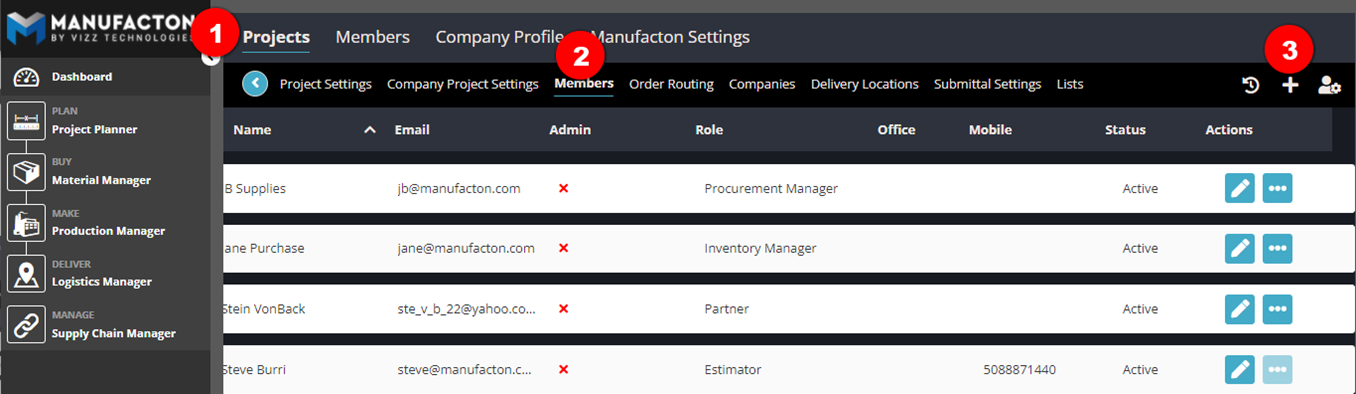
- Click the project to which you wish to add users.
- Click "Members" beneath the project name to add users from your company
- Click the plus button at the upper right of the screen.
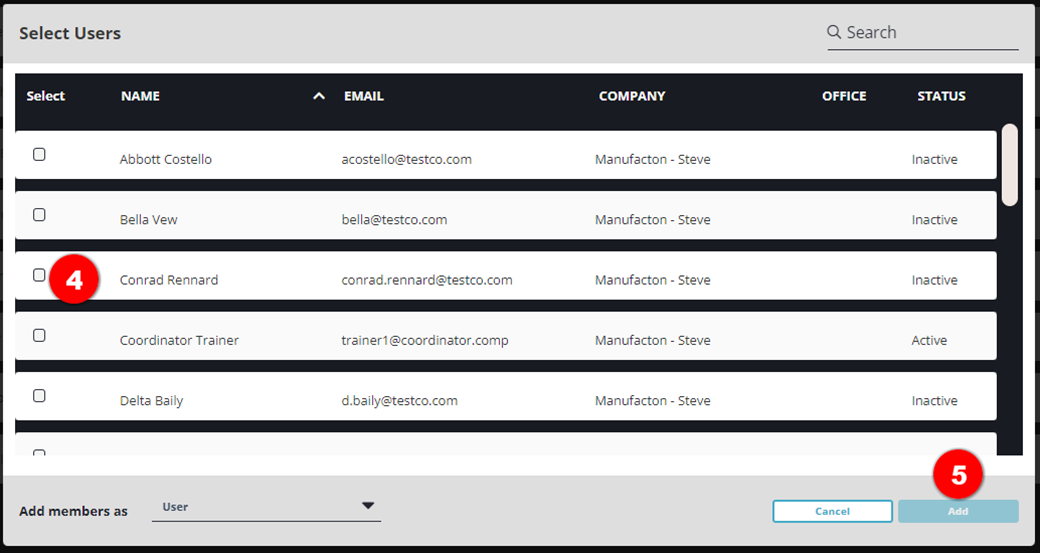
- Select the checkbox next to each name you wish to add to the project.
- Select Import
Modifying and Removing Users
Click the blue pencil button to edit information related to Manufacton users and project specific users. Select the ellipse (...) to delete members.
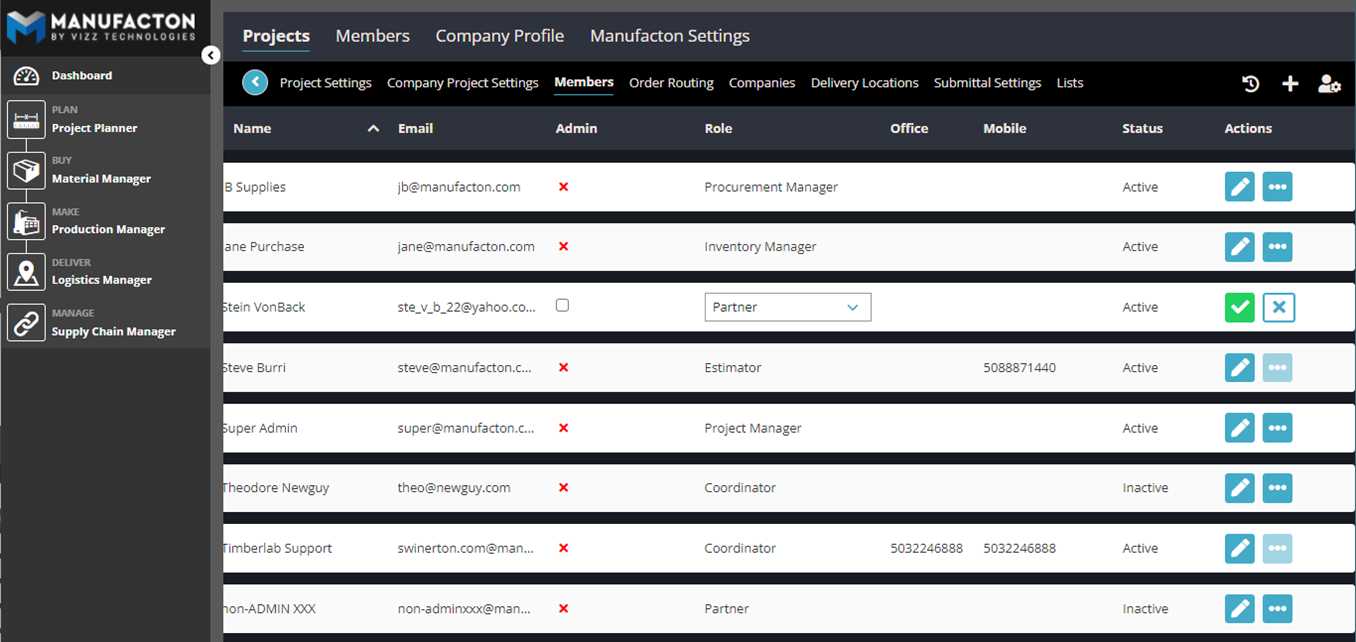
Note:  Checking the "Admin" checkbox during a member edit will enable that
       member to perform administrative functions for that project as well
       as enable that member to restart paused Production Orders.
If you are not the administrator for your company and would like to add or remove users, please reach out to an administrator within your organization or contact us.
For a comprehensive overview on Administering Manufacton, including Adding and Removing Users, please watch this video:
Comments
0 comments
Article is closed for comments.