Overview
Manufacton is a horizontal enterprise application. A majority of end-users do not need access to much of the product, but each organization requires access to different pieces.
Manufacton's Permissions allow administrators to define and assign users to be able to edit, view or have no access to certain Modules and Tabs within the interface.
As an example, your BIM and Shop team members could have a view of Manufacton as simple as this, with access only to the Production Manager and Supply Chain Manager modules:
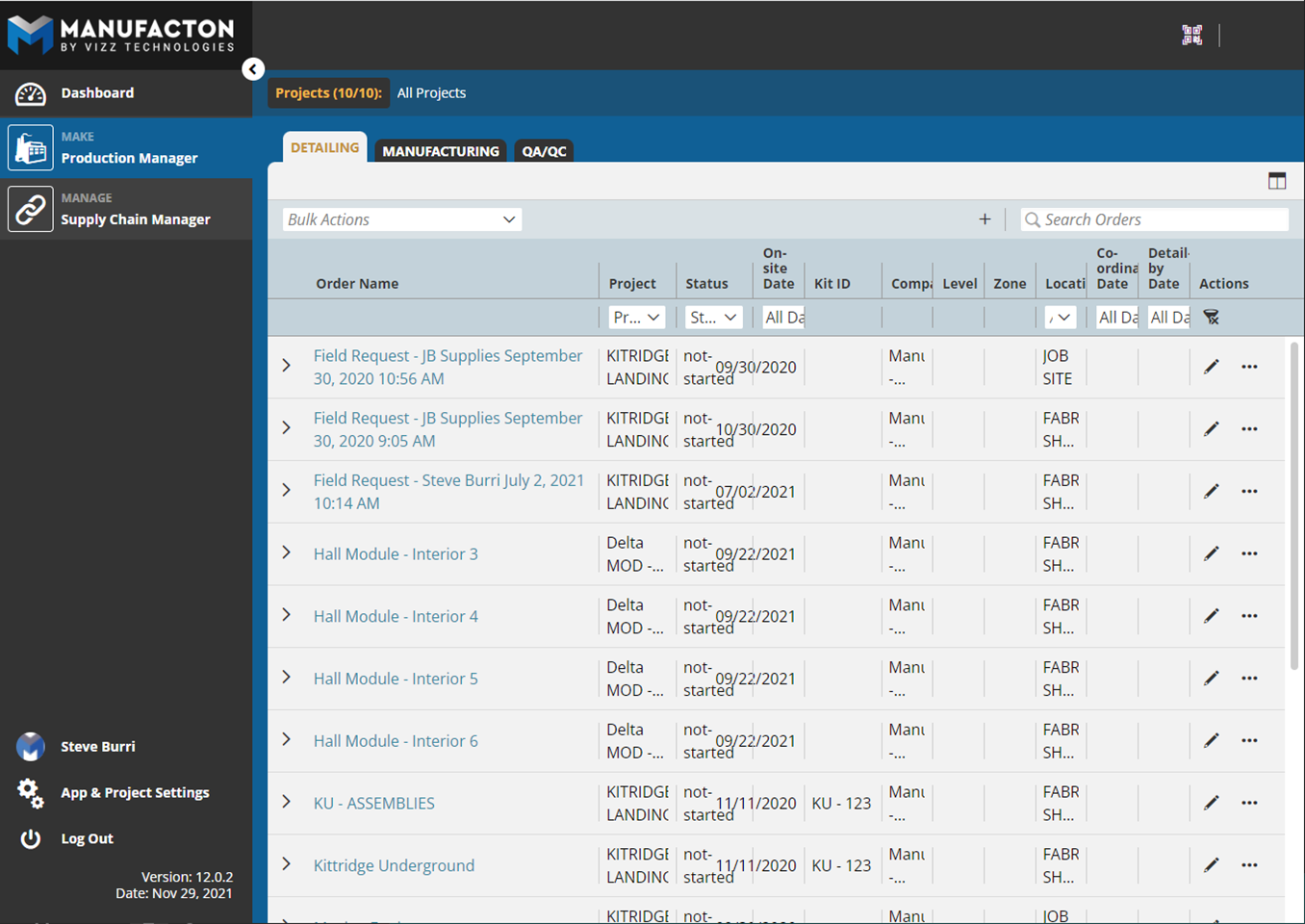
Notice that access to things the BIM team will never need access to, like Administrative settings, Shipping, Inventory, Prefab Planner, etc. have been removed from their view making their user experience simpler and easier to train and manage.
This KB Article contains the following sections
Setting-up Permissions
Permissions are set under:
- App & Project Setup
- Manufacton Settings
- Permissions
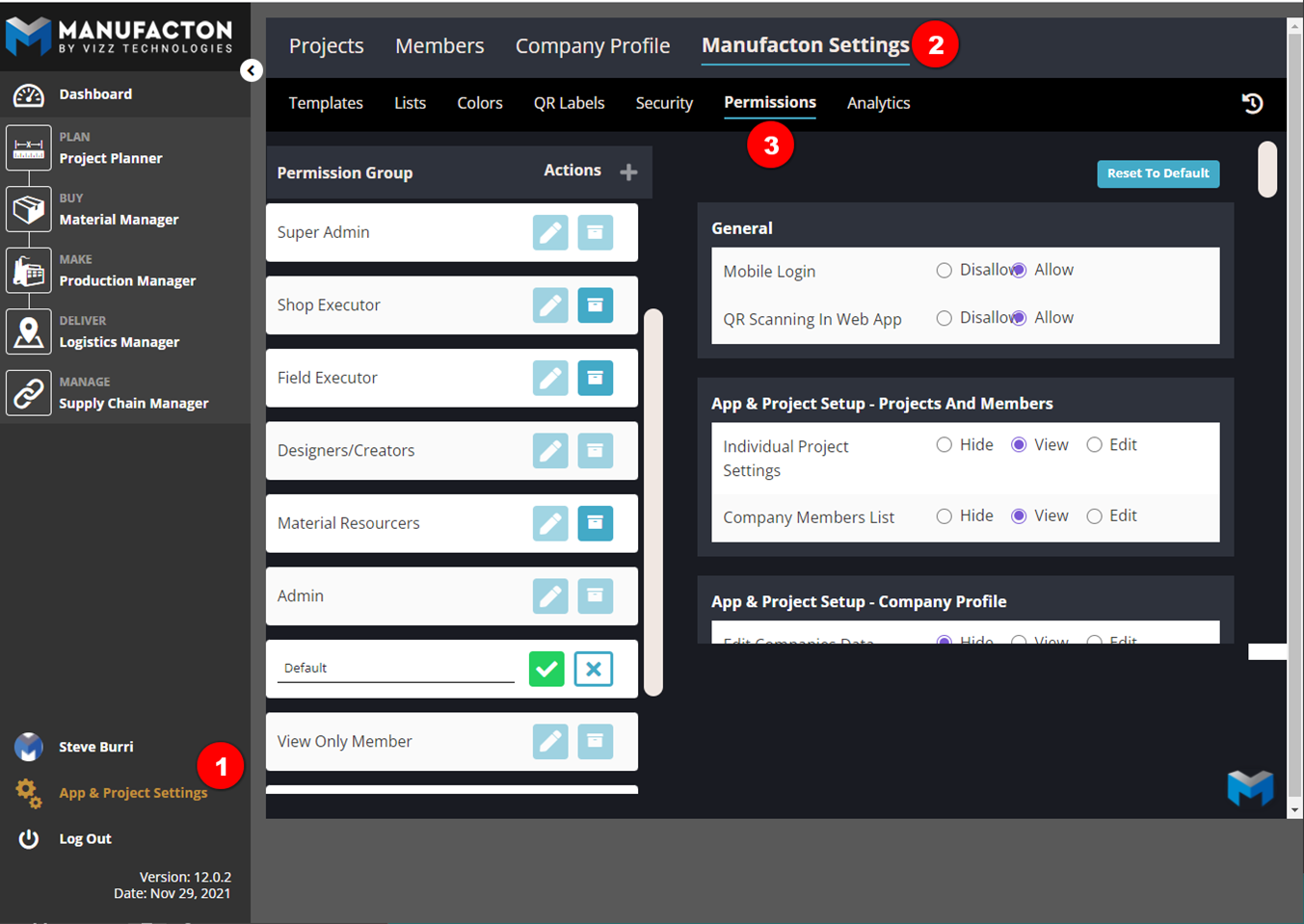
Manufacton provides a variety of example "Permission Group" options. Each is intended as a possible template for various types of users like Material Resourcers, Shop Executors, etc.
One group, "Super Admin" is un-editable and provides users assigned to that group full permission to the entire application. The Manufacton Support user is likely in this group, but others can be added as well to ensure that there is no way for all users to lose the ability to administer Manufacton.
All other Permission Groups can be edited, archived and new groups can be created as desired.
Note: A Permission Group can only be archived if no members are assigned to
      that group, otherwise the "Archive" option will be greyed out.
Options
Within each group, there are permission options that can provide members assigned to that group Edit, Limited View, View-only or Hide access to the Module or Functions within the module.
Those options are listed below:
General
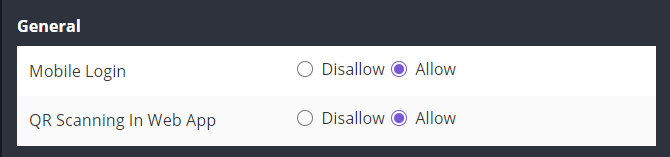
These permissions control whether or not a member is able to:
- Access Manufacton via the mobile (or Revit) app
- Access orders by scanning a QR label in either the mobile or web app.
Note:  If Mobile Login is set to "Disallow", users with that permission who
       try to login via the Revit Plugin will receive the message:

           Your Manufacton account only has view permissions. Please
           login through a web browser.
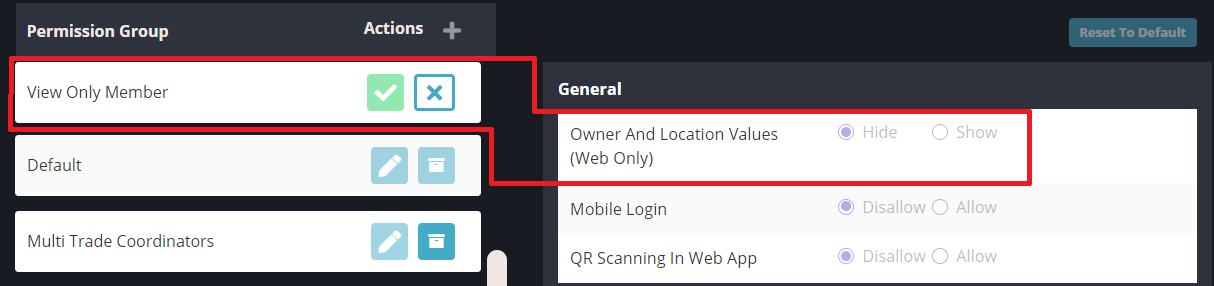
Owner And Location Values (Web Only)
There is a special permission provided in one pre-defined Permission Group, "View Only Member" which disables all views and columns which contain Owner and Location Values. This view is designed to provide external members to your organization access to a limited view of your orders without exposing ownership or location of those orders.
App & Project Setup - Projects And Members
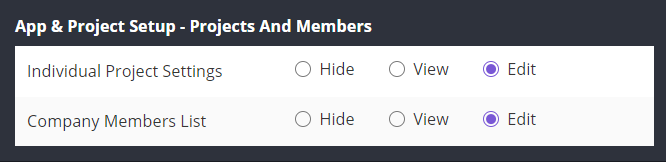 These Settings can hide, enable view-only or provide full edit access to the Projects and Members sub-tab within App & Project Setup: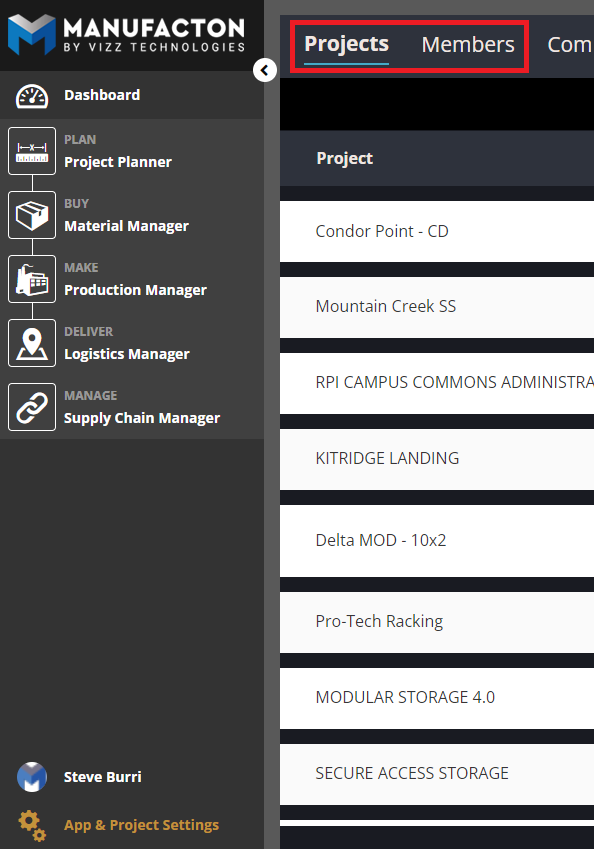
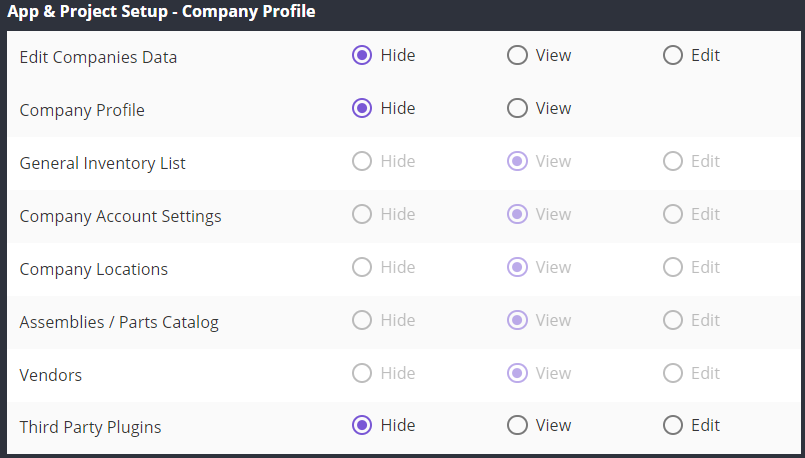
App & Project Setup - Company Profile
Note: To have users automatically added to projects as projects are created,
      please see the KB Article on How Do I Add + Remove Users?
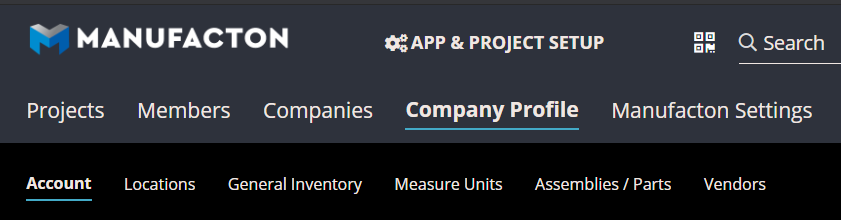
These Settings can turn off, enable view-only or full edit access to the Company Profile and/or sub-tabs under Company Profile within App & Project Setup:
App & Project Setup - Manufacton Settings
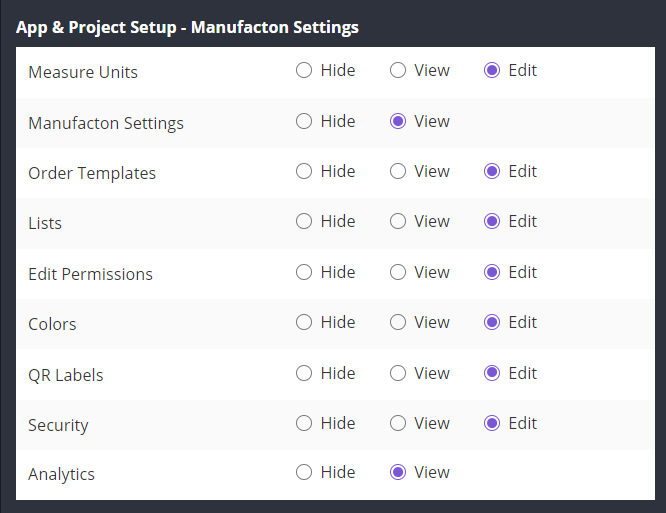 These Settings can turn off, enable view-only or full edit access to the Manufacton Settings and/or sub-tabs under Company Profile within App & Project Setup: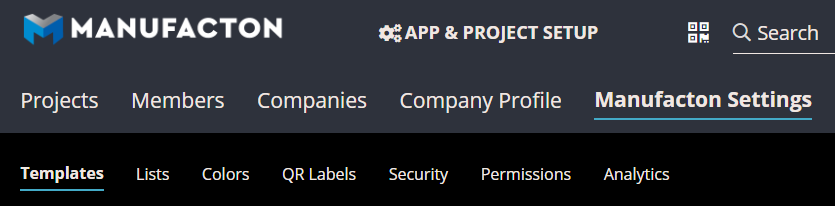
Material Manager
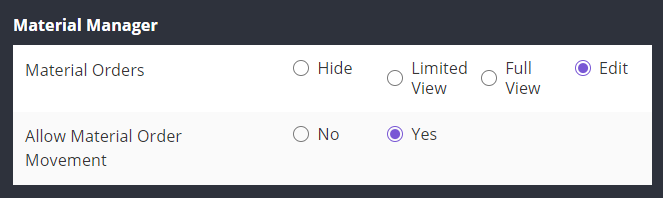
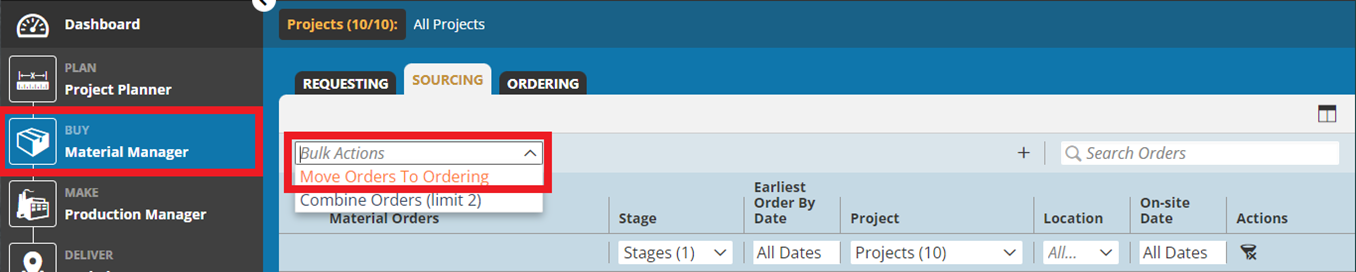
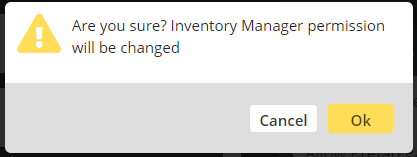
Note: If access to Material Manager is Hidden, access to the Inventory Manager
      Module will also be hidden
Prefab Planner
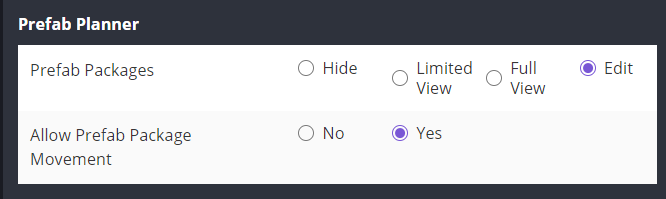
These settings enable edit, provide full but view-only, limited or no access to Prefab Packages in the Planning Module. For Limited, Full View and Edit access to the module, a second option to allow Prefab Packages to be "Moved" forward to the Coordination Stage can also be provided.
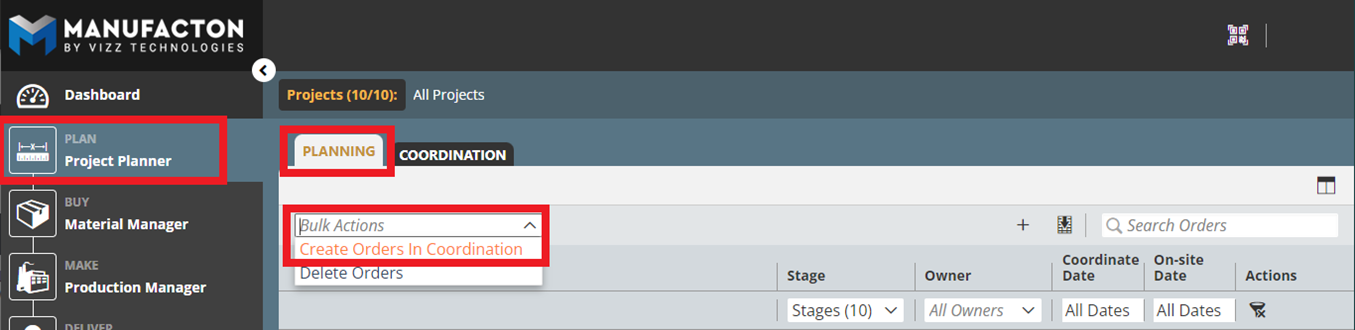
Notes:
     o Users who need to be able to create "Field Requests" will need full Edit
       permissions to Prefab Packages.  When Orders are created in
       Coordination, Detailing or Manufacturing a "source" Prefab Package is
       also created.

     o User who need to be able to Clone orders will also need full Edit
       premissions to Prefab Packages.
Production Orders
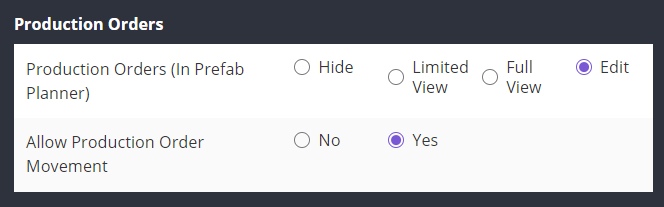
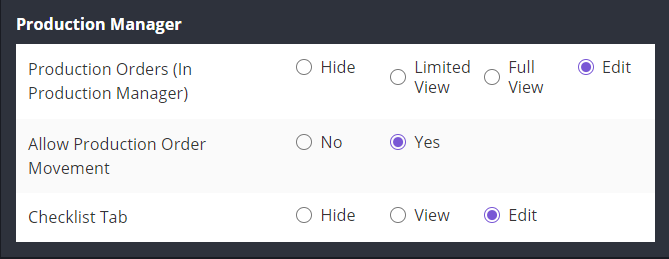
These settings provide edit, full view-only, limited or no access to Coordination (in the Coordination Stage). For limited, Fulle View and Edit access to the module, a second option to allow Production Orders to be "Moved" (forward to Detailing or backward to Prefab Packages) can also be provided.
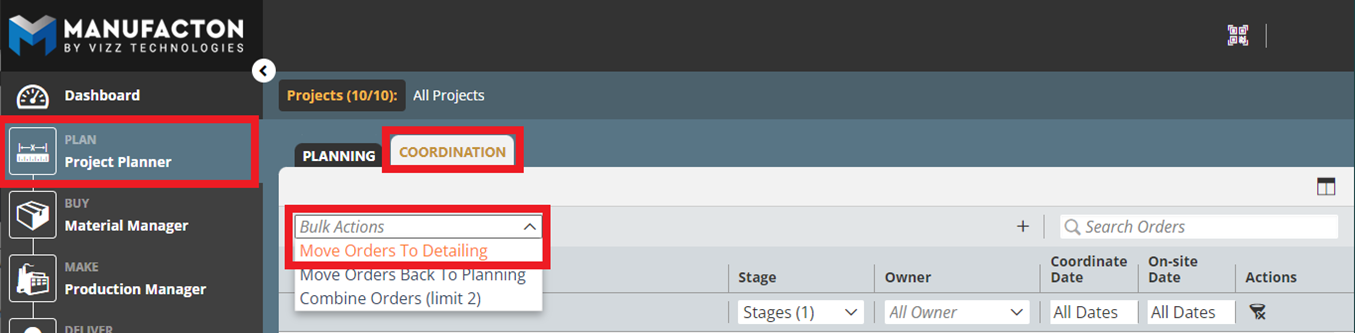
Production Manager
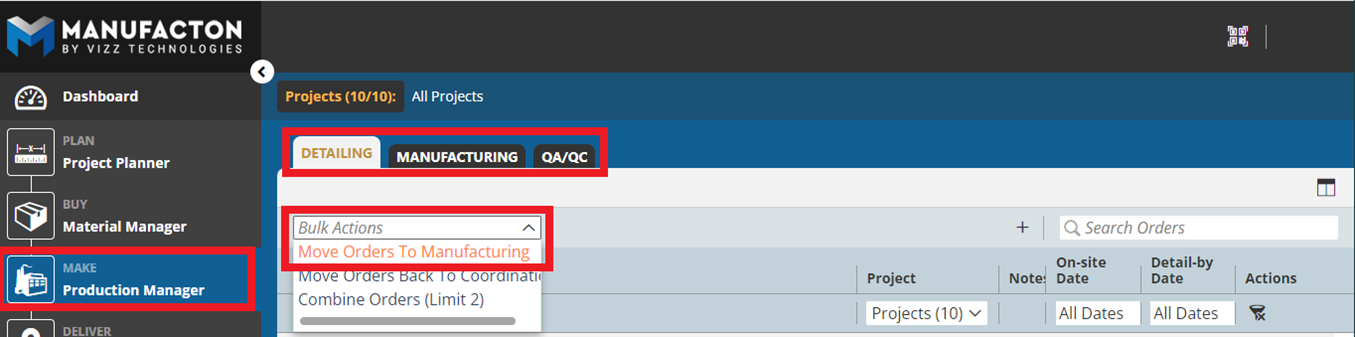
Note: If access to this tab is disabled for users, those users can still
      access the Checklists from their "Home" tab.
Inventory Manager
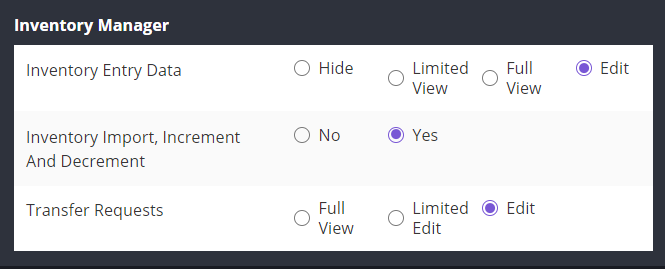
- These settings provide edit, full view-only, limited, or no access to the Inventory Manager Module.
- For Edit access to the module, a second option to allow users assigned to this group to Increment, Decrement, and/or import Inventory can be enabled.
- Members who are part of a Permission Group which includes Edit permissions, and has access to Import, Increment and Decrement inventory, will be notified when minimum stocks get low.
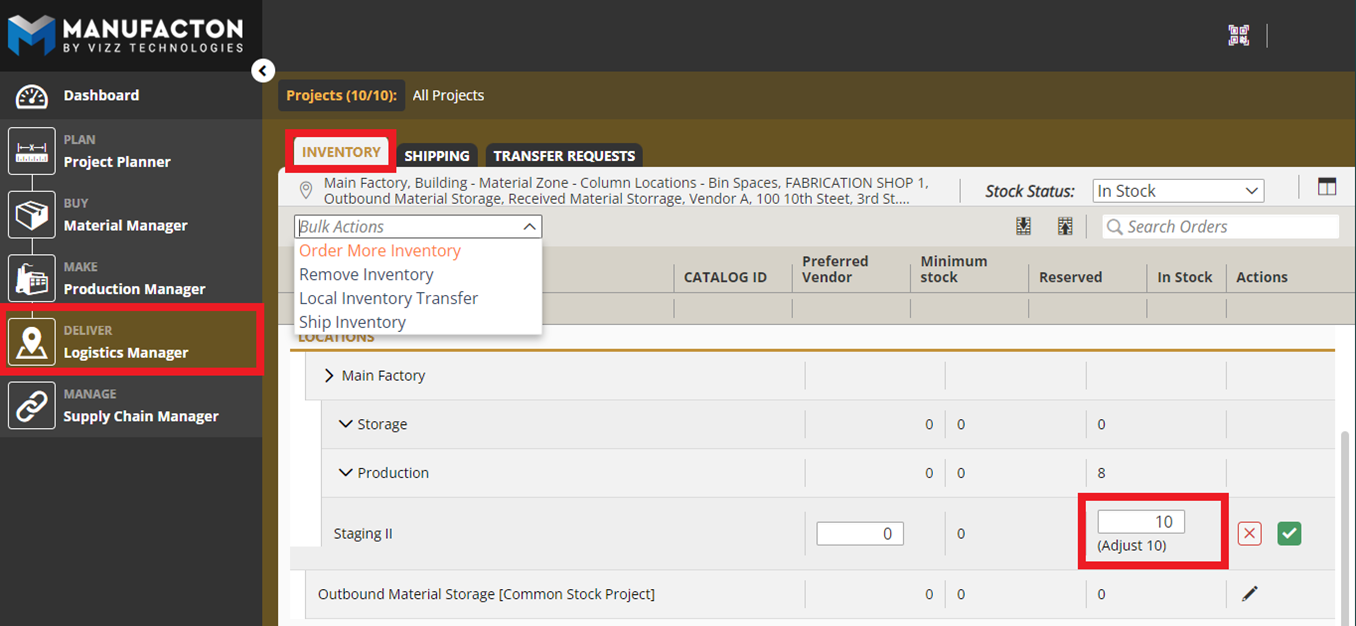
- The Transfer Requests permission can also be provided to:
- view Transfer Requests (with no edit privileges at all)
- perform Limited Edits on the requests to complete the request, but not change the due date or owner.
- The full Edit permission allows the requests to be completed and due dates and owners to be changed.
- Full Edit is required to create Transfer Requests.
Supply Chain Manager
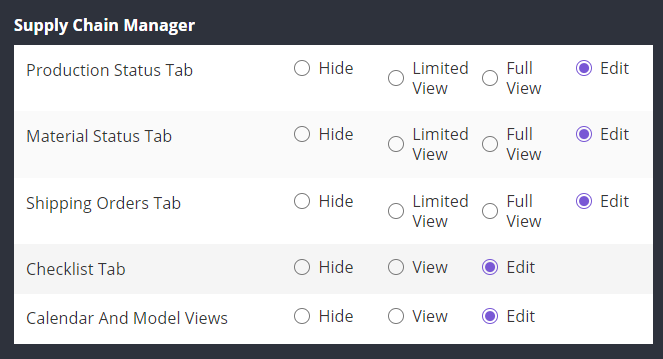
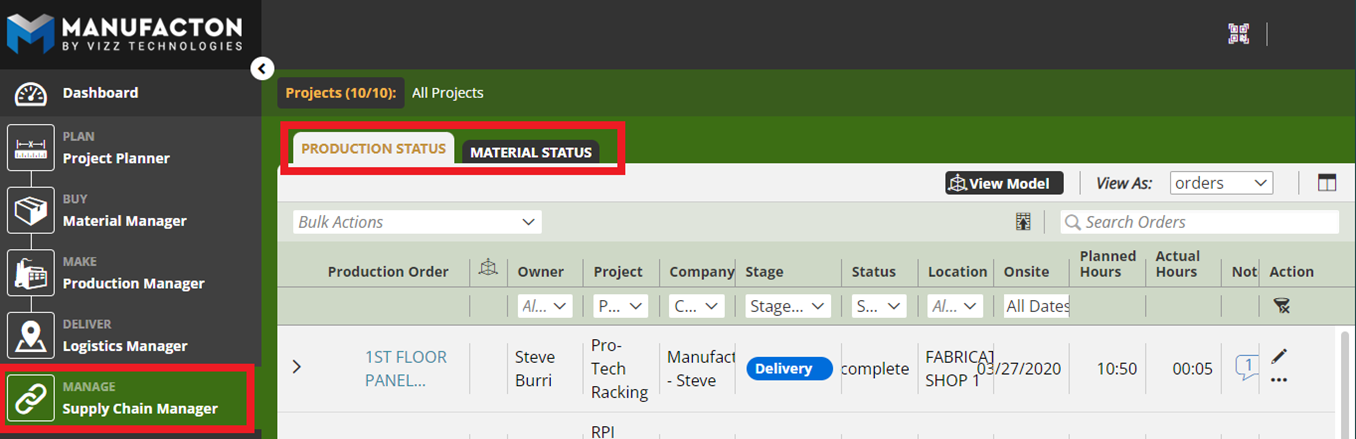
Note: If all three Tabs are Hiddent, the Supply Chain Manager Module will
      not show in the Main Menu.
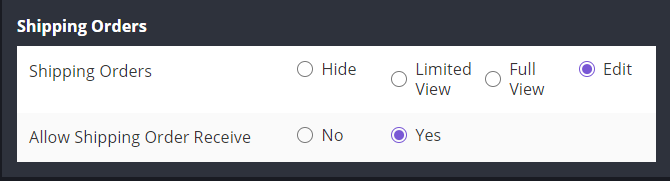
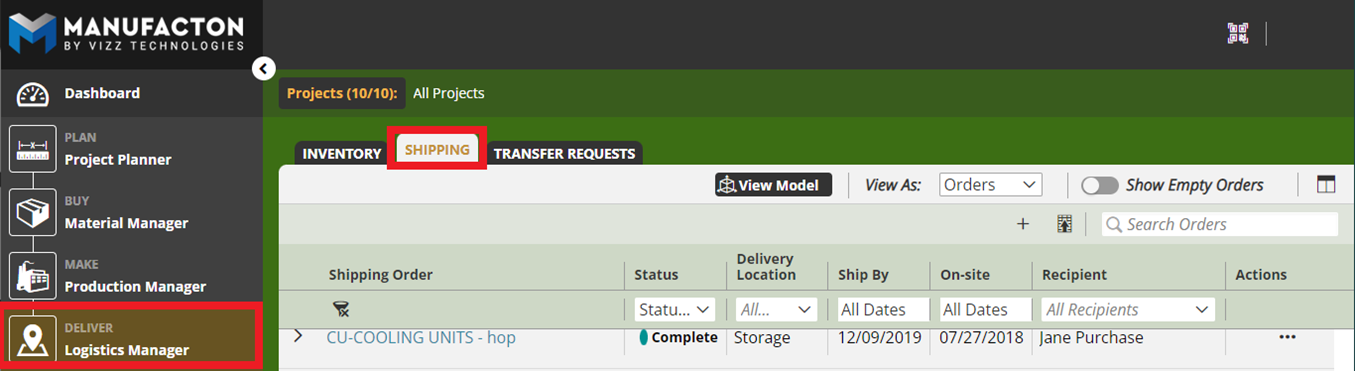
Note: If the "Hide" option is selected for the Shipping Orders permission, the
      module will appear, but the list show "No Data to Disply" as shown in
      the image above.
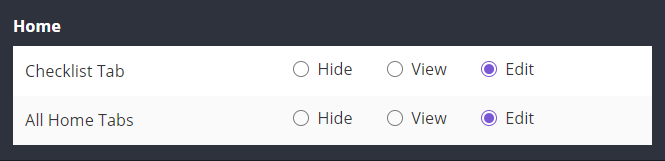
Home
These settings are obsolete in the current user interface and will be updated in a future release
Applying Permissions
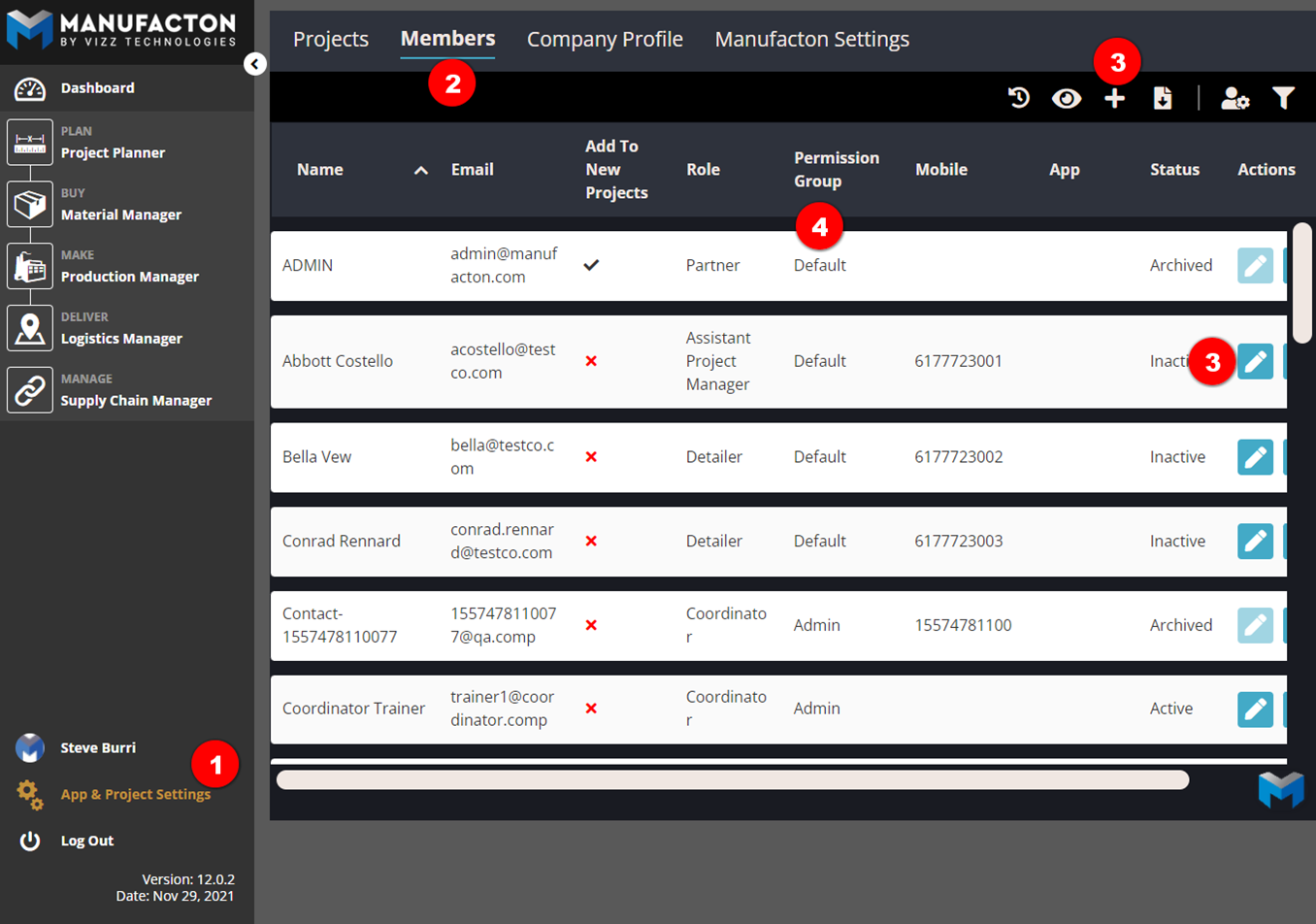
Permissions are applied by an Administrator to each Member in the Members Tab under App & Project Setup (see the KB Article on How Do I Add + Remove Users?):
- Select App & Project Setup
- Members
- Add a new or Edit an Existing Member
- Select a Permission group for that user to be a part of
Comments
0 comments
Please sign in to leave a comment.