Only Users with Edit permissions for "Individual Project Settings" can make projects in Manufacton (see the Knowledgebase Article on Permissions). If you do not have this permission, you'll need to identify who is and request them to perform the following.
- Select App and Project Setup (ensuring you are on the Projects tab)
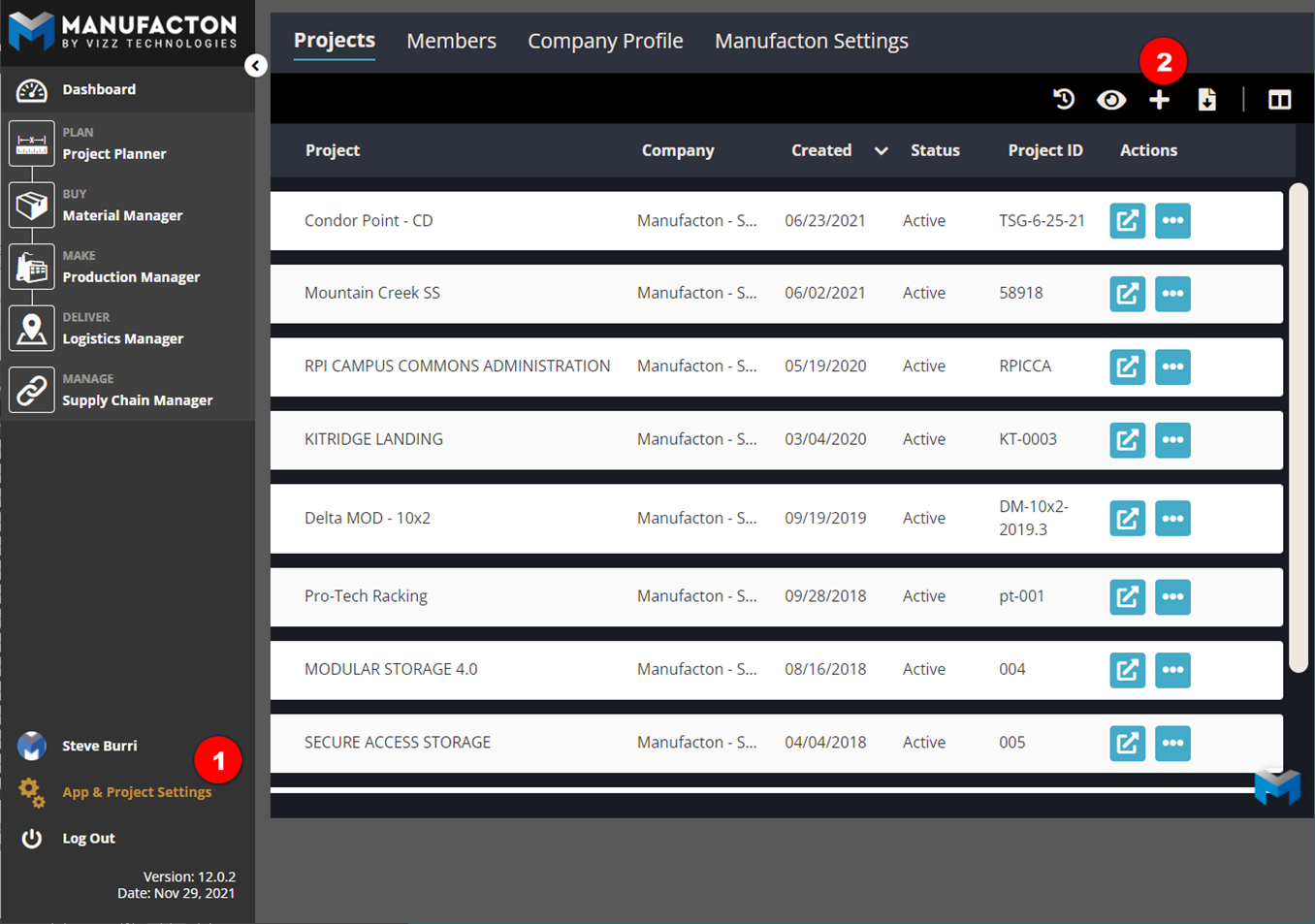
- Click the Plus button at the upper right corner of the screen.
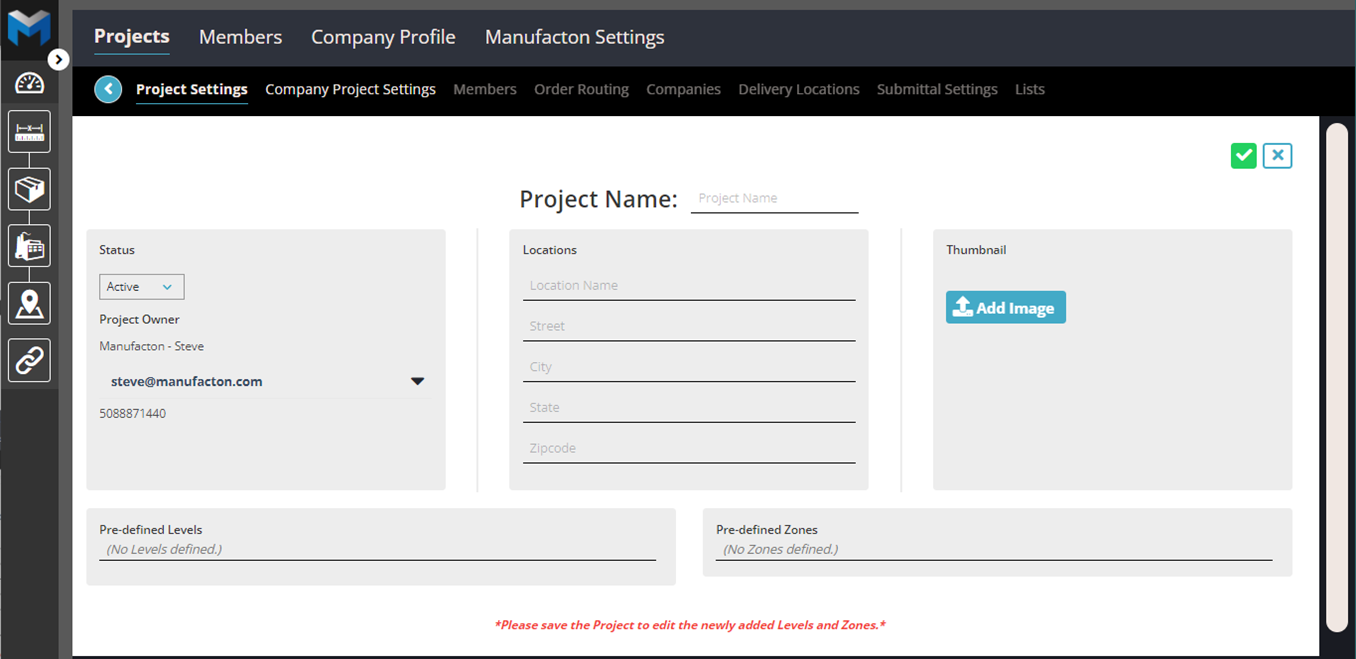
- Fill out all appropriate project information under the "Project Settings" tab.
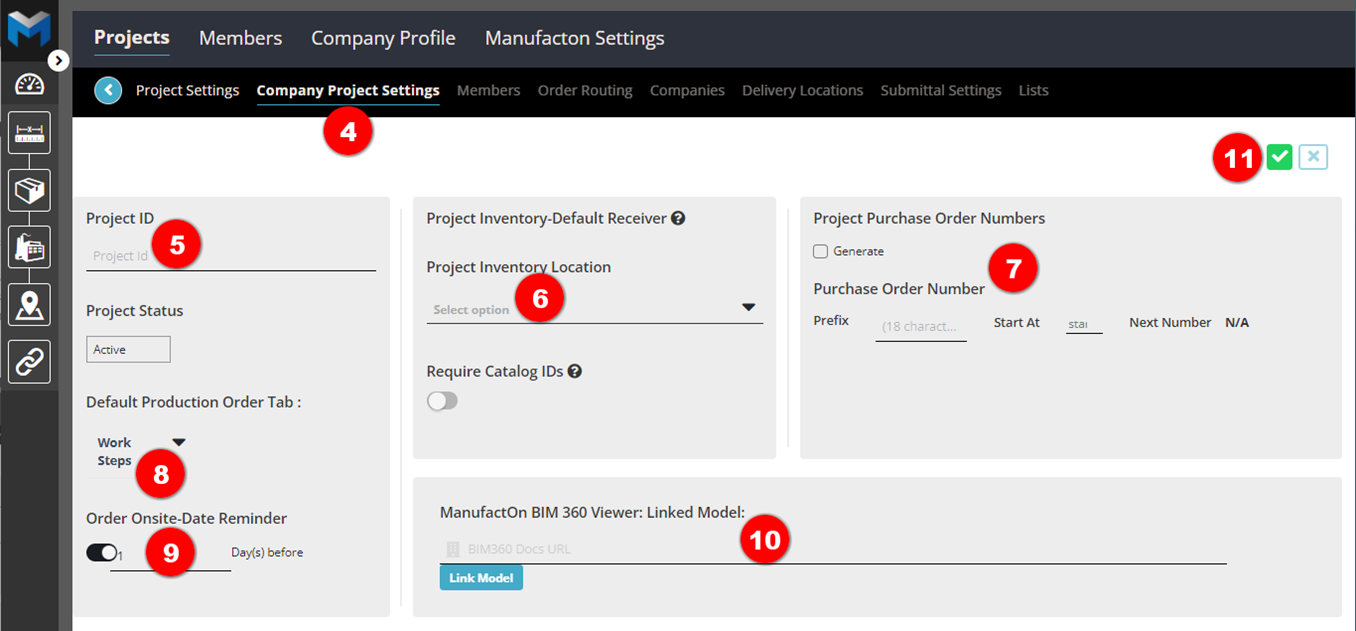
- Confirm Company Project Settings
- Enter a Project ID
- The Project ID must be:
- Greater than 3 characters
- Less than 16 characters
- Contain only alpha-numeric characters or dashes ("-")
- Cannot contain spaces.
- The Project ID must be:
- Enter the default Project Inventory Location
- This can be a project or company-defined location
- This location is where Materials should be stored if they need to be allocated to production orders which are in the manufacturing stage.
Note: If this Location is the Top-Level of a Nested Company Location,
      please be aware that Transfer Requests will be required to move
      any Production Order's associated materials to the Production
      Order's location for this project as that Order is being move
      from the Detailing to the Manufacturing Stage.

      See the KB Article on Nested Company Locations for more
      information.
- This location is where Materials should be stored if they need to be allocated to production orders which are in the manufacturing stage.
- This can be a project or company-defined location
- If a Project Specific Purchase Order Numbering scheme is being implemented, the Prefix and start number can be entered.
- The default sub-tab for Production Orders can be set:
- Order Onsite-Date Reminder setting can be set to send a reminder to project team members when the onsite date for an order is coming due (mobile reminders only)
- If a model representing this project is loaded up in your BIM360 Docs folder, a link to that model can be established.
- Select the Save checkbox
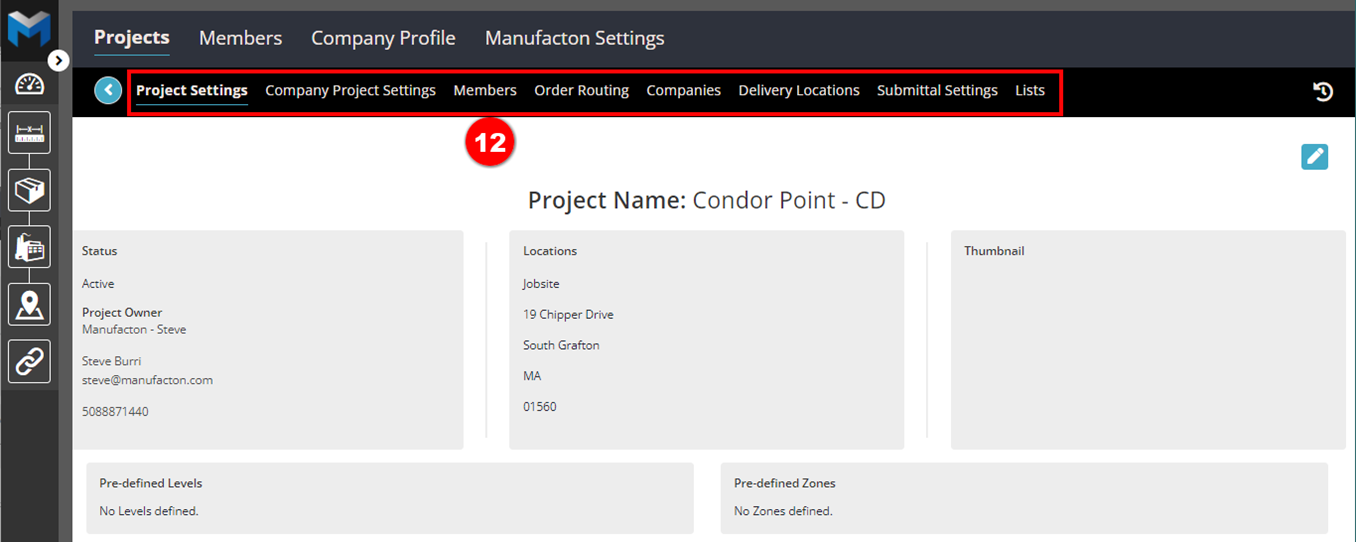
- You can now add project-related contacts and specific delivery locations on-site with the plus button on the "Company Project Settings" and the "Delivery Locations" tabs.
Comments
0 comments
Please sign in to leave a comment.