Overview
During the Material Sourcing process, it is important to be able to organize items that are to be purchased into logical groups, often by Vendor, but Categories/Sub-Categories and Cost Codes can also be a useful way to organize items.
In Manufacton, during the Sourcing stage of Material Management, it is possible to reorganize Material Order by these parameters.
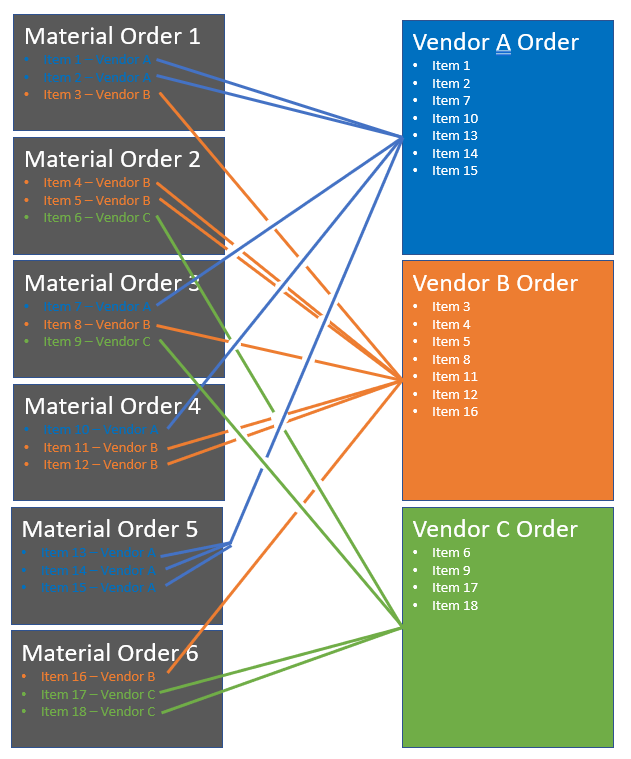
As an example, if there are six material orders in the Sourcing stage for a project that have items in them with various "Default Vendors", (i.e. Vendor A, B & C) it is possible to quickly reorganize those orders into one order for each vendor.
There are a few rules that are important to note:
- Orders will be reorganized within a project - It is not possible to merge material items from one project with items from a different project.
- All material items within a selected project which are in the Sourcing stage will be considered during the reorganization process.
- To optimize this process is it important that the parts in your Part Catalog are properly assigned one or more of the following:
- Default Vendor
- Category / Sub-Category
Please refer to the following KB Articles for reference on these topics:
Reorganizing Items in Sourcing
To perform a reorganization, within the Material Manager module:
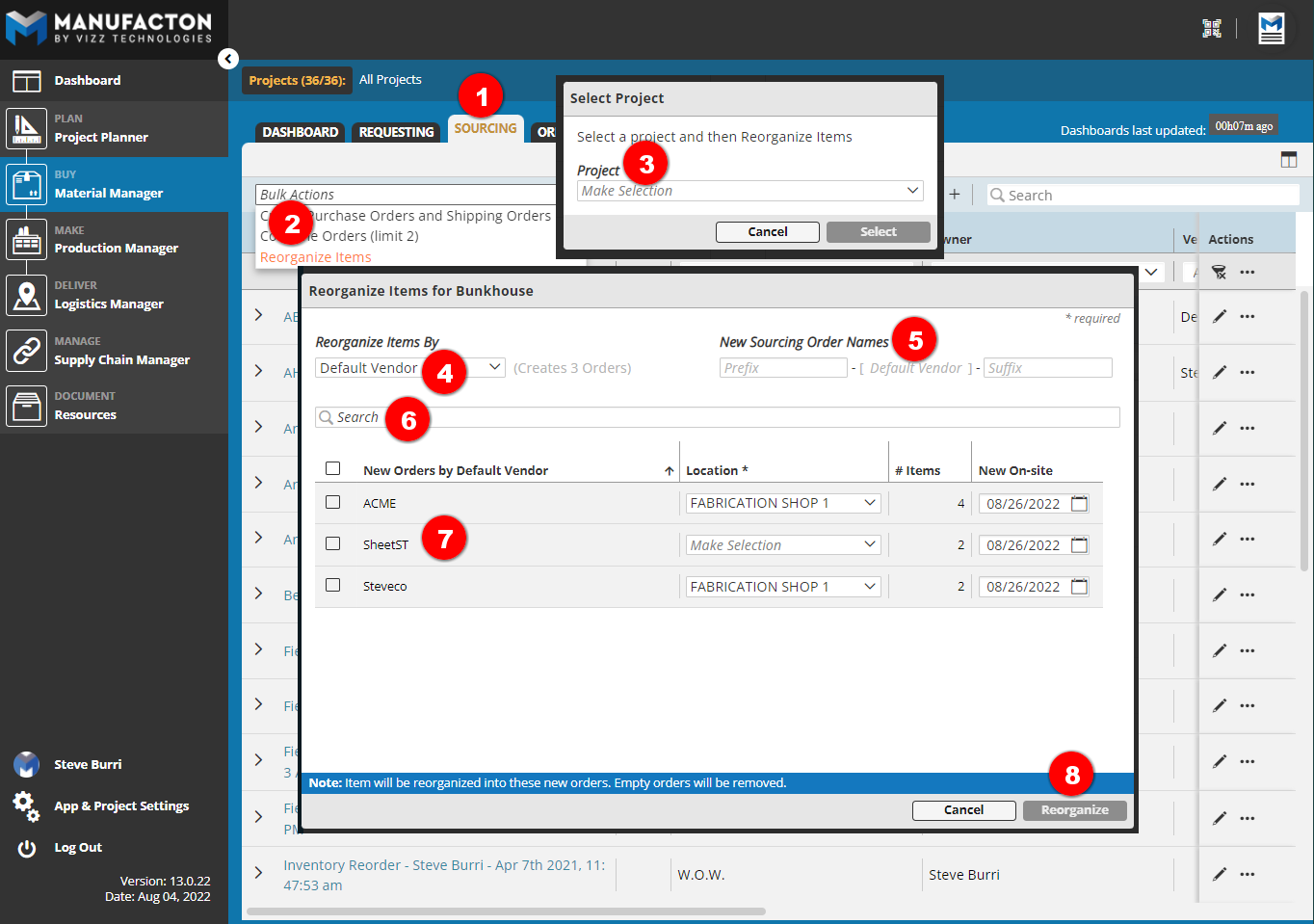
- Select the Sourcing sub-tab
- Select Reorganize Items from the "Bulk Action" drop-down
- Select the "Project" for which the items within the material orders are to be reorganized
- Select how the items are to be reorganized:
- Default Vendor
- Category
- Category & Sub-Category
- Cost Code
- An optional Prefix and/or Suffix can be added to the name of the new Sourcing Order that will be created.
- If the list of reorganization parameters is long, a Search can be performed
- Select the Parameter(s) by which the items should be reorganized:
- For each box checked, one new material order with all of the items within the selected project which have the selected parameter will be created
- Select Reorganize
Once the items are reorganized, Material Orders with the names provided will be created, and any order from which ALL of the items have been reorganized will be archived.
Notes:
o The 50 item per order restriction is enforced during the reorganization.
  If a new order has more then 50 items, two (2) or more (if necessary)
  orders will be created.
o The "Location" field will be filled in automatically only if all items
  in the reorganized order were to be sent to that location, otherwise
  a location must be selected
o The "New On-Site" date provided is the EARLIEST On-Site date for the
  items in the order to ensure that item is recevied on time.
o Item level notes and documents will be moved, along with the item, to
  the new reorganized order
o Order level notes and documents must be added back to the newly created
  material order.
Video
This ~7 min video provides a quick overview tutorial of the Batch Reorganize Material Items feature:
Comments
0 comments
Please sign in to leave a comment.