Overview
There is an optional function to the Revit Plugin called "Catalog Assemblies" which links Revit objects to assemblies in your Assembly / Parts Catalog.
The tool provides two functions to the plugin:
- If the assembly does exist in your catalog, it applies that assembly's Catalog ID to that Revit object.
- If the assembly does not exist in your catalog, it creates an assembly Catalog ID and then applies it to that Revit object.
This function requires that the "Catalog Assemblies" function has been enabled to your Revit Plugin.

Note: Please contact your Customer Success Manager or Support to find out more
      about enabling the "Catalog Assemblies" function.

      For more information on the Revit Plugin, please see the
      Manufacton Plugin for Revit KB Article
Prerequisites
In Revit
Any objects which are to leverage the Catalog Assemblies function are going to need two parameters associated with them. The parameters should be of type "Text" and can either be project or shared parameters in Revit:
- MFact_Asmbly_Item_Code - contains the prefix, parts list and part quantity for the assembly
- MFact_CatId - The assembly's Catalog ID from Manufacton
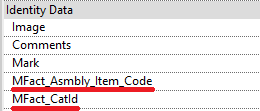
Note:  These parameters are case sensitive and must be entered exactly as shown
       above (the "I" in MFact_CatId is capitalalized).
In Manufacton
Parts with the appropriate Part Catalog IDs need to be present in the Catalog for this process to move forward.
Note:  See the KB Article on Assemblies / Parts Catalog for more information
       on Catalogs.
Usage
Once these parameters are available to the Revit object and the appropriate parts in the Parts Catalog, the MFact_Asmbly_Item_Code can be populated with a comma-separated string similar to the following:
TYPE_XYZ,12345:2,ABCDE:3,...
Where (in the example above):
- TYPE_XYZ - Represents the prefix for the type of assembly
- 12345 - Represents a Part Catalog ID in your Parts Catalog
- :2 - Represents the quantity of Part 12345
- ABCDE - Represents another Part Catalog ID in your Parts Catalog
- :3 - Represents the quantity of Part ABCDE
As many Part:qty combinations can be listed in the string as is necessary to properly identify the assembly, and each "Part Catalog ID":<qty> combination must be separated by a comma with no extra spaces.
NOTE: How the MFact_Asmbly_Item_Code is populated is entirely up
      to your company's implementation of Revit; either manually,
      via a Dynamo script, or via some other method.
- With the MFact_Asmbly_Item_Code populated with an appropriate code
- Select the Catalog Assemblies button from the plugin
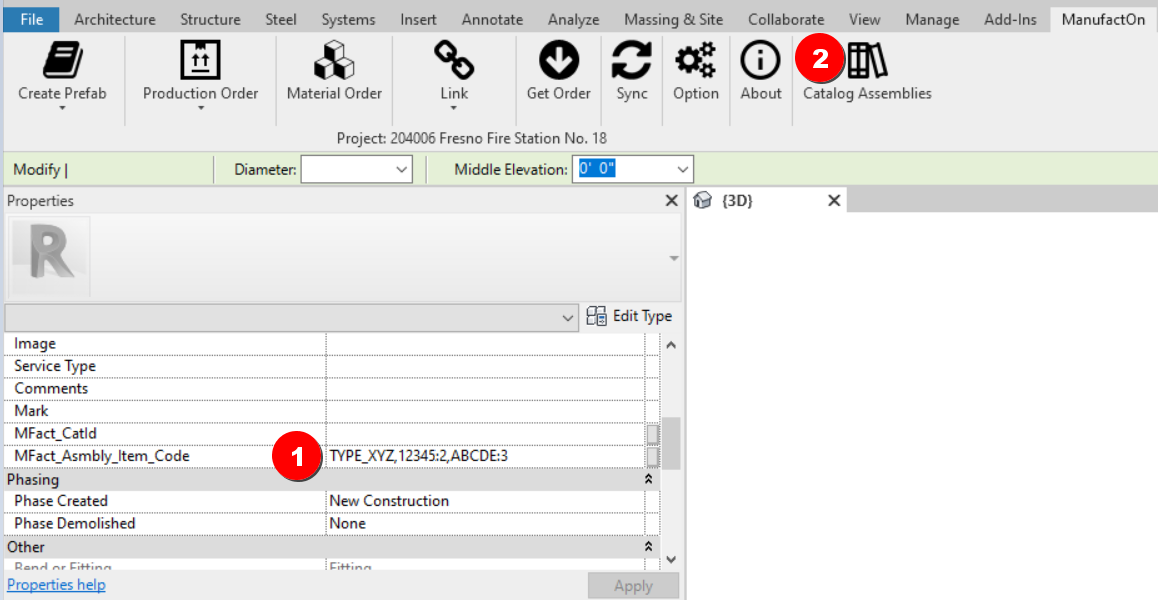
If an assembly which represents the part(s) and quantity combination defined in the MFact_Asmbly_Item_Code does not yet exist:
- Manufacton will create an Assembly Catalog ID
- Enter that ID in your Manufacton Assembly Catalog with the appropriate parts and quantities associated with it
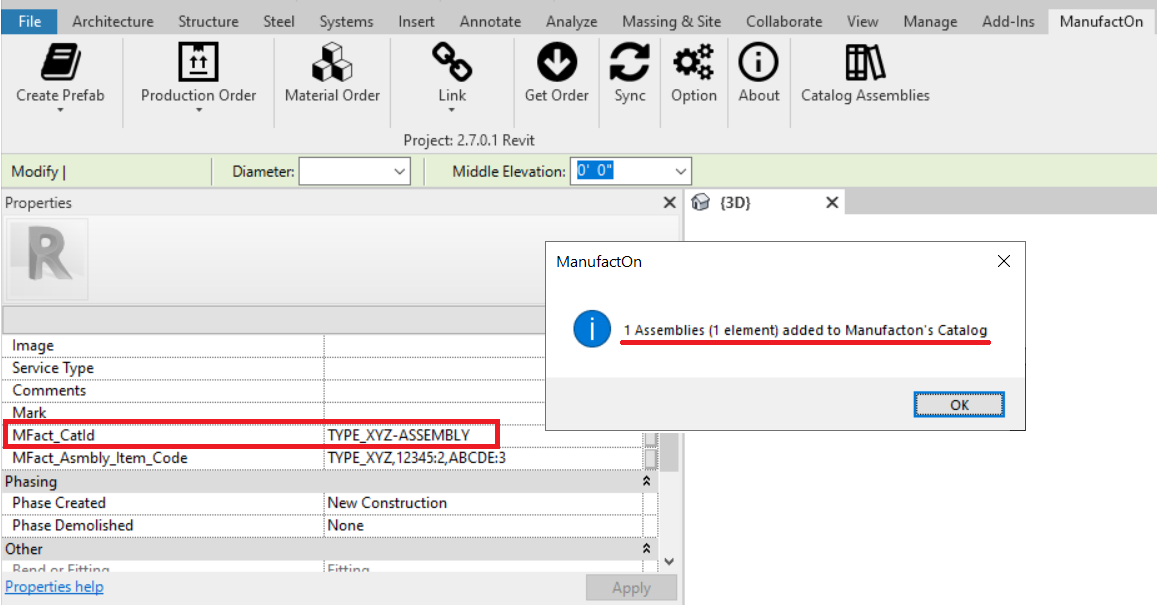
- Push that Assembly's Catalog ID into the Revit object's MFact_CatId parameter.
If an assembly which represents the part(s) and quantity combination defined in the MFact_Asmbly_Item_Code does exist:
- Manufacton will push that Assembly's Catalog ID into the Revit object's MFact_CatId parameter.
In either case, the Revit object will end up with an appropriate Assembly Catalog ID.
Comments
0 comments
Please sign in to leave a comment.