Overview
Schedules Change! And when they do, those changes can impact multiple production Orders.
The Mass Update Dates tool is designed to make those changes to your orders and checklist items as quick and as simple as possible; and can be applied in three different ways.
Details
Selecting Orders for Mass Update
To initiate a mass update of dates on production orders:
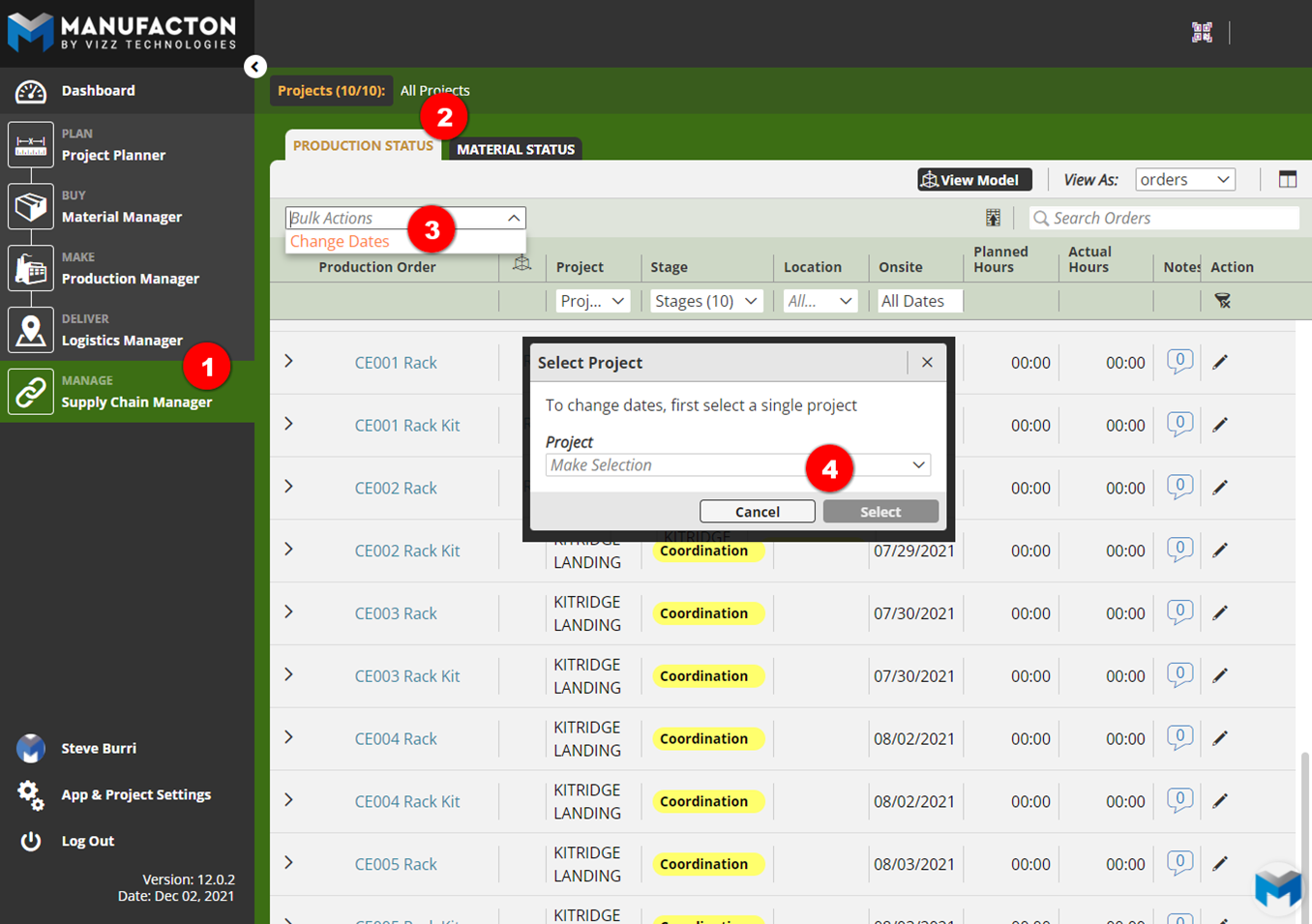
- Select Supply Chain Manager
- Select Production Status, Material Status
- Select the Bulk Actions tool and select Change Dates
- Select the project to which the mass date change should apply
- Select the Orders or Checklist items that require date changes
- Select Change Dates
- Select one of the methods to update the dates
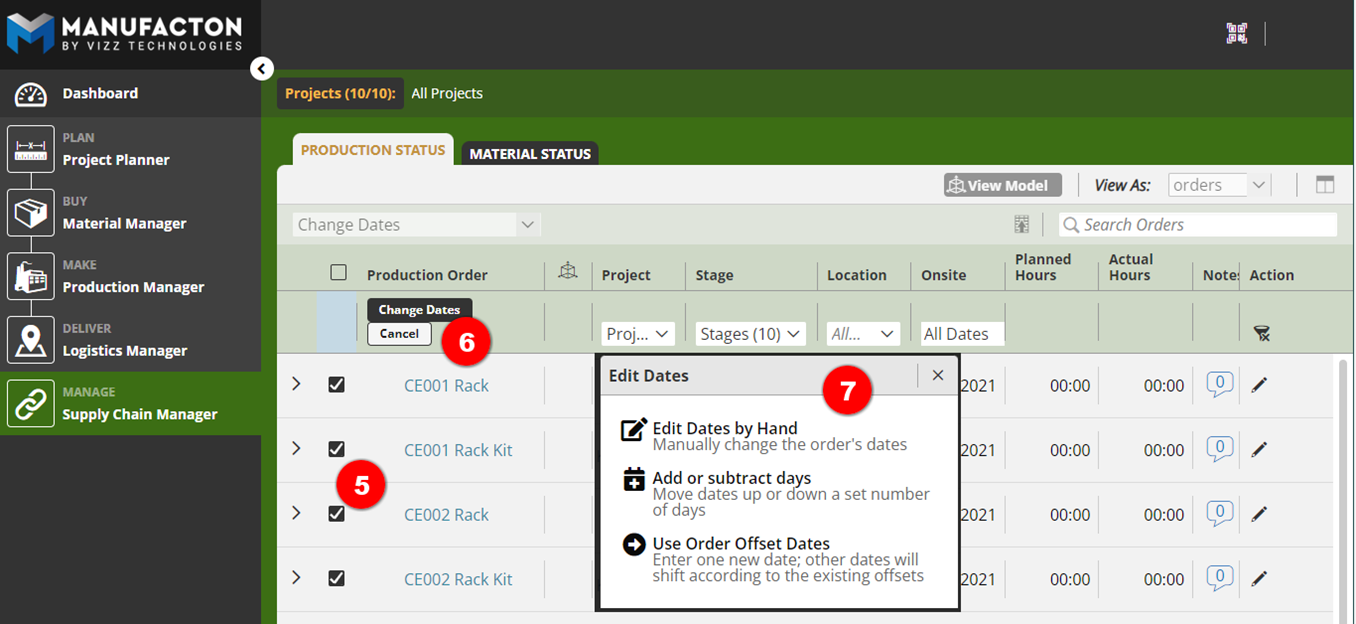
Note: For Material Orders and Checklist items, "Edit dates by hand" and
      "Add or subtract days" will be the only options available.
Update Methods
There are three (3) date update methods available:
- Edit by hand
- All the selected orders will have the chosen stage(s) date(s) set to the exact dates specified
- User Order's date offsets (available for Production Orders only)
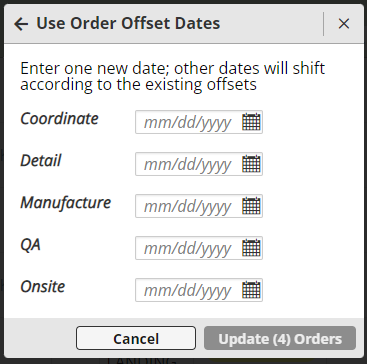
- By setting either the Manufacture by or Onsite by dates, all the selected orders will have that date set to the exact same date, but the dates of the preceding stages will remain offset by the number of days that they were prior to the change
- Add/subtract days
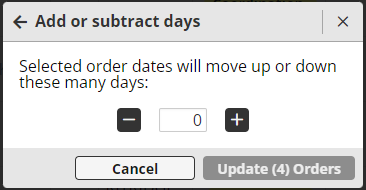
- All dates for all orders will be adjusted by the given offset value
Applying the Chosen Method
Edit dates by hand
Production Orders
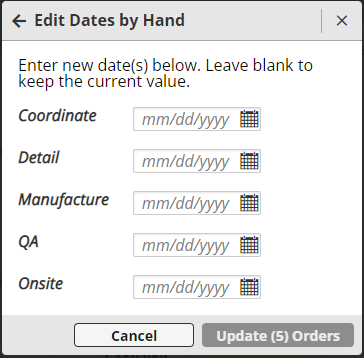
With the Edit dates by hand method selected, all of the selected orders will have the chosen stages dates set to the specified dates
Not all stage dates have to be set. If only the Manufacture date needs to change, only that date needs to be entered. Leave dates blank to keep those current values unchanged.
Material Orders
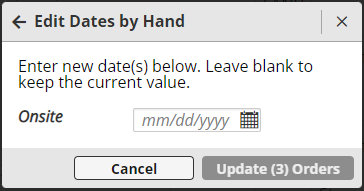
For Material Orders, the only editable date is the Onsite date, which is easily adjusted with the Mass Date Update tool.
Use order's date offsets (available for Production Orders only)
Enter one new date. Either the Manufacture date or the Onsite date (not both). All selected orders will get that date. Other dates will be adjusted using date existing offsets.
Add/subtract days
By selecting either the "Add" or "Subtract" radio button and then entering the number of days ALL the stage dates should be adjusted by, all selected Orders will have their dates increased or decreased by the given value
Notes:
  o Only the date for stages which have not been completed will be changed,
    regardless of the method selected.

    For example, Orders currently in the Manufacturing stage can only have their
    Manufacturing, QA and Onsite dates changed.  The Detail and Coordination
    dates will not be changed.
Comments
0 comments
Please sign in to leave a comment.