Overview
Revit and Autocad users make model object associations with Manufacton production and material items and can see real-time status of those items in ManufactOn, as well as directly through the BIM software. However, there are many key stakeholders in a project who may not have the necessary BIM software installed on their computer to take advantage of this intuitive and powerful view.
For those cases, users can access the BIM model through an online BIM viewer. Follow these steps when setting up the BIM viewer for the first time.
Requirements
Each user who would like to view the Manufacton status within the Large Model Viewer will also need:
- Access to Autodesk's BIM 360 Docs.
- For each project on BIM 360 Docs, they also need to be provided and have accepted the invitation to join that project (See the Autodesk Articles on how to Invite People to a Project and how to Launch BIM 360 Docs and Sign In).
There are a couple of other prerequisites within Manufacton to allow status to be viewed within the model:
- Setting Up the BIM360 Site - Setting Up Your BIM360 Site to Work with Manufacton
- Provide User Access - See Configuring the BIM Large Model Viewer
- Connect a Model to your Project - See Setting Up a Project with a BIM Viewer Model
The model should be as complete as possible prior to uploading it to BIM 360 docs. Any new model objects added to the model after it is uploaded will not be able to display status unless the model is uploaded into BIM 360 Docs again.
Accessing the Model View
Once model associations to Manufacton items are made, the model has been uploaded and linked to the project and users have access to that model in BIM 360 Docs, there are several ways to access the model to show the status of all the associated model objects:
Via App & Project Setup
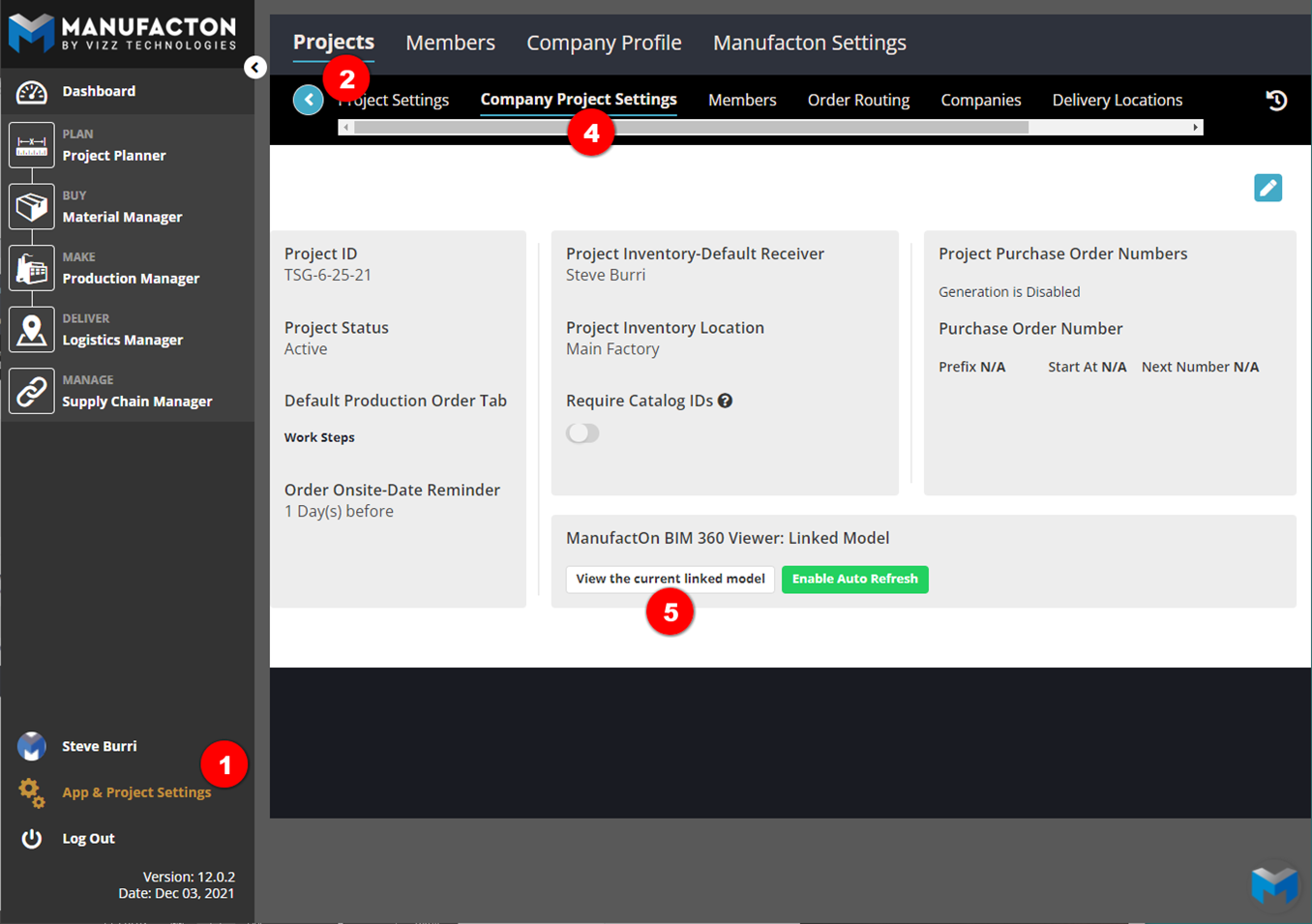
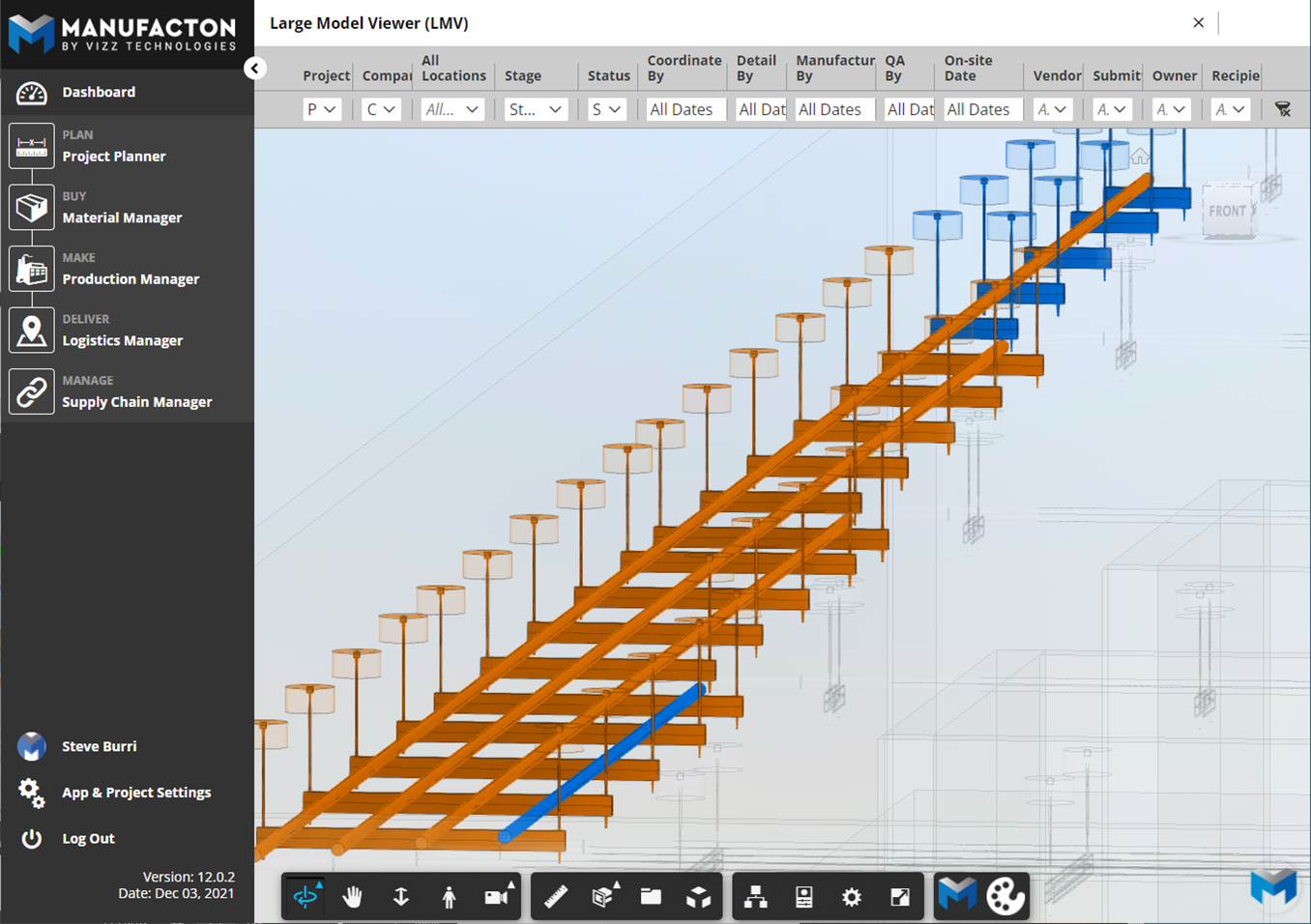
The first, but likely least common, spot to view the model is directly from App & Project Setup. This method is most commonly used to check to make sure the model is rendering as expected in the Large Model Viewer:
- Select App & Project Setup
- Select Projects
- Open the desired project
- Select Company Project Settings
- Select View the Current Linked Model
Via Supply Chain Manager
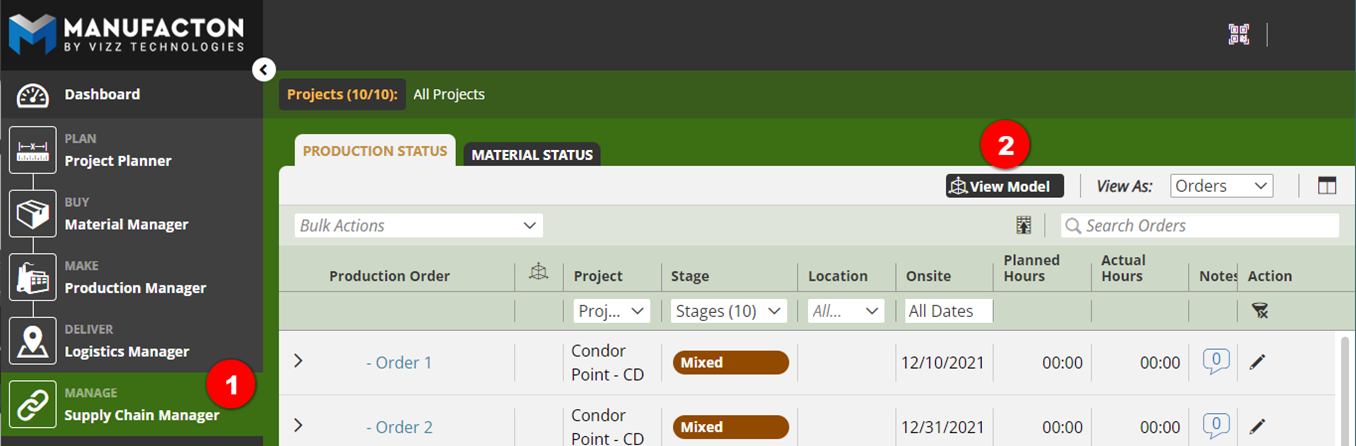
Non-administrators can also access the whole model view:
- Select Supply Chain Manager
- Either Production Status or Material Status
- Select View Model
Via a Production or Material Order
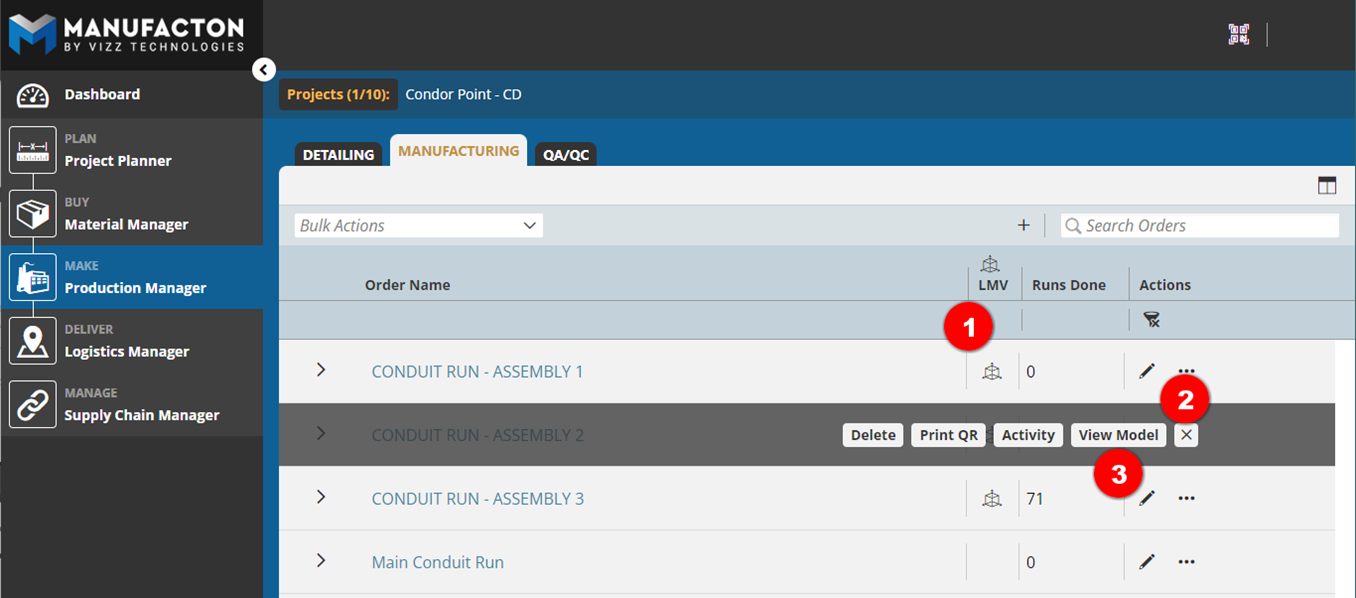
Once a Material or Production order has at least one item in it which is connected to a Revit or Autocad model object, a "model" icon will appear in the LMV column for that order in Supply Chain Manager, Production Manager and Material Manager (wherever that order is displayed).
Wherever this icon appears, that order's model objects can be focused in on within the Large Model viewer:
- Either select the "model" icon
- Or select the ellipse ("...") for that order
- Then select the "View model"
The Manufacton Large Model Viewer will open, render the model and then zoom in on the item(s) that are associated with that order within the model.
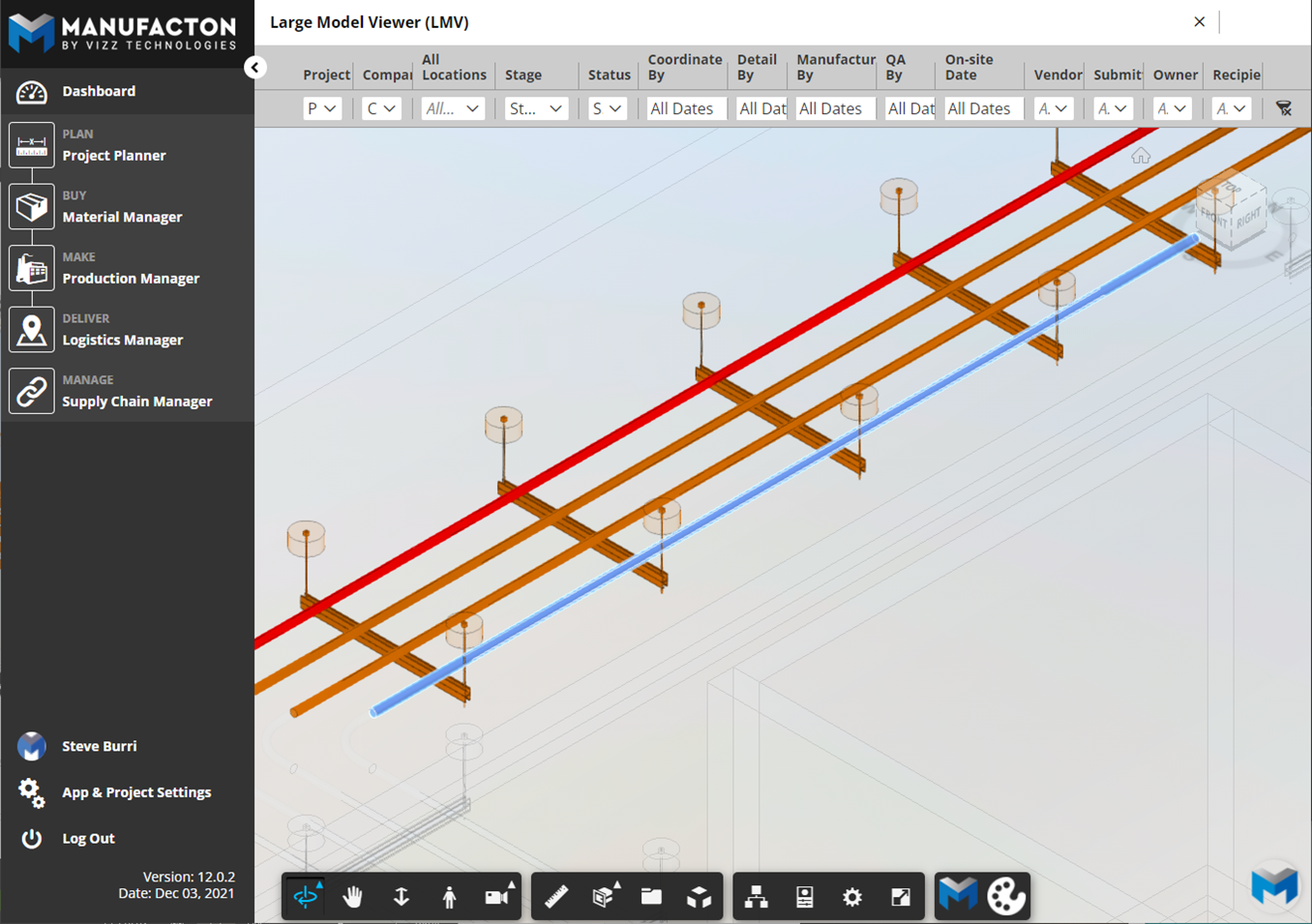
Large Model Viewer Tools
The Manufacton Large Model Viewer has several tools which allow for various powerful visualizations and interrogations of the model.
Filters
The most powerful tool within the Large Model Viewer is the filter tool!
Configured just like the filter tool within the Manufacton app, the Large Model Viewer filter tool allows users to focus in on various critical parameters of your project like:
- Expected Delivery Dates (Onsite date)
- Current Stage
- Current Location
- Etc.
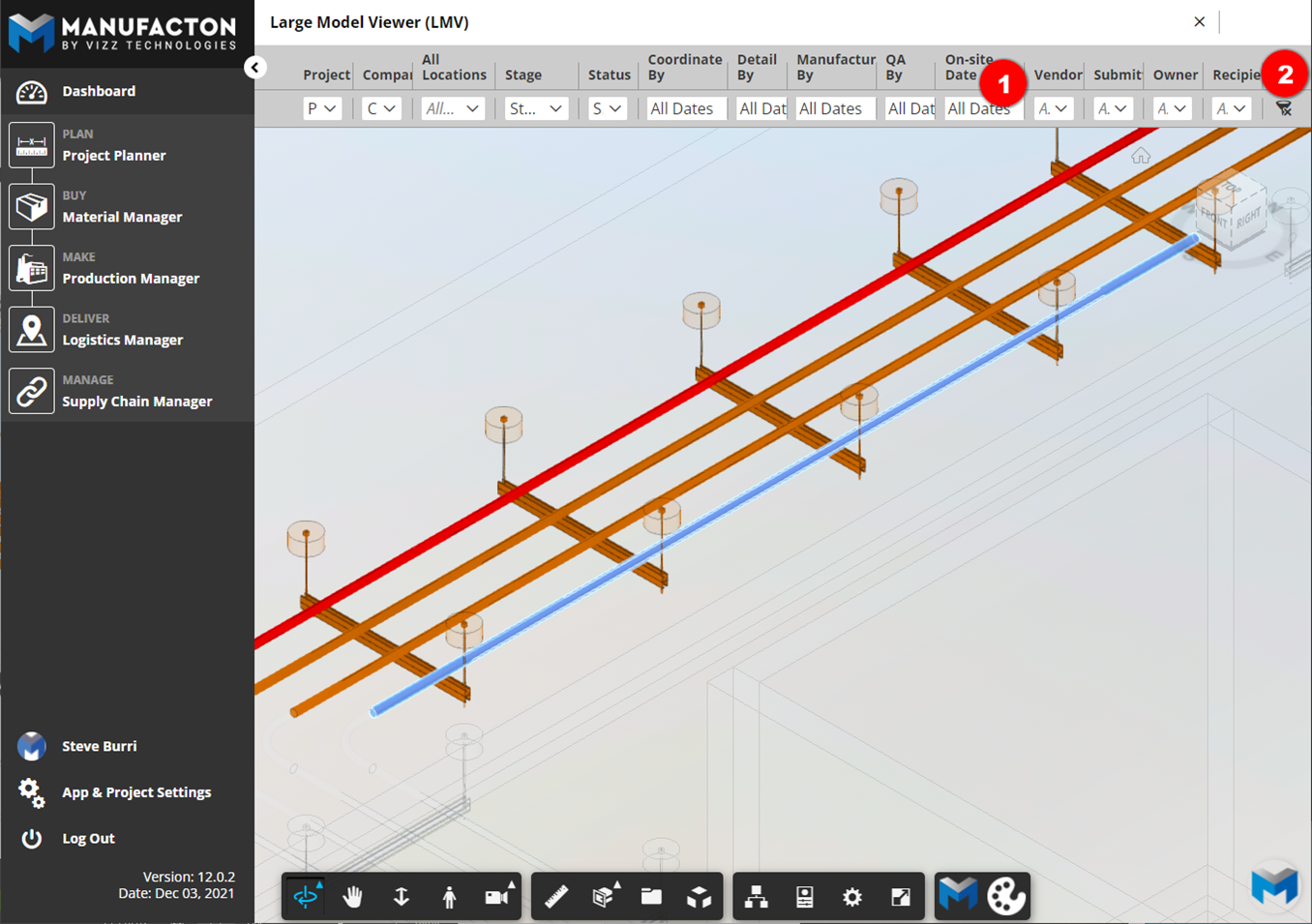
The OnSite Date option is particularly powerful as it can represent a look-ahead for your project and quickly identify if things are progressing as expected.
Setting a look-ahead is simple:
- All available filters are provided at the top of the viewer. Multiple filters can be set at once.
- The ability to clear all of the filters is also provided
Color Legend
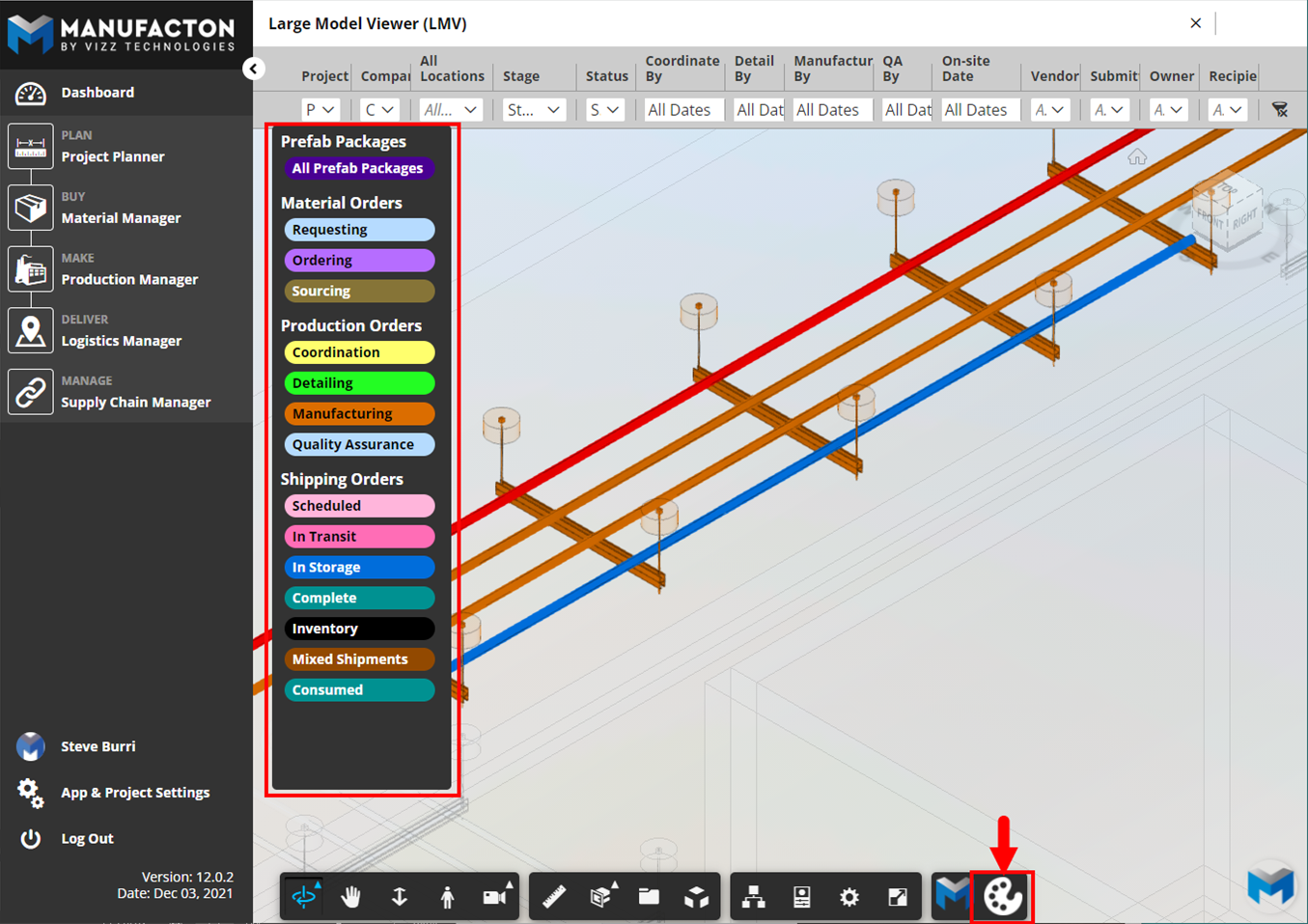
Color codes are only powerful if you know what the colors stand for.
To expose the color legend, select the palette-board at the bottom-right of the Large Model Viewers toolbar.
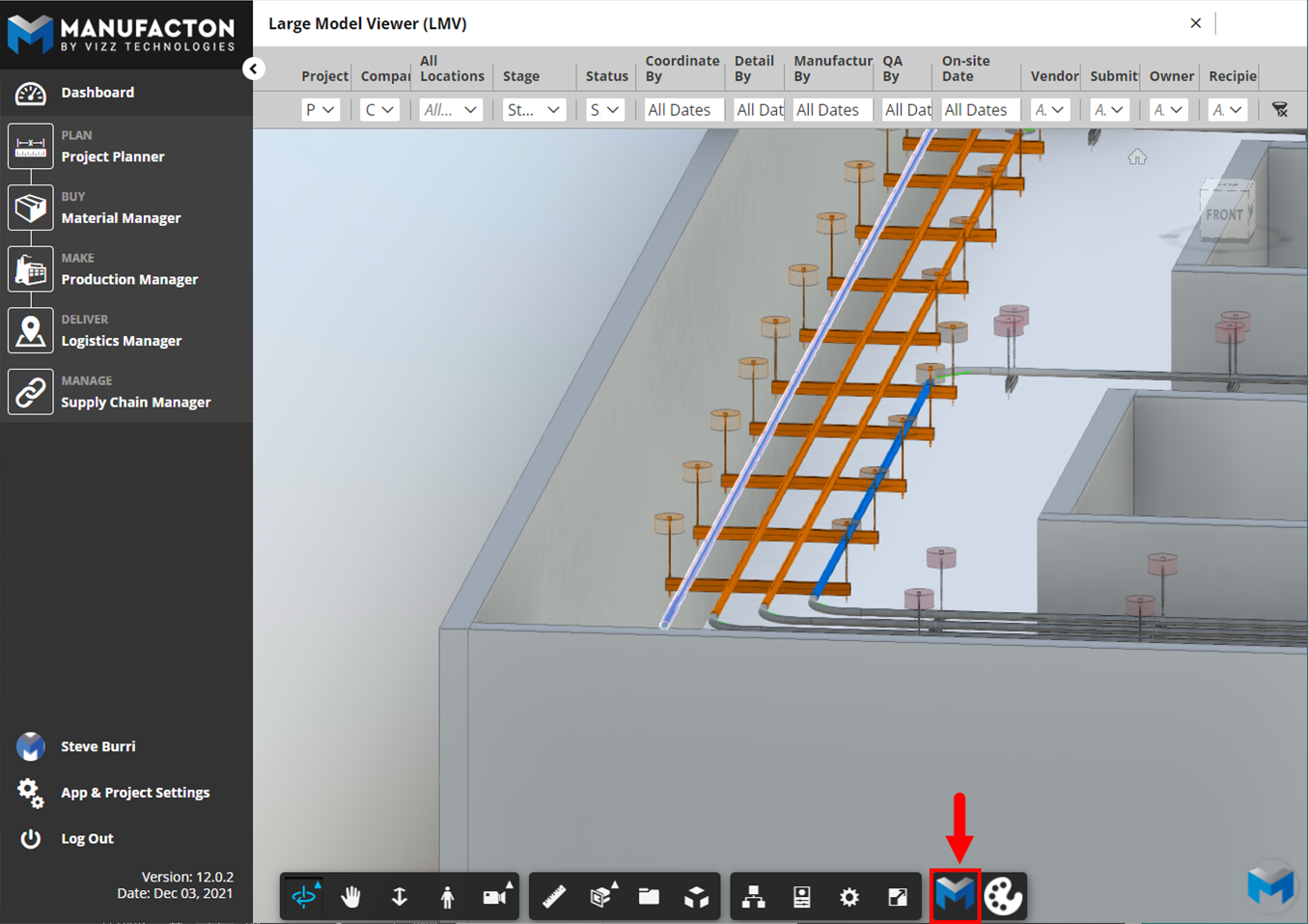
Manufacton related items vs. whole model view
By default, the Large Model Viewer will grey-out and make transparent all model objects which are not associated to Manufacton items.
To show the whole model, the Manufacton logo icon next to the color palette in the Large Model Viewer's toolbar can be toggled off and on.
Object Status
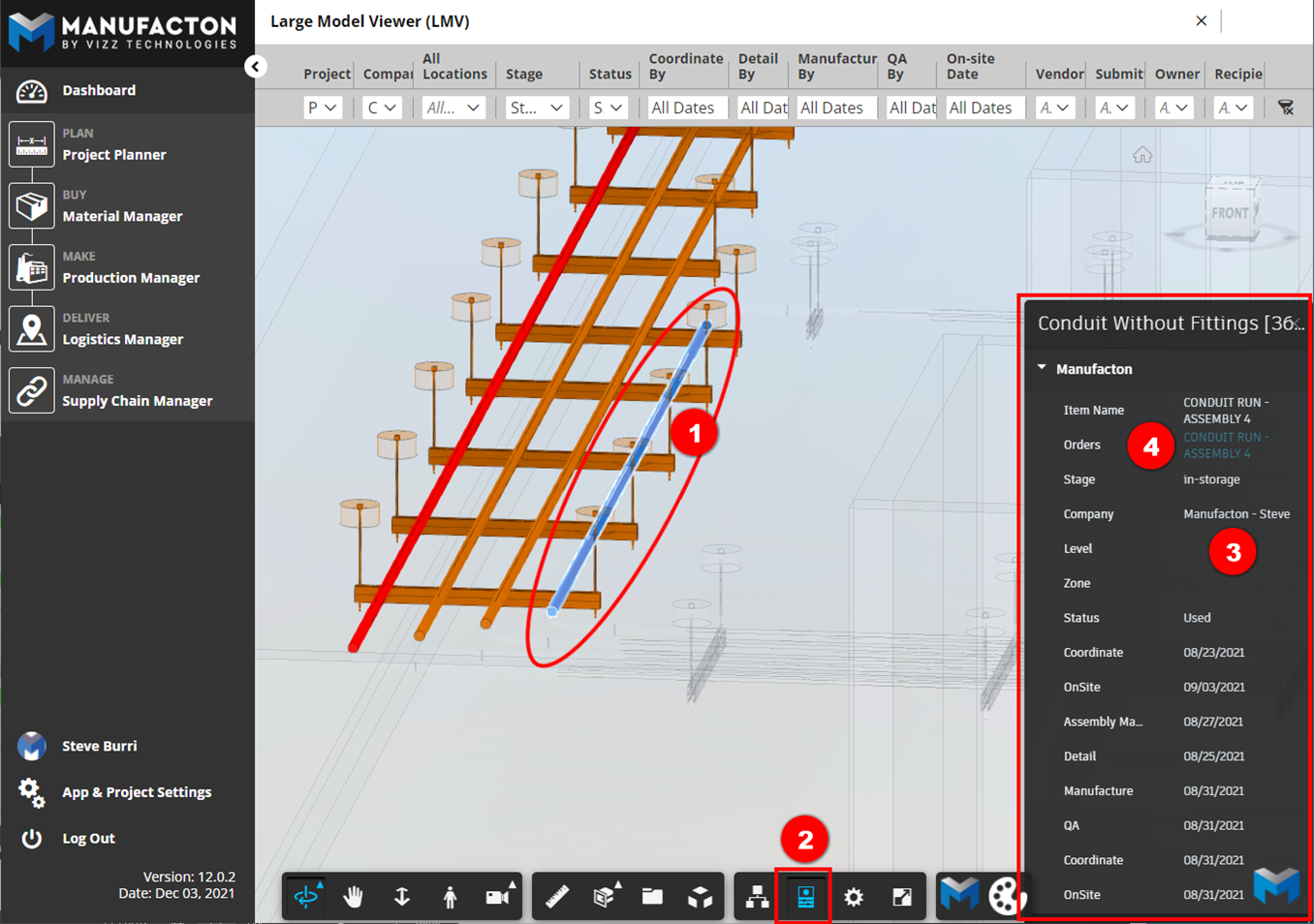
For those objects which are associated with Manufacton items, the status of that object can be revealed:
- Select any Manufacton associated MODEL object
- Select the Properties tool in the Large Model Viewer's toolbar
- Review the stage and other information within the Properties dialog box
- Select on the blue hyperlinked Order name to open that order in Manufacton
Document Browser
If the default view chosen by the Large Model Viewer is not exactly what you need, the Document Browser tool can be used to change the view.
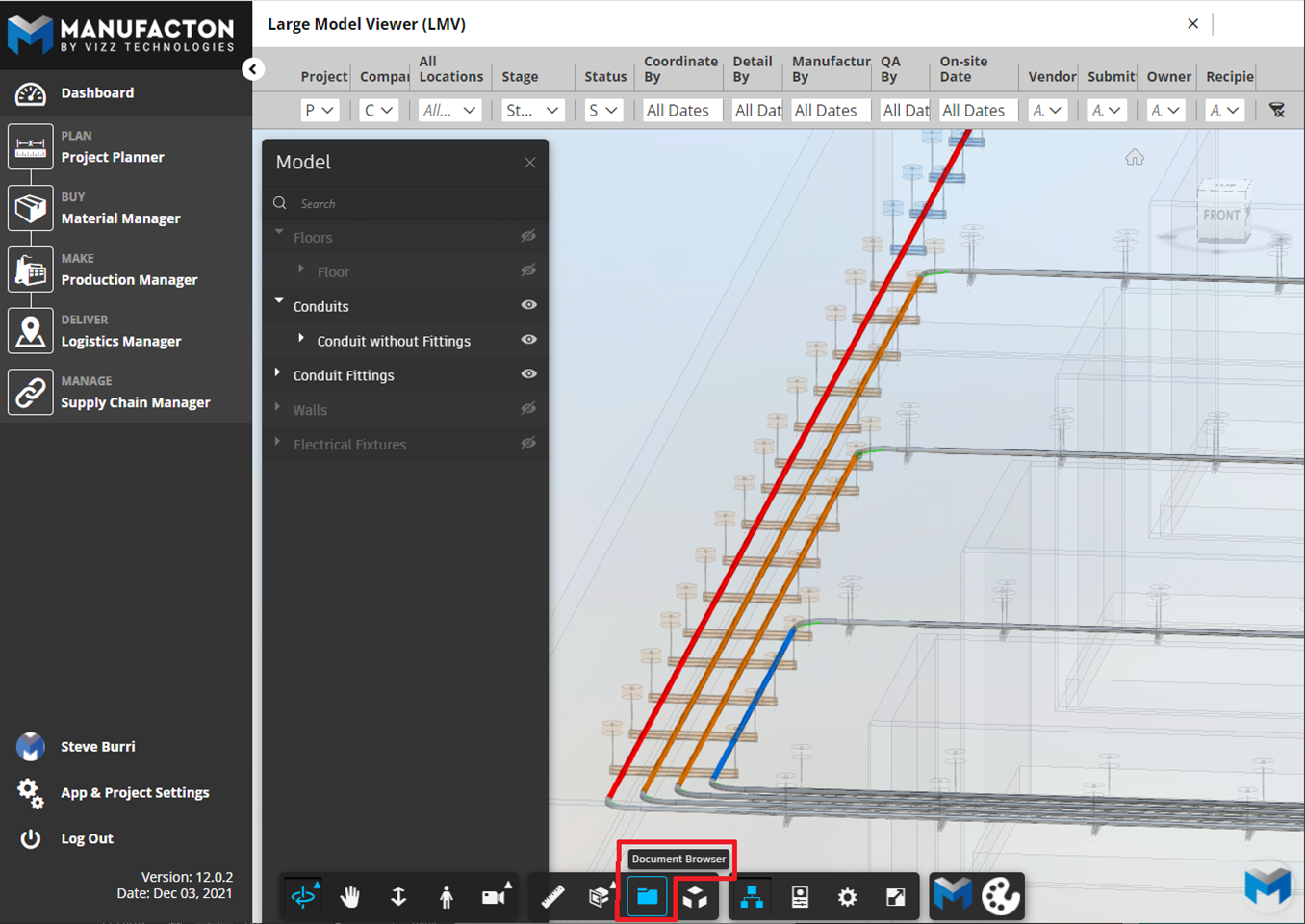
This includes access to production sheets within the model:
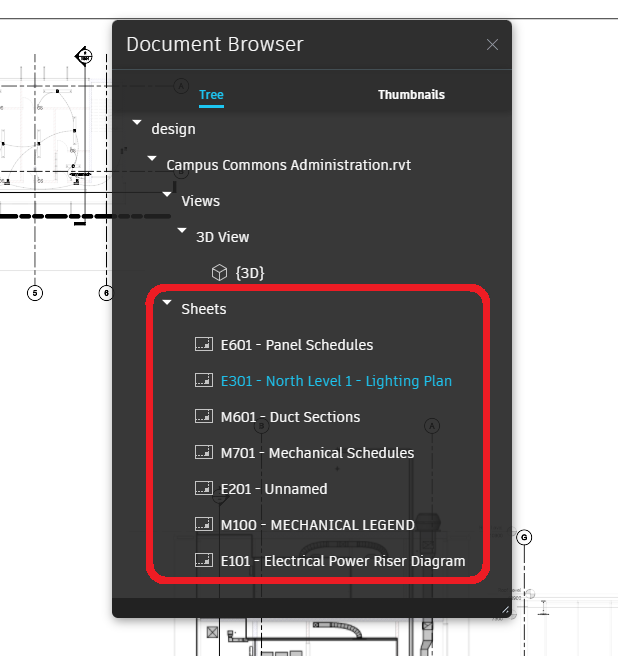
Please note that only those Views and Sheets that have been included in a Published Set from within the Revit Model can be accessed in the Large Model Viewer. Collaboration sets can be managed by:
- Selecting Collaborate from the Revit main menu
- Selecting Publish Settings
- Selecting or creating Set(s) to publish
- Selecting or modifying views and/or sheets to include in the set
For additional functions and tools available to the Manufacton Large Model Viewer, see the View and Filter Models help article in Autodesk's knowledge base.
Take a look at a quick (~4 min) video on this topic:
Comments
0 comments
Please sign in to leave a comment.