Summary
Manufacton automates QR Labeling, which is a very modern and powerful way to tag objects. For Production Items and orders, Material items and orders, Shipments and Inventory, Manufacton allows you to label everything in your supply chain and leverage those QRs via web scanners and mobile devices to quickly access, open and take action on everything managed within the system.
Manufacton recognized that both branding and customization of what is displayed on labels is important.
This FAQ covers how QR labels can be branded and customized to meet your needs.
Customizing
Administrators can access and update your company's QR label by selecting:
- App & Project Setup
- Manufacton Settings
- QR Labels
- Edit
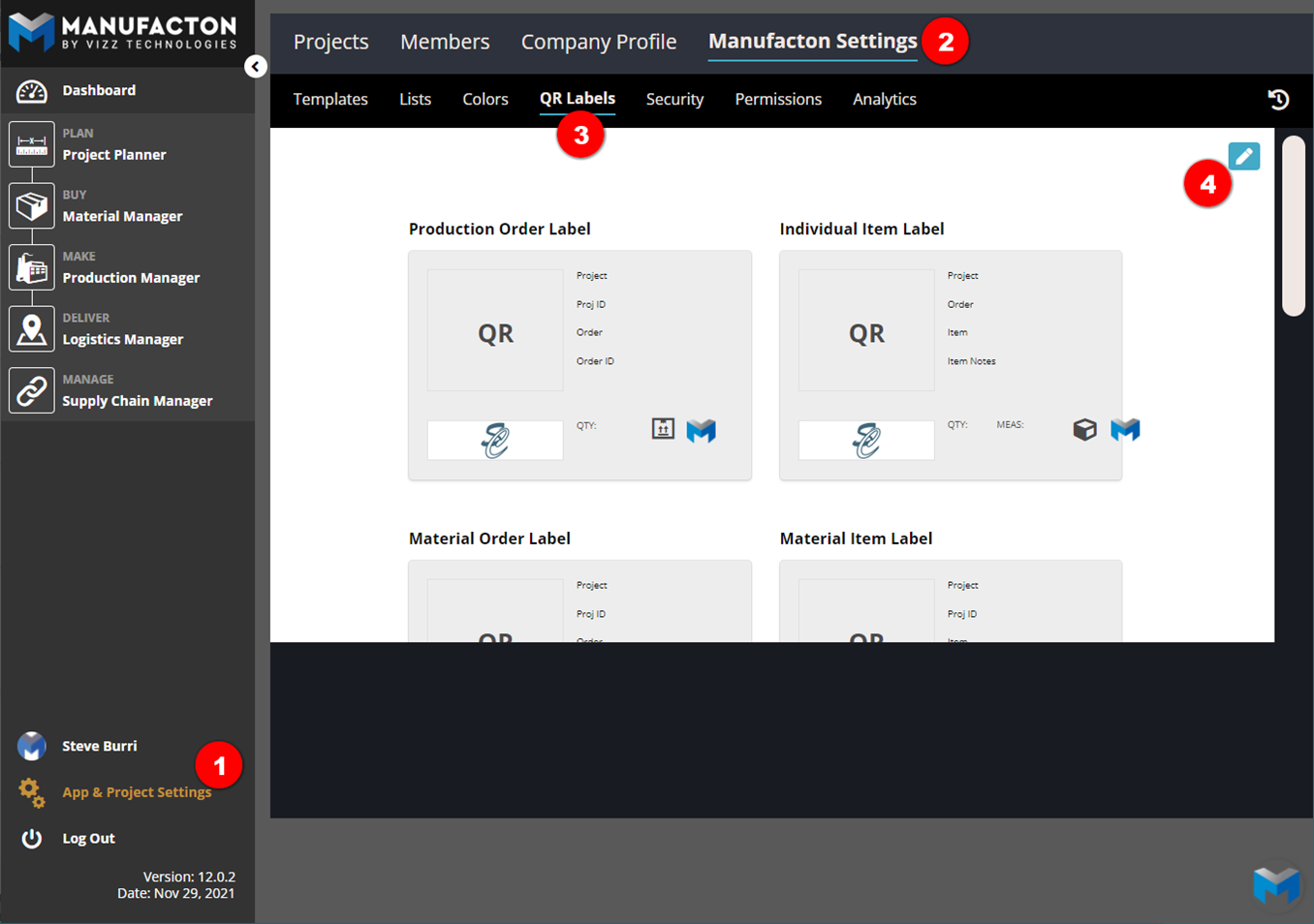
Once you are in edit mode, both the branding and field customizations for all of the QRs can be managed.
Branding
- A .png file of your company logo can be uploaded into the QR label by selecting "Add Image" in the Production Order Label
Note that the image has some very specific requirements. It must be:
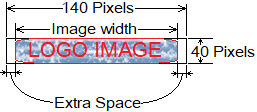
- Exactly 140x40 pixels
- A .png file
- A 32-bit file
Generally, sizing your logo to 140x40 is not too difficult. Best practice is to resize the image's height to 40 pixels with the original aspect ratio, and then, if the width is less than 140 pixels, add white space on either side of the image until the overall width is 140 pixels:
Getting a .png file with a 32bit color depth can be a bit of a challenge depending on what type of image editor you are using.
Manufacton has leveraged this free, on-line image converter into which you can copy and paste your image, and then save out and download a .png file which has the required 32bit color depth - miniPaint
Note:  If you would like help formatting your logo, please send it to
support@manufacton.com with a note that you would like it customized for
QR Labeling.  We'll get it to the the right size and format and send it back.
Customizing
Once your logo is uploaded into the system, each type of QR label can be customized to show exactly what you want it to show.
Each type has a variety of fields available to show and plenty of spaces have been allotted to show multiple fields on each type of QR. If fewer than the allotted number of fields is desired to show, the option to "Hide Field" is available.
The Individual Item Label for Production Orders can include Item level notes to be included on the label. For long notes, only the first ~55 characters will be shown.
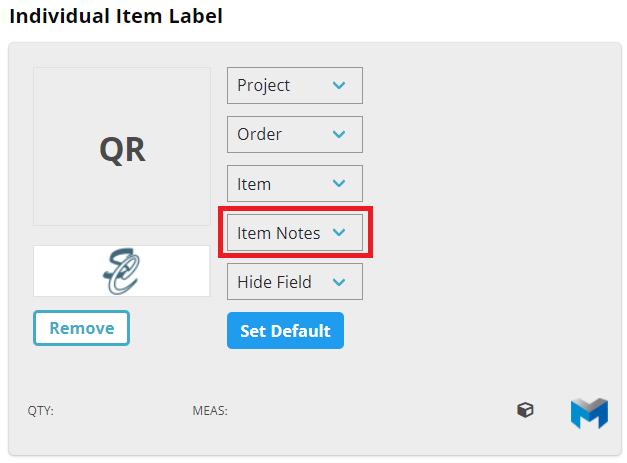
Once all of the QR Labels have been customized, don't forget to hit the save button in the upper right (where the edit/pencil icon was at the beginning of the process).
For a comprehensive overview on Administering Manufacton, including QR customization, please watch this video:
Comments
0 comments
Please sign in to leave a comment.