Overview
Have you ever created a shipping order, and then wanted to split that order into multiple, staged shipments?
Conversely, have you ever received a shipment that did not contain everything that it should have?
In both cases, shipments that have multiple deliveries will show the number of deliveries in the Delivs column. Shipments that have multiple deliveries with different statuses will be shown as Mixed.
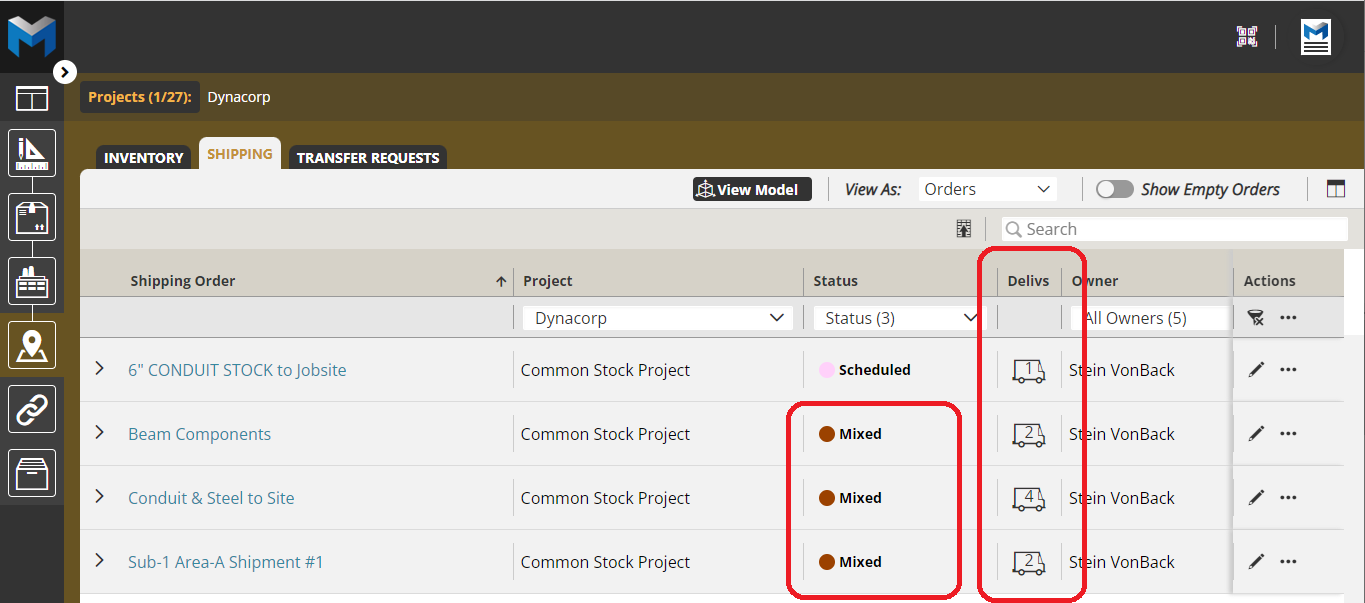
Creating New Partial Shipments
After you complete creating any Shipping Order, you can split the deliveries for that order into multiple deliveries.
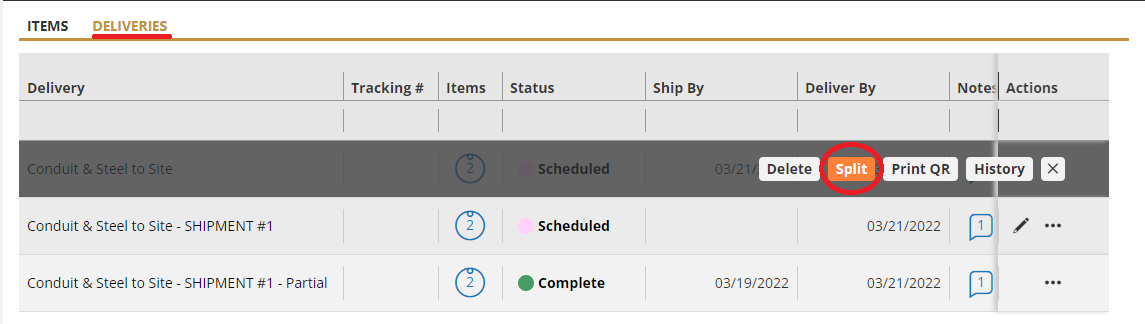
Managing Shipments
Splitting Shipment
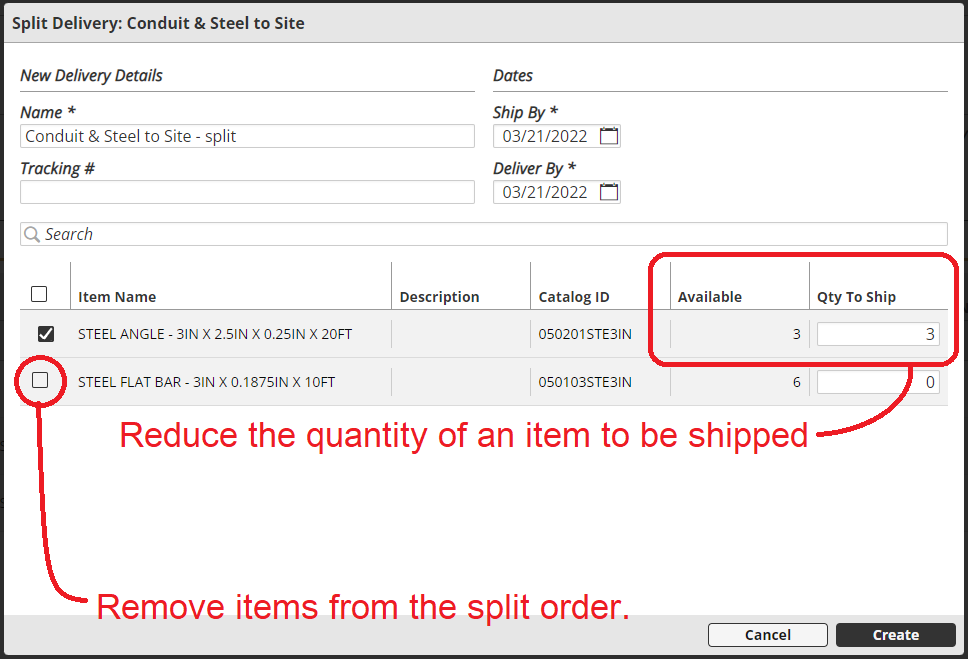
Once you've created the shipment and are managing the order, you can split items and/or decrement the quantity of items in the delivery, moving those items into the newly created delivery.
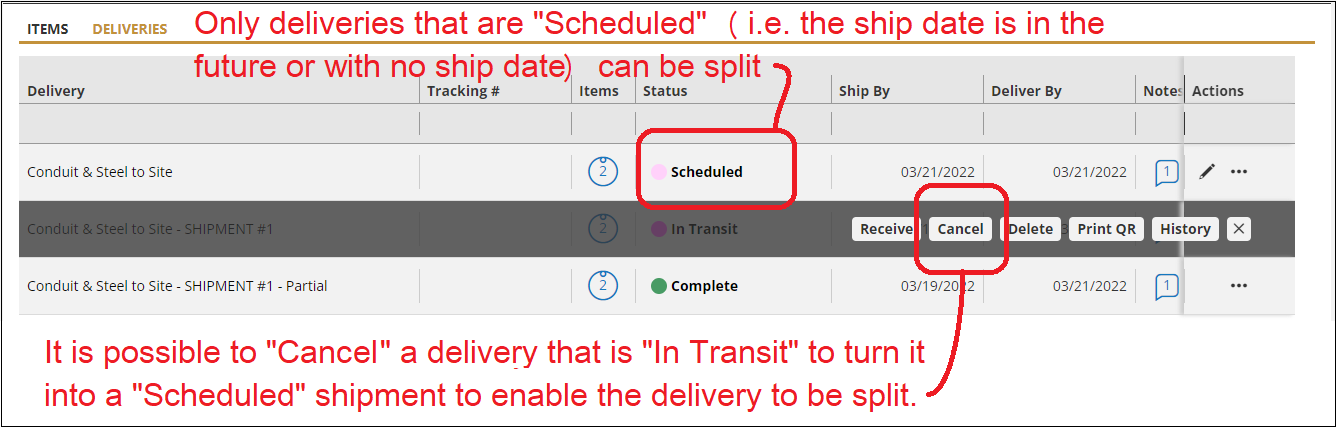
Note: Only deliveries which are listed as "Scheduled" can be edited.
      It is possible to "Cancel" an "In Transit" order to allow it to be edited.
Once items have been split into a new delivery, the original delivery remains and can continue to be split or scheduled.
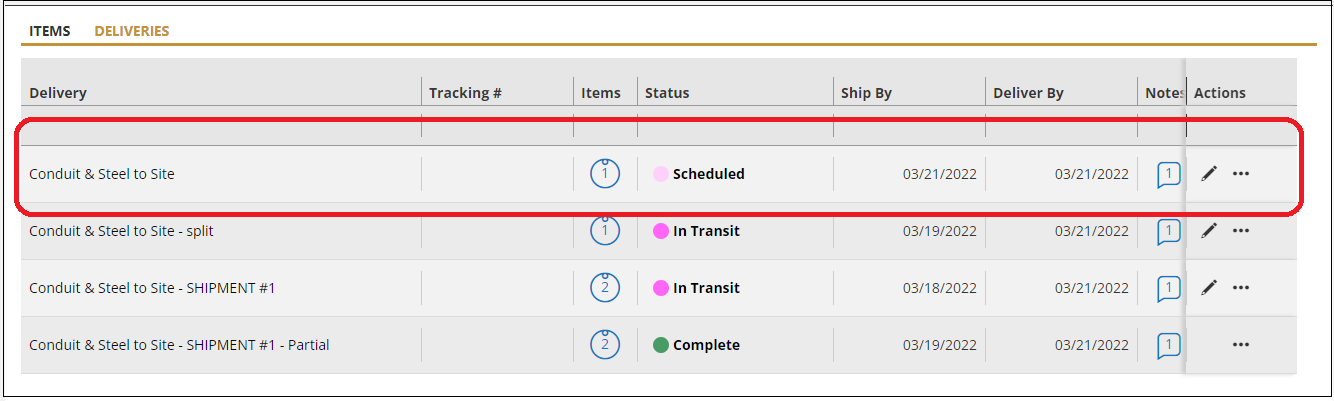
Note: If items or quantities of items are removed from a delivery that is "Scheduled",
      those items are moved back to where they originated.
Adding to shipment
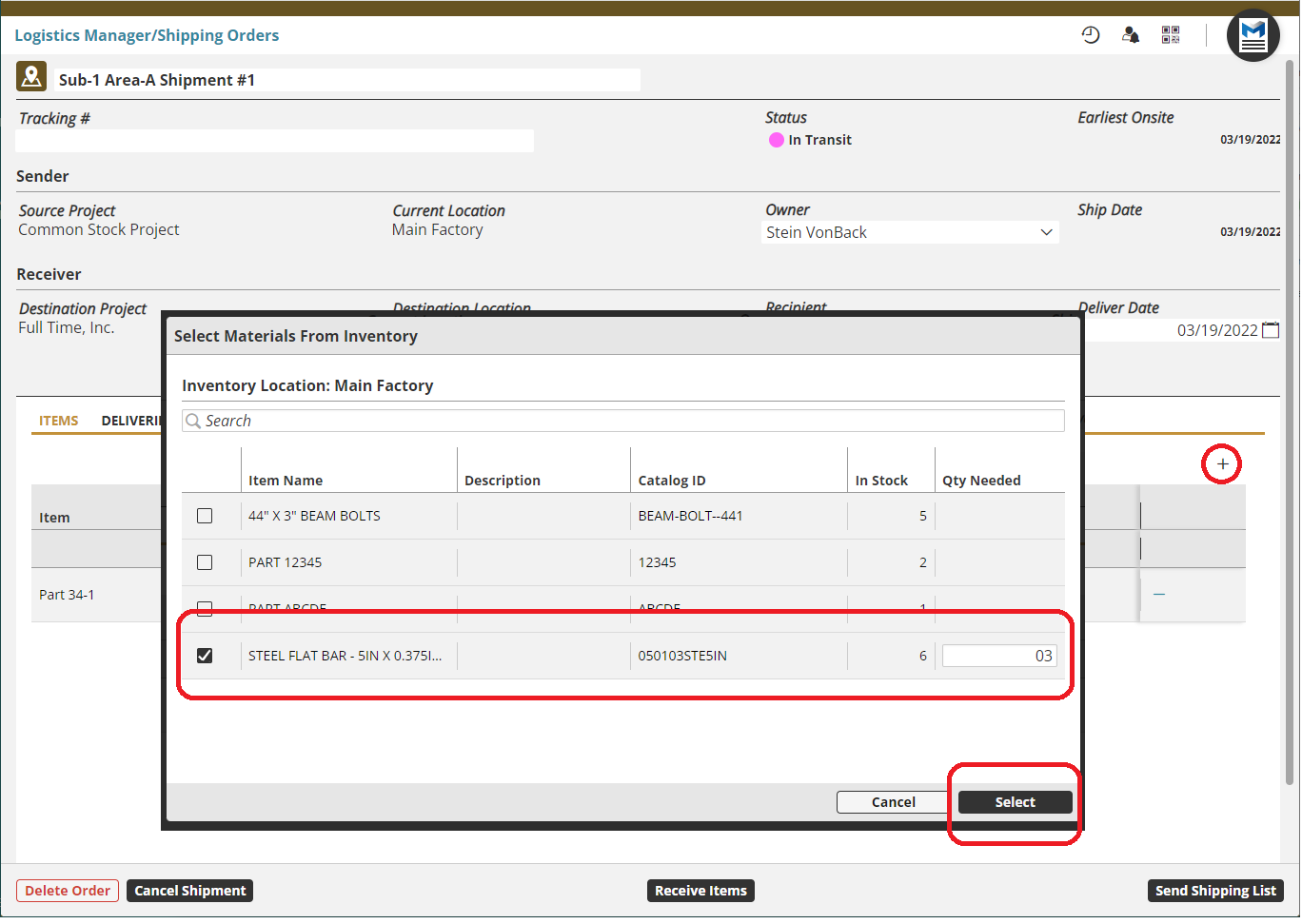
Existing Shipping orders can have additional items added to them. Opening any Scheduled or In Transit shipping orders allows you to add additional items to the shipment:
- Items available in existing Material Orders in the Ordering Stage can be added.
- Items available in the inventory location from which the order is being shipped can be added
- Both Production and Material Orders can be added to a Shipping Order from Inventory.
- New items, created in a New Material Order or added to an existing Material Order can be added.
Partially Receiving a Shipment
Regardless of how a shipment is created, if, during the receiving process, only a portion of the items or partial quantities of items are received, that delivery can be split into two deliveries, using the process documented above, allowing the items which are on the truck to be received and those which will be delivered at another time to be rescheduled.
Note:  Removing items or quantities of items while receving them does not create a
       new partial delivery!

     Those items are considered permanently lost or damaged,
     marked as Under Delivered, and CANNOT BE INCLUDED in future
     deliveries.
Receiving Damaged/Permanently Missing Items
During the receipt of items, if there are damaged items or items deemed permanently missing, it is possible to remove them from the receipt and mark them permanently "Under Delivered":
- Begin the Receive Shipment of the delivery
- Reduce the quantity of the item which is damaged or permanently lost and/or
- Uncheck the item which is damaged or permanently lost
- Indicate the Issue with the item(s)
- Select Receive
- Those items will be permanently moved to a delivery row entitled [Under Delivered Items]
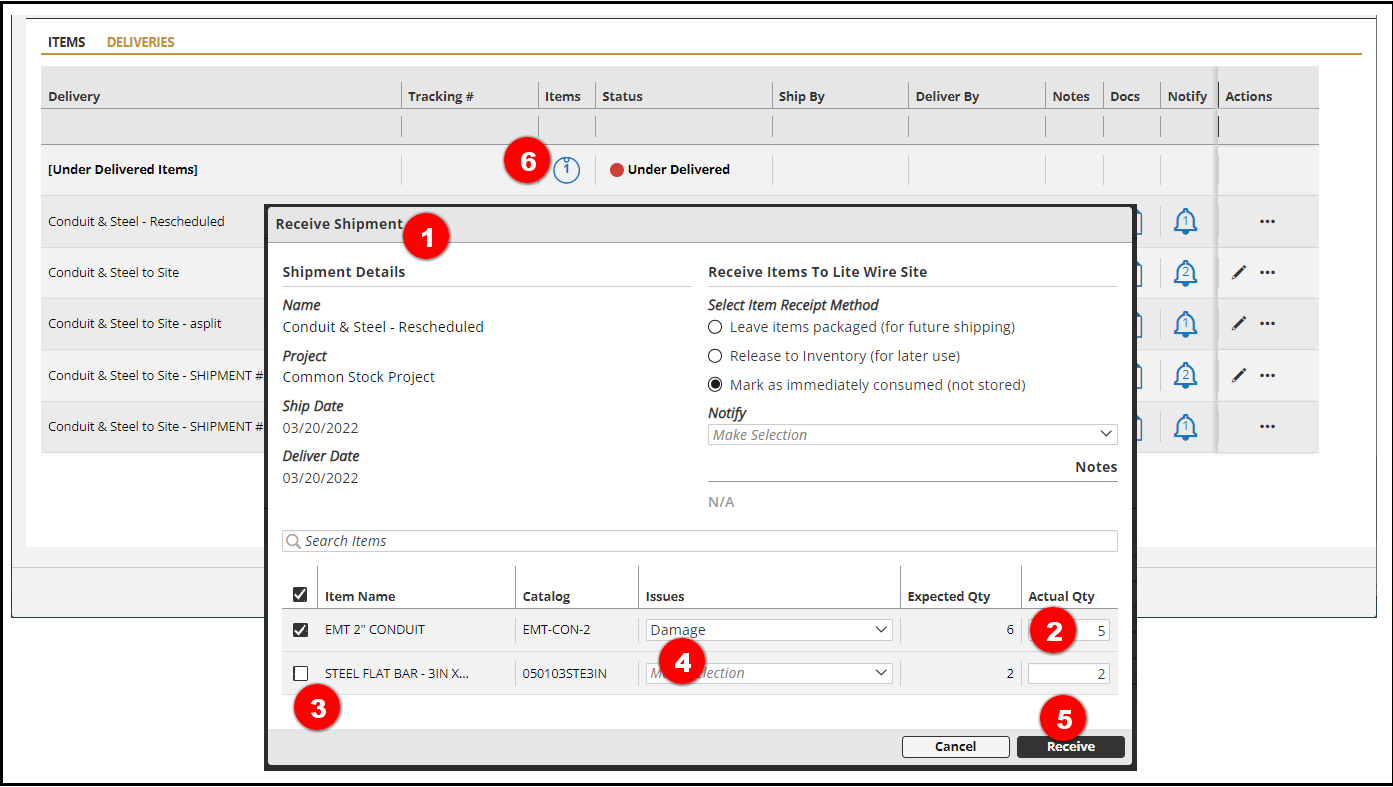
Note: It is not possible to take any further action on items in the
      [Under Delivered Items] row.

      THIS PROCESS CANNOT BE UNDONE
Receiving Deliveries within Shipments with Multiple Deliveries
For Shipments which have more than one delivery associated with it, the overall shipment cannot be received, each delivery must be received independently. The ship and delivery dates must also be managed at the Delivery level.
Within a shipping order:
- Select the Deliveries sub-tab
- Select Bulk Actions > Receive Deliveries to receive all or multiple deliveries at one time
- If only one delivery is to be received, select the ellipse (three dot menu) next to the “In Transit” order to be received
- Then select “Receive”
- To update the name and/or dates of a delivery, select the edit pencil next to the delivery
Here's a quick video on how this process works: Creating / Managing and Receiving Partial Shipments:
Comments
0 comments
Please sign in to leave a comment.